| 1. Introductions
Title:Main Menu Commands  
Help Meister is an online application to add help to any online application. Click the Help Meister Home Page link for an overview, features, and a demo tutorial.
The main menu command buttons appear atop every Help Meister page and form. Clicking on any of the buttons brings up a page with more help on that function. Summarizing the commands, left to right:
Keywords presents alphabetized keywords like the index at the back of a textbook. Clicking a keyword, or a sub-keyword underneath it, displays the help records associated with that keyword.
Search is the command to search for help based on text contained in the help record.
Manual displays the view similar to paper help manuals. This is also the default view when first entering Help Meister from an admin standpoint. The printing functions and the Table of Contents are along the left, and the help records are listed in the middle.
Preferences are where you select the type of help to be your default. Depending on how this was set up, your preference choices can include language, job type, proficiency, etc.
Admin (visible only with admin priveledges) allows you to add new help records and see Help Meister reports.
Logout is how you log out of Help Meister. You don't need to do this when you finish with Help Meister. Most people just close the browser instance. You log out in those rare instances when you want to leave nothing on the computer you are using regarding Help Meister and the cookies you would use to automatically load your preferences.
|
| | 2. Keywords
Title:Keywords
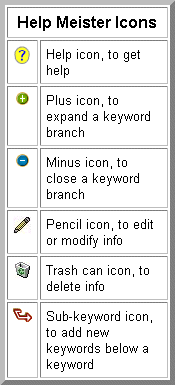 Keywords presents alphabetized keywords like the index at the back of a textbook. Use the plus icon (picture at right) to expand a keyword into sub-keywords, or the minus icon to collapse a keyword branch. Keywords presents alphabetized keywords like the index at the back of a textbook. Use the plus icon (picture at right) to expand a keyword into sub-keywords, or the minus icon to collapse a keyword branch.
Clicking a keyword, or a sub-keyword underneath it, displays the help records associated with that keyword.
If you have sys admin priveledges, you can add, edit, and delete the keywords using the icons shown in the top-right picture.
You can edit existing keyword names with the pencil icon or delete them with the trash can.
Click the sub-keyword icon to add a new keyword in the level below the keyword with the icon. The sub-keyword icon next to "Root" at the top allows you to add a root keyword or category.
Note that all keywords and sub-keywords are alphabetized.
|
| | 3. Search
Title:Search
Search is the command to search for help based on text contained in the help record. It is also a convenient way to list every help record in Help Meister.
To do a text search, begin by typing the word(s) of interest in the first entry field. No need to set them off with quotes or to separate them with commas.
After the "Result contains" is a picklist with values "all" and "any" (default). This is how you specify whether you want matches to all or any of the words you typed in the first entry field. If you typed "fiber optic", for example, and received too many matches to either "fiber" or "optic", then change the "any" to "and" and you will see only help records containing both "fiber" and "optic".
The "Sort" picklist allows you the specify the search results to be sorted either "descending" or "ascending" (the default: 1,2,3,...a,b,c...), and "by relevancy", "by the alphabet", or "by ID". The relevancy sort lists first the help record that is the best fit to the words you entered, typically because it contained the search words several times. The "by alphabet" just lists the help records alphabetically by their help title. The "by ID" lists the help records sorted by the unique ID assigned by Help Meister. This last option is most useful to sys admins.
You can use the "Return max" picklist to specify how many help records you wish to display, for example, only the best 10 matches. You can also request "all" matches to display.
Not really a search, checking "Return all records" disregards any search text and displays a complete list of all help titles (sorted as requested).
Clicking the "Submit" button produces the search results, presented in a columnar list to the right of the search conditions described above. The list presents the number of matches, and then the titles of the matching help records. Clicking any help title displays the complete help record.
|
| | 4. Manual
Title:Help Manual
 The Help Manual displays the view similar to paper help manuals. This is also the default view when first entering Help Meister from an admin standpoint. The printing functions and the Table of Contents are along the left, and the help records are listed in the middle. The Help Manual displays the view similar to paper help manuals. This is also the default view when first entering Help Meister from an admin standpoint. The printing functions and the Table of Contents are along the left, and the help records are listed in the middle.
These are frame-based pages. The large page panel on the bottom-right is the body of the Help Manual. It lists the help records with the icons (top-right picture) to the right of each help title. The info icon (asterisk in circle) brings up the view that users get in Help Meister's pop-up window. The pencil and trash can icons (sys admin only) brings up the form to edit the help record or the confirmation to delete it.
To jump to a particular section in the Help Manual, you can click the section name in the Table of Contents in the left panel. To add, edit, or delete Table of Content sections, click the "Update" button in its panel.
To print a paper copy of the Help Manual, begin by selecting the From/To picklists in the left panel. Its default is the range of the entire Help Manual. Use the picklist to restrict the range and save paper if you need only some of the Help Manual. This is the approach to take if you only want to replace some updated pages.
Click the "Print" button to display a version of the Help Manual that is easy to print. Use its help icon for more printing tips.
|
Title:Help Manual Chooser / Document Chooser
Help Manual Chooser / Document Chooser
|
| 4.1. Print
Title:Printing the Manual
This is a version of the Help manual that is easy to print. We have removed the frames and tables that can produce unpredicatble results with different browsers and printers.
Note that the printable version contains only the From/To ranges specified imn the previous page's picklists.
To print this, use your browser's printing capabilities.
|
| | 4.2. Table of Contents
Title:Table of Contents
The "Update" button (sys admin users only) by the Table of Contents presents ways to edit the sections that display along the left panel of the Manual view.
You can edit existing section names with the pencil icon or delete them with the trash can icon (see picture at right).
Click the subsection icon to add a new section in the level below the section with the icon. The subsection icon next to "Root" at the top allows you to add a root section.
Note that sections are not alphabetized. The add and edit forms require a (sub)section number to position the (sub)section. Adding a "Field Definitions" subsection to a section "2. Edit Company", for example, you could indicate subsection 4, making the addition "2.4. Field Definitions" (listed just below subsection 2.3, which in turn is under section 2).
If the specified subsection is left blank, it will be assigned the next available in the sequence. If it is specified as a duplicate (a subsection number that already exists), the addition will be aborted with an error message.
| Record Located: | Table of Contents
|
|
| | 4.3. Data View
Title:Data View
This is the data view of the help record. It pops up when the displayed Help Meister record is invoked from the source website or application.
The Type and Cross-Type of the help record are shown at the bottom. If you set your preferences for Verbose English, for example, and the help record is shown as the default Standard English, the most likely cause is that no one wrote a Verbose English version of the help recorcd. Usually, this is because the default version applies to other versions as well.
The "Edit" and "Delete" buttons at the bottom are available for sys admin users only.
|
| | 4.4. Edit Help
Title:Editing Help
This is the form to edit an existing help record, which you can only do if you have a Security Level of "admin".
You can list the help under keywords with its "Add" button. Besides the help text, you can add a help image or picture, and links to additional help URLs. You can also produce different versions or types of help for different users of your application.
Click on a blue field name to see help pertaining to just that field.
|
| 4.4.1. Field Definitions
Title:Alt
Alt is an HTML tag that pops up a short text string when the mouse pointer is over the link to the Help Meister record.
Many times it's just a concatenation of "Help with " and the value in "Title" if the link is to help with the field. If it is a link from a help icon, it often indicates that this provides help with the entire subject page.
| Record Located: | Add Help
Edit Help
|
|
Title:Alternate Help
Different users may need different help. Please link to the "More Help" link to "Help for Preferences" for examples and how Help Meister deals with it.
Each alternate help record gets its own text (of course) and its own image and more help links. You will see fields to enter those after you select the type and cross-type from the picklists and click the "Add" button to the right of them.
Before you begin, make sure your sys admin has set up the help types and cross-types (in the 2 picklists) you want (or decided to keep what Help Meister came with).
|
Title:Alternate Help Text
Enter the text of the help you wish to present when a user requests help matching the type and cross-type of this alternate.
|
Title:Comments
These are comments or notes attached to a help record by the person who enters or maintains the help record.
This can be rationale as to why users are instructed to enter field values a certain way. It can include a historical log of previous versions of help. It can refer to a management pronouncement about what help should say. It can be the field to enter any information about the help record that doesn't have another field.
users do not see the comments when they invoke the pop-up help that Help Meister provides.
| Record Located: | Add Help
Edit Help
|
|
Title:Help ID
Because a help record in Help Meister can have the same name as another help record, we use a Help ID as a unique integer to identify each help record without the possibility of confusion.
It is assigned sequentially by Help Meister and you cannot change it. When requesting tech support, you will often be asked for it if the issue involves a particular help record.
| Record Located: | Data View
Edit Help
|
|
Title:Help Image
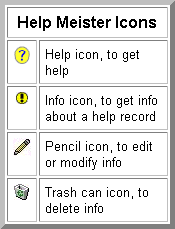 You may add an image to support a help record. This can be a picture, a diagram, or any other graphic in a format a browser can display, typically a gif or jpg file, as per the example to the right. You may add an image to support a help record. This can be a picture, a diagram, or any other graphic in a format a browser can display, typically a gif or jpg file, as per the example to the right.
In the "Image" field type the complete URL address to the image file. This is typically on the server that hosts the application, often a graphic used for another purpose already.
When the help is displayed to the user, the image is presented in the top-right of the help text (so you can refer to it there in your help text).
If you wish to present several images, combine them into one image with your graphic editor. Stack them vertically since pop-up help is often set to be a small window but scrollable up-down. In the example to the right, we present images of icons in a single graphic we captured from a table of icons.
If you must use more than one image, or if you need to use a large image that would otherwise overpower the help text, add "More Help" links to as many of those images as you wish.
| Record Located: | Add Help
Add Help (Alternate Image)
Edit Help
|
|
Title:Help Located
Use this field to remind you where the help is invoked from, which can be several pages or forms.
This is an internal or sys admin field, particularly in reports (see Admin menu command), that helps insure that you can trace where the help is requested.
Help Meister insures that help information consistently conveys the same company policy because the same help record can be invoked from several sources. This is superior to manually produced help which is embedded in a page and sometimes forgotten, only to evolve into several conflicting help versions depending on whether the user is on the add or edit form, for example.
| Record Located: | Add Help
Edit Help
|
|
Title:Help Text
Enter the text of the help you wish to present as the default help.
Help Meister has the ability to present different types of help, based on the user's interests and abilities (see the Alternate Help below).
If users set a preference for a different type of help than the default, but that help type has not been entered for that help record (using the "Alternate Help" below), then they will see this default text.
| Record Located: | Add Help
Edit Help
|
|
Title:Keywords to Add to Help
The "Add" button under "Keywords" is how you can associate keywords with this help record. Read the help on the "Keyword" page you see next for more info on this.
The key is to either anticipate where users may look for the help record in an alphabetized index, or to add the keywords after users get confused and you wish to make sure the help is listed under keywords where they should have looked.
| Record Located: | Add Help
Edit Help
|
|
Title:Link To Paste
The "Link To Paste" is the HTML tags to put as the help link on your website to Help Meister.
You do this once and you can update the help in Help Meister from then on - it will present the updated help pop-up. Help Meister will also manage the preferences to display the correct type of help for your users.
Use the "Test" button to see how the help will appear when invoked in your website. The "Copy" button puts the contents of the "Link To Paste" field into your clipboard to speed using it in your website editing software.
Webmasters who are comfortable with HTML may paste and then edit the tags. Test your version and if there is a problem, return to the version in Help Meister's "Link To Paste" field.
A common change is to replace the text of the help title with a graphic image when a help icon is used instead of a text link (from a form field label).
| Record Located: | Add Help
Edit Help
|
|
Title:Link Type
The Link Type picklist provides several packaged types of pop-up help. Select the one that integrates best for your application. Use the "Test" button next to the "Link to Paste" entry to see how different Link Type choices will appear for the help record.
Note that you can pick one type for a verbose help pop-up and another for one that is abbreviated.
| Record Located: | Add Help
Edit Help
|
|
Title:Manual Sections
Use the Manual Sections picklist to include the help record in one or more (sub)sections of the Help Manual. That is the view you see when you click the "Manual" button on the main command menu bar, and those sections compose the printed Help Manual.
To select several values in a multiple-choice picklist like this, click your first choice as usual. To add subsequent values, hold down the Ctrl key (on a PC running Windows) while clicking your selections to add. Other operating systems have other keys to hold while adding selections, like the four-leaf function key on a Mac. Experiment until you find this key because it will work the same way on all multiple-choice picklists on all websites.
The "Add" button below the "Manual Sections" name is to add more (sub)sections to those already listed in the picklist. Clicking it is the same as clicking the "Update" button atop the Table of Contents in the Manual view.
| Record Located: | Add Help
Edit Help
|
|
Title:More Help Links
Sometimes you need to refer users to more help than what is appropriate for a pop-up help window. With the entries to "More Help", you can add as many links as you wish to such additional help.
This can be to a link to a section on a web page in an online Employee Manual requiring users to enter certain fields verified, such as their timecards. It can be to a spreadsheet that helps calculate a value to use in an entry field. It can be to more support images. It can be to another Help Meister help record (as in the "More Help example link below) that is often useful to understand the subject help record. This last option is also useful if you have a few sentences of help text that need to be added to several Help Meister records -- you enter it once, and then link to it from as many help records as you wish.
The approach is to enter the link's name after "Page name" (ex: Timecard Policy in Employee Manual) and the URL address after "and page URL" (ex: http://www.bizware.com/empmanual.htm#Timecards).
Pressing the "Add" button to the right of all that adds it to a "More Help" list. You can test it by clicking on its name. Do that to make sure the link you entered is viable. Delete it with the trash can icon if it is no longer useful.
See the example below of a "More Help" entry added to this help record.
|
Title:Title
This is the title of the help record.
Type text that will clarify the help record. "Company Address", for example, is better than just "Address", even if the field name is "Address" (and understood there to relate to company).
Type text that will alphabetize well on lists of help records (ex: search results). "Company Name" instead of "The Company Name".
| Record Located: | Add Help
Edit Help
|
|
|
|
| | 5. Preferences
Title:Preferences
Different people need differentg kinds of help. This is where you select the type of help best suited to you and what you do.
You can select a type and cross-type for the help you wish. Your administrator has selected a default type and cross-type for your organization. If you are unsure what to do, use the radio buttons to select (or keep) these defaults.
If you change the type and cross-type and still see the default help type and cross-type, that means that no one has entered help for that type and cross-type. This is usually because the default help is appropriate even for the specialized type and cross-type you selected. You may keep this preference and when the specialized type/cross-type help is available, you will see it (otherwise, you see the default).
Beginning users often select one help type and cross-type (ex: verbose, with lots of explanations), and then another after they grow proficient (ex: abbreviated, just quick reminders).
|
| | 6. Admin
Title:Admin
The Admin command button and the sub-menu commands it displays are available only to users with a Security Level of "admin".
The two sub-menu commands are "Add Help", which loads by default, and "Reports". The former guides you through the process of adding new help records, and reports give you a list of all help records to help with maintenance.
Click on these sub-menu options, and read the details about them using their help icons.
|
Title:Admin Sub-Menu
| 6.1. Add Help
Title:Adding Help
This is the form to add a new help record, which you can only do if you have a Security Level of "admin".
You can list the help under keywords with its "Add" button. Besides the help text, you can add a help image or picture, and links to additional help URLs. You can also produce different versions or types of help for different users of your application.
Click on a blue field name to see help pertaining to just that field.
When finished, click on the "Copy" button to produce the HTML tags you will need in the "Link to Paste" field, which also places the tags in your clipboard, ready to use with your HTML editor.
|
| 6.1.1. Field Definitions
Title:Alt
Alt is an HTML tag that pops up a short text string when the mouse pointer is over the link to the Help Meister record.
Many times it's just a concatenation of "Help with " and the value in "Title" if the link is to help with the field. If it is a link from a help icon, it often indicates that this provides help with the entire subject page.
| Record Located: | Add Help
Edit Help
|
|
Title:Alternate Help
Different users may need different help. Please link to the "More Help" link to "Help for Preferences" for examples and how Help Meister deals with it.
Each alternate help record gets its own text (of course) and its own image and more help links. You will see fields to enter those after you select the type and cross-type from the picklists and click the "Add" button to the right of them.
Before you begin, make sure your sys admin has set up the help types and cross-types (in the 2 picklists) you want (or decided to keep what Help Meister came with).
|
Title:Comments
These are comments or notes attached to a help record by the person who enters or maintains the help record.
This can be rationale as to why users are instructed to enter field values a certain way. It can include a historical log of previous versions of help. It can refer to a management pronouncement about what help should say. It can be the field to enter any information about the help record that doesn't have another field.
users do not see the comments when they invoke the pop-up help that Help Meister provides.
| Record Located: | Add Help
Edit Help
|
|
Title:Help ID
Because a help record in Help Meister can have the same name as another help record, we use a Help ID as a unique integer to identify each help record without the possibility of confusion.
It is assigned sequentially by Help Meister and you cannot change it. When requesting tech support, you will often be asked for it if the issue involves a particular help record.
| Record Located: | Data View
Edit Help
|
|
Title:Help Image
You may add an image to support a help record. This can be a picture, a diagram, or any other graphic in a format a browser can display, typically a gif or jpg file, as per the example to the right.
In the "Image" field type the complete URL address to the image file. This is typically on the server that hosts the application, often a graphic used for another purpose already.
When the help is displayed to the user, the image is presented in the top-right of the help text (so you can refer to it there in your help text).
If you wish to present several images, combine them into one image with your graphic editor. Stack them vertically since pop-up help is often set to be a small window but scrollable up-down. In the example to the right, we present images of icons in a single graphic we captured from a table of icons.
If you must use more than one image, or if you need to use a large image that would otherwise overpower the help text, add "More Help" links to as many of those images as you wish.
| Record Located: | Add Help
Add Help (Alternate Image)
Edit Help
|
|
Title:Help Located
Use this field to remind you where the help is invoked from, which can be several pages or forms.
This is an internal or sys admin field, particularly in reports (see Admin menu command), that helps insure that you can trace where the help is requested.
Help Meister insures that help information consistently conveys the same company policy because the same help record can be invoked from several sources. This is superior to manually produced help which is embedded in a page and sometimes forgotten, only to evolve into several conflicting help versions depending on whether the user is on the add or edit form, for example.
| Record Located: | Add Help
Edit Help
|
|
Title:Help Text
Enter the text of the help you wish to present as the default help.
Help Meister has the ability to present different types of help, based on the user's interests and abilities (see the Alternate Help below).
If users set a preference for a different type of help than the default, but that help type has not been entered for that help record (using the "Alternate Help" below), then they will see this default text.
| Record Located: | Add Help
Edit Help
|
|
Title:Keywords to Add to Help
The "Add" button under "Keywords" is how you can associate keywords with this help record. Read the help on the "Keyword" page you see next for more info on this.
The key is to either anticipate where users may look for the help record in an alphabetized index, or to add the keywords after users get confused and you wish to make sure the help is listed under keywords where they should have looked.
| Record Located: | Add Help
Edit Help
|
|
Title:Link To Paste
The "Link To Paste" is the HTML tags to put as the help link on your website to Help Meister.
You do this once and you can update the help in Help Meister from then on - it will present the updated help pop-up. Help Meister will also manage the preferences to display the correct type of help for your users.
Use the "Test" button to see how the help will appear when invoked in your website. The "Copy" button puts the contents of the "Link To Paste" field into your clipboard to speed using it in your website editing software.
Webmasters who are comfortable with HTML may paste and then edit the tags. Test your version and if there is a problem, return to the version in Help Meister's "Link To Paste" field.
A common change is to replace the text of the help title with a graphic image when a help icon is used instead of a text link (from a form field label).
| Record Located: | Add Help
Edit Help
|
|
Title:Link Type
The Link Type picklist provides several packaged types of pop-up help. Select the one that integrates best for your application. Use the "Test" button next to the "Link to Paste" entry to see how different Link Type choices will appear for the help record.
Note that you can pick one type for a verbose help pop-up and another for one that is abbreviated.
| Record Located: | Add Help
Edit Help
|
|
Title:Manual Sections
Use the Manual Sections picklist to include the help record in one or more (sub)sections of the Help Manual. That is the view you see when you click the "Manual" button on the main command menu bar, and those sections compose the printed Help Manual.
To select several values in a multiple-choice picklist like this, click your first choice as usual. To add subsequent values, hold down the Ctrl key (on a PC running Windows) while clicking your selections to add. Other operating systems have other keys to hold while adding selections, like the four-leaf function key on a Mac. Experiment until you find this key because it will work the same way on all multiple-choice picklists on all websites.
The "Add" button below the "Manual Sections" name is to add more (sub)sections to those already listed in the picklist. Clicking it is the same as clicking the "Update" button atop the Table of Contents in the Manual view.
| Record Located: | Add Help
Edit Help
|
|
Title:More Help Links
Sometimes you need to refer users to more help than what is appropriate for a pop-up help window. With the entries to "More Help", you can add as many links as you wish to such additional help.
This can be to a link to a section on a web page in an online Employee Manual requiring users to enter certain fields verified, such as their timecards. It can be to a spreadsheet that helps calculate a value to use in an entry field. It can be to more support images. It can be to another Help Meister help record (as in the "More Help example link below) that is often useful to understand the subject help record. This last option is also useful if you have a few sentences of help text that need to be added to several Help Meister records -- you enter it once, and then link to it from as many help records as you wish.
The approach is to enter the link's name after "Page name" (ex: Timecard Policy in Employee Manual) and the URL address after "and page URL" (ex: http://www.bizware.com/empmanual.htm#Timecards).
Pressing the "Add" button to the right of all that adds it to a "More Help" list. You can test it by clicking on its name. Do that to make sure the link you entered is viable. Delete it with the trash can icon if it is no longer useful.
See the example below of a "More Help" entry added to this help record.
|
Title:Title
This is the title of the help record.
Type text that will clarify the help record. "Company Address", for example, is better than just "Address", even if the field name is "Address" (and understood there to relate to company).
Type text that will alphabetize well on lists of help records (ex: search results). "Company Name" instead of "The Company Name".
| Record Located: | Add Help
Edit Help
|
|
|
| | 6.2. Help Types
Title:Help Types
 Different users may need different help, for example, English or Spanish. Users may need different amounts of help over time, for example, the comlete explanation when first learning or just an abbreviated reminder after they become experienced. Alternate help is how to produce help tailored to the different needs of different users. Different users may need different help, for example, English or Spanish. Users may need different amounts of help over time, for example, the comlete explanation when first learning or just an abbreviated reminder after they become experienced. Alternate help is how to produce help tailored to the different needs of different users.
Help Meister allows you to select a "Type" and "Cross-Type" to label any help record. Help Meister arrives with help types:
* Abbreviated
* Standard
* Verbose
* System
and cross-types:
* English
* Spanish
This allows you to provide alternate help in any of those combinations, for example, Abbreviated English or Verbose Spanish.
Note that the "System" type is where you may wish to keep information about your website or online application that is suitable for developers and programmers. It can become your online "System Manual".
With sys admin priviledges, you can change the help types and cross-types to meet the needs of your website and its users. The edit pencil changes the name of a type, for example, "Verbose" to "Comprehensive", while converting "Verbose" to "Comprehensive" on all help records and user preferences who were using "Verbose". This is better than deleting and re-entering since that loses all such connections (unless of course that is your intent). With the Insert icon, you can add additional types or cross-types.
Note that one Type and one Cross-Type value has no trash can. These are the default values for Type and Cross-Type. You can change their names but you may not delete them. All help records must have such default help. If the alternative help (type & cross-type) have not been entered, this default help will be provided.
Most Help Meister accounts are fielded with nothing but this default help (type & cross-type), and then management and the sys admin determine what types and cross-types would be most valuable to add (with the insert icon). And then they start entering alternative help for those records where it is appropriate. Many help records never get alternative versions if the default is applicable to everyone.
The "Update" button at the bottom updates your type and cross-type choices. The "Restore" button restores the settings to what they were before your changes.
| Record Located: | Help Types
|
|
| 6.2.1. Field Definitions
Title:Help Cross-Type
A help Cross-Type is the secondary descriptor classifying the help record. It is often used to denote a language or a job function associated with a help record. Help Meister comes with the following help Cross-Types:
English
Spanish
The best way to understand help Cross-Type is to click the help icon on the page and read the help escribing how help Types and Cross-Types work together.
| Record Located: | Help Types
Preferences
|
|
Title:Help Type
A help Type is the primary descriptor classifying the help record. It is often used to describe the volume of information associated with a help record. Help Meister comes with the following help Types:
Abbreviated
Standard
Verbose
The best way to understand help Type is to click the help icon on the page and read the help escribing how help Types and Cross-Types work together.
| Record Located: | Help Types
Preferences
|
|
|
| | 6.3. Reports
Title:Help Source Report
The Help Source Report lists all help records in Help Meister, primarily to support its maintenance.
It shows the page or form that has the Help Meister link, along with the field or named location on the page or form that is the source of a link to Help meister. The up/down darts next to a column header field is how you can sort the report by that column.
To view the help record, click it's ID.
To get more help, click on any of the report's column headers.
|
| 6.3.1. Field Definitions
Title:Field/Name
The Field/Name column lists the field name (as labeled on the web page or form) with the help link to its help record on that line. If the link is from a help icon instead of text we can easily use as the help name, the column will show an arbitrary name given to that help record, typically the page name since it is usually general help.
A common use for this is to sort the Field/Name column and then check that the same help record is sourced from all the web pages or forms that are appropriate. An add form and an edit form, for example, should re-use the same help for its fields so the user gets the same, consistent instructions.
Since a help record may have ended up with the same Field/Name as another help record (typically by accident), check it's unique ID. If that is different, consider renaming one of them or combining them if they provide much the same help.
|
Title:ID in Reports
Because a help record in Help Meister can have the same name as another help record, we use a Help ID as a unique integer to identify each help record without the possibility of confusion.
It is assigned sequentially by Help Meister and you cannot change it. When requesting tech support, you will often be asked for it if the issue involves a particular help record.
In a report, you can click on it to view the help record in the same format the help user would see it.
|
Title:Page/Form
The value in the Page/Form column is the web page or form that contains a link to the help record on that line of the report.
One use for this report is to sort the Page/Form column and then check that each form field has a help record associated with it (or enter help for the forgotten fields).
|
|
|
| | 7. Ecommerce
| 7.1. New Account
Title:New Account
| 7.1.1. Field Definitions
Title:Company Name
Title:Email
Title:Password
Title:Re-Type Password
Title:Referral Code
Title:Username
|
| | 7.2. Billing
Title:Billing
Title:Update Billing
Title:Update Credit Card
| 7.2.1. Field Definitions
Title:Credit Card Address
Title:Credit Card City
Title:Credit Card Email
Title:Credit Card First Name
Title:Credit Card Last Name
Title:Credit Card Number
Title:Credit Card Phone
Title:Credit Card State
Title:Credit Card Type
Title:Credit Card Zip Code
Title:Discount
Title:Expiration Date
Title:Monthly Fee
Title:Setup Fee
Title:Total
|
| | 7.3. Setup
Title:Setup
| 7.3.1. Field Definitions
Title:Sys Admin Address
Title:Sys Admin City
Title:Sys Admin Email
Title:Sys Admin First Name
Title:Sys Admin Last Name
Title:Sys Admin Phone
Title:Sys Admin State
Title:Sys Admin Zip Code
|
| | 7.4. Use It
Title:Use It
|
|
|