 | 1. Introduction
Title:Access Meister Overview  
Access Meister, abbreviated to AcM, is a tool to manage users and their access rights to any and all Webteam online software tools and applications. AcM acts as a layer above all such tools and applications so that a user can access more than one Webteam tool with the same username and password. This is a significant advantage but also a formidable programming challenge among otherwise independent software. AcM was added after a handful of Webteam tools were already operational when it became clear that the best client value would be delivered by integrating the Webteam tools, sometimes into vertical applications. One challenge was that we needed to provide unlimited flexibility to users wishing to subscribe to one tool but not another. We also needed to provide package deals where a set collection of tools could be purchased together, with all associated user access arranged through one signup form. AcM also handles the billing and ecommerce associated with each account, and the limits on access obtained through different payment plans.
|
Title:Help Manual Organization
Each help manual section begins with an overview record, which is what you see when you click the help icon ( ) on that page. Below that is a subsection where every field on that form or table is defined, which is what you see when you click on one of those field names. ) on that page. Below that is a subsection where every field on that form or table is defined, which is what you see when you click on one of those field names. Below that is another subsection, if there is another Access Meister form or table that you can click on from that source form or table. The help within that subsection follows the same pattern, an overview record, the field definitions, and a sub-subsection if there is a form or table to link from there. In the common case that you can link to several forms or tables, each gets a subsection, one after the other. Most of Access Meister's forms and tables can be reached from many other forms and tables. That means you will see the same overview record and field definitions repeated often within the help manual. That is so you can always drill down to whatever form or table you're on and get help for it. Unfortunately, this would result in a huge paper help manual if you printed every possible page, including all this duplicate sections. If you want to print a help manual, there is an easy way around that problem. Go to the top of the Table ofContents on the left and click the "Custom" numbering s ystem. That will give you a way to expand and collapse sections as you wish. Then collapse all duplicate sections. You will not see their contents in the main help area of the manual, nor will you chew up paper printing it.
|
Title:Glossary
The following tems are used throughout Access Meister (AcM): - Application - A collection of tools used to operate a business. This can be a collection of Webteam tools, or a packaged application like our eVarman CRM software.
- Field - Within a record, this is an item of information that collected together forms a record. For a contact record of an individual, for example, the phone number may be a field.
- Label - This is the text next to a field to identify the field. To the left of "949-369-1638", for example, we can have the label "Phone:"
- Record - In database parlance, this represents the tables of fields in which the data in a database is collected. Some or all of a record is what is displayed when only that record is displayed, as opposed to a table of many records.
- Tool - Any of the tools such as Custom Bid, Doc Meister, KB Meister, Task Meister, Test Meister marketed under the Webteam brand. The current list of such commercial tools may be found at www.webteam.com.
Note that we do not define in the glossary the many terms that are used as fields in Access Meister. Since every such field has its own help, look there for its definition.
|
| | 2. Home Page
Title:Home Page Overview
Access Meiser's (AcM) home page is designed to be a switchboard with its menu bar choices from Home through Logout, and its central area reporting on key AcM activity. The central activity reports cover the previous month's period, but may be adjusted by changing the date in the "View Info From" field. The central activity reports area are divided into 3 subsections: - New Accounts - A tabular listing of new accounts opened by new and existing clients sorted by the date the new accounts were created, most recent at the top.
- Canceled Accounts - A tabular listing of existing accounts cancelled by clients or by AcM, typically for non-payment, sorted by the date the accounts were cancelled, most recent at the top.
- Billing Errors - A tabular listing of AcM's billing attempts where the attempt returned an error message instead of a confirmation of the payment, sorted by the date of the billing attempt, most recent at the top. Users may click on the abbreviated error message for the text of the complete error message as received by our credit card gateway, along with some options on that page regarding what to do about it.
Each of the other menu bar command options, Get through Reports, displays a page with additional help located there about how to use that command. Users are encouraged to click those links to learn what options are there, and there is no danger of triggering a command by simply clicking the menu bar option. When hovering a mouse cursor over a menu bar command button, a drop-down list shows a short cut to some of the popular options available from the corresponding menu bar page display. As with all AcM pages, the field names (labels) may be clicked to display pop-up help about that field.
|
| 2.1. Field Definitions
Title:Account
The name of the company, organization, or government agency managing the account. An account typically pays for access to its data and then allocates access to its data to its users. If this is the name of an individual, that is the rare case of an individual whose name is used for the account. Most individuals are listed as users.
|
Title:Amount Due
This is the amount due or owed by the account. It is the sum of the currently due monthly fee plus any past-due monthly fees. It also includes any manually entered fees and credits. For an itemized list of charges, credits, and payments, see the transactions listed on the billing record of the account.
|
Title:Cancelled
The date an existing account was cancelled.
|
Title:Created
The date the new account was created.
|
Title:Date Charged
This is the date that the latest amount was compiled and a billing attempt for it made. This is normally the due date of their monthly fee, at which point AcM tries to bill the monthly fee, combined with any overdue charges and custom charges.
|
Title:Error Received
This is an abbreviated version of the error message received by our gateway when it tried to obtain payment for the amount due using the client's credit card. You can click on the abbreviation to see the full text of the error message received, along with supporting data and options about what to do about it.
|
Title:Monthly
The monthly subscription fee in US dollars matched to the tool and its pricing plan.
|
Title:Plan Name
A pricing plan is a collection of software features with a given name and matched to a monthly fee, such as a maximum data storage that is part of a "Basic Pricing Plan", for example. Click the "Pricing Plans" button on the main menu bar for tables listing the pricing plans for our tools and for how these plans are established and maintained.
|
Title:Tool
The name of the Webteam tool, such as Doc Meister or Task Meister, but it may also be an application such as eVarman, or even a collection of tools like eTaskBoard.
|
| | 2.2. Billing Error
Title:Billing Error Overview
A billing error can be internally generated by Access Meister, for example, to say we have no credit card number at all, as in the case of a free demo about to convert to a fee-based payment plan. Another popular example is a credit card that has expired, but the client has disregarded our auotomatically-generated email to update their card's expiration date. In those cases, there would be no point attempting to pass the charge attempt to our gateway to the merchant bank behind the credit card. The billing error can be an error message we receive after our gateway does attempt to place the charge. When we receive such a billing error in response to an attempt to charge a client, the merchant bank responding sometimes provides cryptic codes and notes in order to protect the privacy of their client. On this page, we try to reconcile their codes into explanations that may be meaningful to resolve the problem. Worth noting is that the client's credit card bank always keeps a record each time they decline a credit card payment. This is so our client can call their credit card bank and be told why their card was declined. The reason can be a common one, like exceeding a credit limit, but it can also be unusual situations such as clients themselves who tell their credit card bank that they must personally approve a purchase over a set amount, and then forget about their request. It can also be the credit card bank doing a random security check, declining a transaction they see as suspect for reasons we will never know, but allowing after their client calls. Clients calling their credit card bank should go armed with at least the rough date and amount of the declined charge, as well as their security info. The number to call is on their credit card. Keep in mind that repeated attempts to put through a declined charge will raise a permanent flag prohibiting the charge from being approved until clients call their credit card bank.
|
| 2.2.1. Field Definitions
Title:Account
The name of the company, organization, or government agency managing the account. An account typically pays for access to its data and then allocates access to its data to its users. If this is the name of an individual, that is the rare case of an individual whose name is used for the account. Most individuals are listed as users.
|
Title:Amount Due
This is the amount due or owed by the account. It is the sum of the currently due monthly fee plus any past-due monthly fees. It also includes any manually entered fees and credits. For an itemized list of charges, credits, and payments, see the transactions listed on the billing record of the account.
|
Title:Date Charged
This is the date that the latest amount was compiled and a billing attempt for it made. This is normally the due date of their monthly fee, at which point AcM tries to bill the monthly fee, combined with any overdue charges and custom charges.
|
Title:Error Description
This is our best attempt to convert to an intelligible explanation what Status Code we receive from a credit card bank regarding the reason they decline a charge.
|
Title:Plan Name
A pricing plan is a collection of software features with a given name and matched to a monthly fee, such as a maximum data storage that is part of a "Basic Pricing Plan", for example. Click the "Pricing Plans" button on the main menu bar for tables listing the pricing plans for our tools and for how these plans are established and maintained.
|
Title:Status Code
This is a code passed from the client's credit card bank back to our gateway attempting to place the charge. We use tables and logic trees to try to convert this into meaningful explanations of the reason the credit card bank declined the charge.
|
Title:Tool
The name of the Webteam tool, such as Doc Meister or Task Meister, but it may also be an application such as eVarman, or even a collection of tools like eTaskBoard.
|
|
|
| | 3. Get
Title:Get Overview
The Get command is the most common way to find an account or user managed by Access Meister (AcM). Use the Get command to get an alphabetical list by the individual's username, their given name, or the account by its name. The most common Get command is where you are trying to find a user based on their username. This is because a username is unique so it is impossible to make a mistake getting the wrong user by username. Simply enter the first few letters of the username and press the Get button. To narrow the list you get, you may optionally change the "Any" in the tool picklist to select usernames from only among a particular tool, or only from among a few tools you select with the Ctrl key depressed. Note that the less common Get commands are available as a drop-down picklist when you mouse over the Get command. They include the Get command by individual name which allows you to get a list in much the same way as for a username, but selected based on a few starting characters of the user's last name. The Get command also works to get a list of accounts by entering a few characters of the account's name. For this Get command, there is no option to select a tool since the list of accounts is always much smaller than the list of users, hence little use to narrow the list. Below the horizontal line on the drop-down picklist revealed with a mouseover on the Get command, you will see all three regular Get options, but for the billing contact. Everything works the same, but the resulting list includes only those individuals with billing and payment responsibilities for an account. Use these Get picklist options when resolving a billing issue. Normally, the Get command only lists matches that are active, current users. You can expand that list to include everyone, including those marked for deletion, by checking the box left of "Show deleted". If a Get command does not give you what you need to drill down to find the individual or account you wish, try the Search command. Besides the many added search features provided by the Search commands, the Get command is also different in that you can go forward and backward through the resulting list, including before and after the starting characters you enter. The Search command lets you go forward and backward only among the results matching all your search criteria. Experiment with both the Get and Search commands. You can't hurt anything by just finding stuff.
|
| 3.1. Field Definitions
Title:Tool
The name of the Webteam tool, such as Doc Meister or Task Meister, but it may also be an application such as eVarman, or even a collection of tools like eTaskBoard.
|
Title:Username
A username is a unique identifier Access Meister (AcM) needs to identify each individual granted access to any tool or application AcM manages. When the record of an individual user is first entered into AcM, he/she is asked to select a username. We suggest the user's first initial followed by their last name, all lower case. We suggest lower case because most Windows users do not realize that lower case and upper case letters are considered different, for example, a jsmith username will not match JSmith. We also do not allow spaces in a username, though we do allow certain special characters such as @ and &. If a requested username already exists in AcM, the user requesting is advised, and they can try again, perhaps with variants such as jsmith1 after AcM tells them that jsmith is already taken. Once a username is selected, it cannot be changed, as can the password that is used with a username to gain access.
|
| | 3.2. Get by Username
Title:Get by Username Overview
This table lists the users by username, starting with the text entered with the Get command. The starting text is echoed right under the "Get by Username" header, along with whatever tool was specified. The page number in the upper middle is a picklist that can be selected to jump to a particular page. The single arrow to the left and right of the page number jump to the page before and after the current page. The double arrows jump 5 pages before and after the current page. Note that the initial page number when the table is first displayed is usually not the first page. This is because the page number reflects where you landed after specifying the starting text of the username. You can click on pages before the landing page to see usernames listed before the starting text you specified. You can reduce or increase the number of pages by changing the picklist to the right of the "Maximum Rows Displayed" field. Along the right of each line are two columns of command icons. The one that shows the monthly fee and the dollar icon relates to billing, and the ones to the right allow editing of that user's info. Depending on your security access level, you may not see all the icons described below. 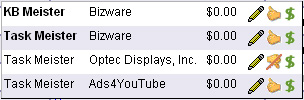 If you hover your mouse over the $ sign on any line, you will see a pop-up table as shown at right. Its first column shows the tools on that user's account. The tool names not in bold are sub-accounts, and the account name is in the second column. The third column is the monthly fee for the designated tool and account. The edit pencil allows you to change the user's security access information. If you hover your mouse over the $ sign on any line, you will see a pop-up table as shown at right. Its first column shows the tools on that user's account. The tool names not in bold are sub-accounts, and the account name is in the second column. The third column is the monthly fee for the designated tool and account. The edit pencil allows you to change the user's security access information.
The thumb-up icon means the tool and account are active, typically because their fee is properly paid. The thumb-down icon means it is not. Clicking either thumb icon acts as a toggle, making an active account inactive or activating an inactive account.  To the right of the billing dollar icon are the 3 user management icons, the key icon where you can edit their security access rights, the edit pencil where you can edit the user's general information, and the trash can icon where you can delete the user. Clicking either one displays a form with additional help for that help, in the case of the trash can icon, a confirmation pop-up. To the right of the billing dollar icon are the 3 user management icons, the key icon where you can edit their security access rights, the edit pencil where you can edit the user's general information, and the trash can icon where you can delete the user. Clicking either one displays a form with additional help for that help, in the case of the trash can icon, a confirmation pop-up.
Note that you can get pop-up help by hovering your mouse over the command icons. You can also get help by clicking on the name of any field, such as the column headers.
|
| 3.2.1. Field Definitions
Title:Account
The name of the company, organization, or government agency managing the account. An account typically pays for access to its data and then allocates access to its data to its users. If this is the name of an individual, that is the rare case of an individual whose name is used for the account. Most individuals are listed as users.
|
Title:Individual Name
This is the name of the person, the individual user, by first name and then family name.
|
Title:L#
L# is short for line number. It is the line or row number in a table. Use it to refer to a particular line when discussing a table.
|
Title:Username
A username is a unique identifier Access Meister (AcM) needs to identify each individual granted access to any tool or application AcM manages. When the record of an individual user is first entered into AcM, he/she is asked to select a username. We suggest the user's first initial followed by their last name, all lower case. We suggest lower case because most Windows users do not realize that lower case and upper case letters are considered different, for example, a jsmith username will not match JSmith. We also do not allow spaces in a username, though we do allow certain special characters such as @ and &. If a requested username already exists in AcM, the user requesting is advised, and they can try again, perhaps with variants such as jsmith1 after AcM tells them that jsmith is already taken. Once a username is selected, it cannot be changed, as can the password that is used with a username to gain access.
|
| | 3.2.2. Billing Record
Title:Billing Record Overview
The billing record begins with a tool picklist to the right of the "Billing Record" header. You can change it to any other tool under the same account to see how the account pays for that tool. Below that, the Billing Record is broken into the following sections: - Status - The basic info about whether an account is active or not
- Primary Sysadmin - Info about the user responsible for paying for the account
- Account Info - Financial information about the account, as well as their limits in terms of storage, free demo period, etc.
- Credit Card Info - Info about the credit card regularly billed the account's monthly fee
- YTD Billing - Year-to-date billing summary on the account
- Transaction History - A chronological line-by-line history of each amount owed and each amount paid (debits and credits) on the account
- Notes - A chronological log of billing-related comment notes added to the account, along with who was copied
 Each section has a plus or a minus icon as shown to the right. The minus icon minimizes the contents of the section, making it easy to scroll past and view the other sections. The plus icon expands the section to reveal its details and fields. These are toggle commands so either the plus or the minus icon is displayed, depending on the choice you make. Each section has a plus or a minus icon as shown to the right. The minus icon minimizes the contents of the section, making it easy to scroll past and view the other sections. The plus icon expands the section to reveal its details and fields. These are toggle commands so either the plus or the minus icon is displayed, depending on the choice you make.
To the right of the first 4 sections is also an edit pencil. Clicking that displays a pop-up where the contents of that section may be edited. Each such pop-up has its own help. The Account Info section has an edit pencil whereby you can change each of the fields in that section individually, and it also has a "Change Account Plan" button that allows you to select from among the payment plans for that tool. If you select a different payment plan, you will change all corresponding fields from Plan Name down to conform to the plan you select. Unless you have a good reason, select a new payment plan instead of editing fields individually.  To the right of the Account field in the Status section is an icon as shown to the right if you have access to the eVarman Customer Relationship Management software. Clicking this icon posts the account information into a new company record in eVarman's contact management module. Do this if you would like to expand your marketing effort to the account, for example, and wish to manage that through eVarman. To the right of the Account field in the Status section is an icon as shown to the right if you have access to the eVarman Customer Relationship Management software. Clicking this icon posts the account information into a new company record in eVarman's contact management module. Do this if you would like to expand your marketing effort to the account, for example, and wish to manage that through eVarman.
The YTD Billing section has no edit pencil icon since its fields cannot be changed. They are calculated based on account history. The Transaction History section has no edit pencil since we don't want you to rewrite the past, but it does have an "Add Transaction" button you can use to adjust the present. Use the "Add Transaction" button to add a custom charge, for example, for a billable service the account received. You can also use the button to add a credit transaction, for example, a custom discount or to record a payment made outside the regular credit card approach. The Notes section also limits changing the past by not providing an edit pencil icon for existing comment notes, but you can add as many new notes as you wish, including to refute a previous note. You may click on the blue name of any field on this page, as well as the column headers of the tables.
|
| 3.2.2.1. Field Definitions
Title:$/mo
This is the base monthly fee in dollars that an account must pay to continue to use a tool given the amount of storage and/or transactions to be secured through such payment. This fee amount is usually set by the plan the customer chooses, but management may edit it.
|
Title:Account
The name of the company, organization, or government agency managing the account. An account typically pays for access to its data and then allocates access to its data to its users. If this is the name of an individual, that is the rare case of an individual whose name is used for the account. Most individuals are listed as users.
|
Title:Account Status
The Status of an account reflects whether the account is active or not and why. The Status picklist values are: Active - Billable: This is the most common status. It indicates an account properly paying its monthly fees. Active - Demo: This is also a common status for entry into usage of a tool. All tools provide a way to try out the tool for a period, typically a month, before Access Meister (AcM) tries to convert such demos into billable accounts. Active - KISS: This is a simple version of the tool where features are crippled, but there is no monhly fee. Unlike a demo version of the tool, a KISS version doesn't expire and convert to a billable account. The hope is that the user will see the grayed-out, inactive features, and eventually wish access to them and will switch to a billable status. Active - Payment Error: When AcM tries to bill an account, but encounters a billing problem, such as an expired credit card, AcM converts a Status like Active - Billable to Active - Payment Error. After the primary sysadmin gets email about the billing problem, the account users continue to enjoy access, but a counter begins to count down to the date when access is cut, typically one month after the payment error. Cancelled by Customer: Customers are free to cancel their account for whatever reason they choose. When they do so, this is the status assigned to the account. It cuts account access to the tool. Cancelled by Mgmt: Webteam management is free to cancel a tool account for any reason, but the most common is automatically by AcM after a status of Active - Payment Error goes beyond its one-month grace period. Awaiting Cleanup: Beyond the first 4 active statuses and the 2 cancelled statuses is this status which is technically active in that account users still have access. This status is a temporary condition and rarely used. It identifies an account as part of a group being processed in batch, typically to clean up defective or corrupted data.
|
Title:Amount Due
This is the amount due or owed by the account. It is the sum of the currently due monthly fee plus any past-due monthly fees. It also includes any manually entered fees and credits. For an itemized list of charges, credits, and payments, see the transactions listed on the billing record of the account.
|
Title:Amount Paid
The amount paid on the corresponding line, typically billed to the credit card attached to the account.
|
Title:Balance
The balance is calculated as the difference between a total of all the amounts due, less a total of all the amounts paid. On a statement, the balance is a running amount in that the previous line's balance has either added to it the above line's amount due or subtracted the above line's amount paid. Note that if a customer pays ahead for some reason, the balance will be a negative number. That means each month's fee will produce an amount due that reduces such an amount paid ahead until the balance becomes a positive number, at which point the account's credit card will begin to be billed.
|
Title:By
This identifies the author of a comment note. It can be an individual user or the Access Meister system if the note was automatically generated.
|
Title:cc
As with old world memos and today's email, cc stands for carbon copy and indicates that you wish a copy of the note to be sent to the picklist values you select. The picklist values begin with "eVarman" if the account has been posted to the contact management module of the eVarman software. Use this to post information that may be relevant for a salesperson contacting the account, for example, "Usage rates indicate it may be time for client to upgrade to a corporate account". The next group of picklist values are the Access Meister (AcM) system managers, the users with access to all information about all AcM accounts. The last group of picklist values are the users listed under the account. When an individual is selected from the cc picklist, system manager or account user, they receive an email with the note text, along with information about where the note came from and a link to click on the source billing record. Because of this, it is not necessary to provide a great deal of background information to a cc'd individual.
|
Title:Credit Card Number
This is the 16-digit number on the front of the credit card. If we ever accept American Express, theirs has 15 digits.
|
Title:Date of Note
This is the date a comment note was added.
|
Title:Date of Transaction
The date the transaction occured, either posted automatically by Access Meister or manually by management.
|
Title:Date Opened
This was the date an account was first opened to use the tool in the picklist to the right of the "Billing Record" label. Note that the account may have opened the use of other tools on other dates.
|
Title:Exp Date of Credit Card
This is the expiration date of the credit card. It is in the form mm/yyyy where mm is the 2-digit number of the month (includes the beginning 0), and the yyyy is the complete 4-digit year (not just the last 2-digits). For credit cards that show a day of the month, we need only the month and year.
|
Title:First Billing
This is the date the account was or will be billed for the first time. Most payment plans set this as 30 days from their signup date in order to give the customer some free testing time with a tool. Management may extend the First Billing years into the future to give customers free usage of the tool, perhaps because it's part of a program paid in other ways. For obvious financial reasons, this should be granted for an important reason only.
|
Title:L#
L# is short for line number. It is the line or row number in a table. Use it to refer to a particular line when discussing a table.
|
Title:Last Billing Date
This is the date the account was last billed.
|
Title:Last Login (account)
The Last Login field begins by showing the date any user logged in to the designated tool of the account. After that, the field shows the name and username of the user who logged in on that date. An example would be, "Jul 11, 2009 by Peter Shikli [petershikli]".
|
Title:MB Storage Current
This shows the total amount of storage in MB being used by the account for the designated tool. This is a sum of all file sizes, such as attachments and images
|
Title:MB Storage Max
This is the maximum amount of hard drive storage in MB that the account may use as part of the fee they pay. This is usually set by their payment plan, but may be edited by management.
|
Title:Memo
This is a comment note about a financial transaction line added by a manager, as opposed to entries to System Note, which are automatically added by Access Meister. Try to add your comment notes to the notes section at the bottom of the billing record instead of to each transaction line with the Memo field. The notes section is where such things should collect and where people look for them. Use a line's Memo field only for a very brief (couple words) summary tightly related to that line.
|
Title:Name on Card
This is the individual's name as it appears on the credit card. We suggest not adding a middle initial to the first name, as "John J." for John J. Smith, or a title after the last name, as "Smith, jr" for John Smith jr, even when those things are part of the name as it appears on the credit card. The reason is that credit card banks are looking for an exact match to a name, and minor problems such as a missing period after a middle initial, could mismatch the name. For this reason, the credit card banks often enter the name as only a first and last name. Try just the first and last name to start, and try the other things only if that doesn't work.
|
Title:Next Billing
This is the date the account is scheduled to be billed next. It is blank for inactive accounts.
|
Title:Note
This is the text of the comment note.
|
Title:Plan Name
A pricing plan is a collection of software features with a given name and matched to a monthly fee, such as a maximum data storage that is part of a "Basic Pricing Plan", for example. Click the "Pricing Plans" button on the main menu bar for tables listing the pricing plans for our tools and for how these plans are established and maintained.
|
Title:Primary Sysadmin Email
The email address of the account's primary systems adminstrator. The email is clickable if you wish to email the sysadmin.
|
Title:Primary Sysadmin Login Info
The login information of the account's primary systems adminstrator starting with the text "user:", then the username, then the text "pass:" and then the password. To the right of that is the command text, "Login As". Clicking on that allows you to log into the designated tool of the designated account as the primary sysadmin. This allows you to see what he sees, to diagnose problems, to give tutorials looking at the client's real data, and such functions pretending to be the primary sysadmin. Note that the effect on your cookies may cause you to have to login again as yourself to go back to using Webteam tools under your regular username.
|
Title:Primary Sysadmin Name
The first and last name of the account's primary systems administrator.
|
Title:Primary Sysadmin Phone
The area code and telephone number of the account's primary systems adminstrator.
|
Title:Pvt
The Pvt designation for a comment note indicates it is a private note for the eyes of a system manager only. This can be a sensitive credit or billing issue such as a pending attempt at forced collections. If the Pvt checkbox is checked, none of the account's users, not even their primary sysadmin, will see the note.
|
Title:Restrictions
This field states any usage restrictions placed on the payment plan originally selected for the account.
|
Title:System Note
The System Note is a comment entered about an unusual event related to the transaction line automatically by Access Meister, for example, noting an error when an attempt was made to secure payment against the account's credit card.
|
Title:Trans/mo Limit
This specifies the maximum number of transactions per month that the account may request of a tool such as Address Meister.
|
Title:Transaction
The name or short description of the transaction.
|
Title:Type of Credit Card
This is the type of credit card we accept. For now it is either Mastercard or VISA. Maybe in the future it will include American Express, but for now, their credit card fees are too high.
|
Title:YTD Billing for Entire Account
This is calculated as the total amount of year-to-date (YTD) billing that Access Meister (AcM) has tried to collect from the account for all the tools listed on the account. Note that this doesn't mean we collected all that was billed.
YTD means AcM totals all billing attempts between today's date and this date last year.
|
Title:YTD Billing for This Tool
This is calculated as the total amount of year-to-date (YTD) billing that Access Meister (AcM) has tried to collect from the account just for the tool listed. This doesn't mean we have successfully collected all amounts billed. YTD means AcM totals all billing attempts between today's date and this date last year.
|
| | 3.2.2.2. Status Edit
The Status Edit form is where you change the Status field of an account. We could have made this a simple picklist, but the pop-up form is designed to encourage adding a comment note whenever this is done. The reason is that a status change is an important change to an account, often making it inactive and no longer accessible to its users. If we get a call regarding that from a customer, we'll usually need a few words in the billing notes to answer them about who made the status change and why.
|
| 3.2.2.2.1. Field Definitions
Title:Account
The name of the company, organization, or government agency managing the account. An account typically pays for access to its data and then allocates access to its data to its users. If this is the name of an individual, that is the rare case of an individual whose name is used for the account. Most individuals are listed as users.
|
Title:Account Status
The Status of an account reflects whether the account is active or not and why. The Status picklist values are: Active - Billable: This is the most common status. It indicates an account properly paying its monthly fees. Active - Demo: This is also a common status for entry into usage of a tool. All tools provide a way to try out the tool for a period, typically a month, before Access Meister (AcM) tries to convert such demos into billable accounts. Active - KISS: This is a simple version of the tool where features are crippled, but there is no monhly fee. Unlike a demo version of the tool, a KISS version doesn't expire and convert to a billable account. The hope is that the user will see the grayed-out, inactive features, and eventually wish access to them and will switch to a billable status. Active - Payment Error: When AcM tries to bill an account, but encounters a billing problem, such as an expired credit card, AcM converts a Status like Active - Billable to Active - Payment Error. After the primary sysadmin gets email about the billing problem, the account users continue to enjoy access, but a counter begins to count down to the date when access is cut, typically one month after the payment error. Cancelled by Customer: Customers are free to cancel their account for whatever reason they choose. When they do so, this is the status assigned to the account. It cuts account access to the tool. Cancelled by Mgmt: Webteam management is free to cancel a tool account for any reason, but the most common is automatically by AcM after a status of Active - Payment Error goes beyond its one-month grace period. Awaiting Cleanup: Beyond the first 4 active statuses and the 2 cancelled statuses is this status which is technically active in that account users still have access. This status is a temporary condition and rarely used. It identifies an account as part of a group being processed in batch, typically to clean up defective or corrupted data.
|
Title:By
This identifies the author of a comment note. It can be an individual user or the Access Meister system if the note was automatically generated.
|
Title:cc
As with old world memos and today's email, cc stands for carbon copy and indicates that you wish a copy of the note to be sent to the picklist values you select. The picklist values begin with "eVarman" if the account has been posted to the contact management module of the eVarman software. Use this to post information that may be relevant for a salesperson contacting the account, for example, "Usage rates indicate it may be time for client to upgrade to a corporate account". The next group of picklist values are the Access Meister (AcM) system managers, the users with access to all information about all AcM accounts. The last group of picklist values are the users listed under the account. When an individual is selected from the cc picklist, system manager or account user, they receive an email with the note text, along with information about where the note came from and a link to click on the source billing record. Because of this, it is not necessary to provide a great deal of background information to a cc'd individual.
|
Title:Date of Note
This is the date a comment note was added.
|
Title:Note
This is the text of the comment note.
|
Title:Pvt
The Pvt designation for a comment note indicates it is a private note for the eyes of a system manager only. This can be a sensitive credit or billing issue such as a pending attempt at forced collections. If the Pvt checkbox is checked, none of the account's users, not even their primary sysadmin, will see the note.
|
Title:Tool
The name of the Webteam tool, such as Doc Meister or Task Meister, but it may also be an application such as eVarman, or even a collection of tools like eTaskBoard.
|
|
| | 3.2.2.3. Change Primary Sysadmin
Title:Change Primary Sysadmin Overview
Using this table, you can change the primary sysadmin responsible for billing for the designated tool for this account. To do so, select a different account user with a radio button and press save. Note that you cannot edit the particulars about the primary sysadmin, for example, his email address. You must do that the same way you change the particulars about any user, by clicking the edit pencil to the right of the several places they are listed as individual users.
|
| 3.2.2.3.1. Field Definitions
Title:Email Address
This is the user's email address. Often, you can click on it to bring up your regular email software with an email message already addressed to them and ready for you to type into the message body.
|
Title:Individual Name
This is the name of the person, the individual user, by first name and then family name.
|
Title:Username
A username is a unique identifier Access Meister (AcM) needs to identify each individual granted access to any tool or application AcM manages. When the record of an individual user is first entered into AcM, he/she is asked to select a username. We suggest the user's first initial followed by their last name, all lower case. We suggest lower case because most Windows users do not realize that lower case and upper case letters are considered different, for example, a jsmith username will not match JSmith. We also do not allow spaces in a username, though we do allow certain special characters such as @ and &. If a requested username already exists in AcM, the user requesting is advised, and they can try again, perhaps with variants such as jsmith1 after AcM tells them that jsmith is already taken. Once a username is selected, it cannot be changed, as can the password that is used with a username to gain access.
|
|
| | 3.2.2.4. Account Info Edit
Title:Account Info Edit Overview
On this form, you can edit the fields on an account related to their billing, and then add a comment note about why you made the change. Remember that you can change all the fields at once by going back to the billing record and pressing the Change Account Plan button. As anywhere in Access Meister, you may get help on any field by mousing over its name or clicking on its name.
|
| 3.2.2.4.1. Field Definitions
Title:$/mo
This is the base monthly fee in dollars that an account must pay to continue to use a tool given the amount of storage and/or transactions to be secured through such payment. This fee amount is usually set by the plan the customer chooses, but management may edit it.
|
Title:By
This identifies the author of a comment note. It can be an individual user or the Access Meister system if the note was automatically generated.
|
Title:cc
As with old world memos and today's email, cc stands for carbon copy and indicates that you wish a copy of the note to be sent to the picklist values you select. The picklist values begin with "eVarman" if the account has been posted to the contact management module of the eVarman software. Use this to post information that may be relevant for a salesperson contacting the account, for example, "Usage rates indicate it may be time for client to upgrade to a corporate account". The next group of picklist values are the Access Meister (AcM) system managers, the users with access to all information about all AcM accounts. The last group of picklist values are the users listed under the account. When an individual is selected from the cc picklist, system manager or account user, they receive an email with the note text, along with information about where the note came from and a link to click on the source billing record. Because of this, it is not necessary to provide a great deal of background information to a cc'd individual.
|
Title:Date of Note
This is the date a comment note was added.
|
Title:MB Storage Max
This is the maximum amount of hard drive storage in MB that the account may use as part of the fee they pay. This is usually set by their payment plan, but may be edited by management.
|
Title:Next Billing
This is the date the account is scheduled to be billed next. It is blank for inactive accounts.
|
Title:Note
This is the text of the comment note.
|
Title:Pvt
The Pvt designation for a comment note indicates it is a private note for the eyes of a system manager only. This can be a sensitive credit or billing issue such as a pending attempt at forced collections. If the Pvt checkbox is checked, none of the account's users, not even their primary sysadmin, will see the note.
|
Title:Restrictions
This field states any usage restrictions placed on the payment plan originally selected for the account.
|
Title:Trans/mo Limit
This specifies the maximum number of transactions per month that the account may request of a tool such as Address Meister.
|
|
| | 3.2.2.5. Change Account Plan
Title:Change Account Plan Overview
This pop-up gives you the ability to select a different payment plan for the account, thereby changing all at once the fields Plan Name through Trans/mo Limit on the account's billing record. To make such a change, click the radio button of the desired payment plan name and click the Save button near the bottom. You may edit those fields manually, but changing them through the Change Account Plan is not only faster, but it changes the fields to values the customer expects from the marketing website of the tool where the payment plans are described. The most common reason to change a payment plan is when customers exceed their existing storage needs and wish to pay a higher fee for more storage. It is also possible as part of an economy imperative that customers delete information to reduce storage in order to downgrade a payment plan and its fee.
|
| 3.2.2.5.1. Field Definitions
Title:$/mo
This is the base monthly fee in dollars that an account must pay to continue to use a tool given the amount of storage and/or transactions to be secured through such payment. This fee amount is usually set by the plan the customer chooses, but management may edit it.
|
Title:MB Storage Max
This is the maximum amount of hard drive storage in MB that the account may use as part of the fee they pay. This is usually set by their payment plan, but may be edited by management.
|
Title:Plan Name
A pricing plan is a collection of software features with a given name and matched to a monthly fee, such as a maximum data storage that is part of a "Basic Pricing Plan", for example. Click the "Pricing Plans" button on the main menu bar for tables listing the pricing plans for our tools and for how these plans are established and maintained.
|
Title:Plan Notes
These are the comment notes attached to a payment plan. Usually, they are blank, but they may refer to usage issues, exclusions, recommendations, and such information as needed by sysadmins editing plans or their assignments. Such plan notes are not for end users. The promotional website of each tool presents the payment plans from the perspective of the end users.
|
Title:Setup Fee
This is the one-time setup fee that an account must pay to begin using a tool. For business reasons, this has turned to $0 for most tools, but it may one day come back.
|
Title:Trans/mo Limit
This specifies the maximum number of transactions per month that the account may request of a tool such as Address Meister.
|
Title:Trial Days
This represents the number of free days that an account gets when they first sign up. Their first billing date is calculated based on this from their signup date. Usually, this is set by the payment plan chosen and is 30 days, but it may be changed by management by simply editing the Next Billing field. This used to be called "Skate".
|
|
| | 3.2.2.6. Credit Card Info Edit
Title:Credit Card Info Edit Overview
This is the pop-up where you can make quick changes to the credit card used to pay for the account's monthly fees. Note that you must re-enter the credit card number even if you are only changing its expiration date. This is a security precaution to make sure only the credit card holder is making changes here.
|
| 3.2.2.6.1. Field Definitions
Title:Credit Card Number
This is the 16-digit number on the front of the credit card. If we ever accept American Express, theirs has 15 digits.
|
Title:CVV2 Number
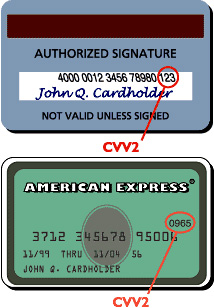 CVV2 is a security measure instituted by credit card banks specifically against fraud using telephone and online purchases. Since a CVV2 number is listed on a credit card, but is not stored anywhere, the only way to know the correct CVV2 number is to physically have possession of the card itself, which of course we have no way to otherwise know across the internet. All credit cards we take have a CVV2 number. Look in the signature strip on the back of the card. You will find either the entire 16-digit string of your card number or just the last 4 digits, followed by a space, and followed by a 3-digit number. That 3-digit number is your CVV2 number. See the diagram at right. On American Express Cards, the CVV2 number is a 4-digit number that appears on the front of the card above the end of the card number. If you really want to know, the CVV stands for Card Verification Value and the 2 means it's a second generation number.
|
Title:Exp Date of Credit Card
This is the expiration date of the credit card. It is in the form mm/yyyy where mm is the 2-digit number of the month (includes the beginning 0), and the yyyy is the complete 4-digit year (not just the last 2-digits). For credit cards that show a day of the month, we need only the month and year.
|
Title:First Name on Card
This is the individual's first name as it appears on the credit card. We suggest not adding a middle name or initial to the first name, as "John J." for John J. Smith even when those things are part of the name as it appears on the credit card. The reason is that credit card banks are looking for an exact match to a name, and minor problems such as a missing period after a middle initial, could mismatch the name. For this reason, the credit card banks often enter the name as only a first and last name. Try just the first and last name to start, and try the other things only if that doesn't work.
|
Title:Last Name on Card
This is the individual's last name as it appears on the credit card. We suggest not adding a title after the last name, as "Smith, jr" for John Smith jr, even when those things are part of the name as it appears on the credit card. The reason is that credit card banks are looking for an exact match to a name, and minor problems such as a missing period could mismatch the name. For this reason, the credit card banks often enter the name as only a first and last name. Try just the first and last name to start, and try the other things only if that doesn't work.
|
|
| | 3.2.2.7. Add Billing Transaction
Title:Add Billing Transaction Overview
Access Meister (AcM) normally bills customers their monthly fees and collects from their credit cards automatically. Sometimes, we need to adjust their bill manually. This is the form used to do that. This is how you add a custom transaction line to an account, either to add an additional fee that they owe or some credit for an amount they paid. Note that a discount we grant is treated the same as an amount the customer paid. Examples of such custom billing transactions include: - We discover a billing error where the customer has been using the tool without paying. We negotiate an amount they owe, and we add that amount to their bill using this form.
- We discover a billing error where we have been double charging the customer. We add up such extra charges and enter a custom billing transaction with a negative amount to give the customer back the amount we overcharged.
- The customer requests a change to the tool's software on the basis that we will bell them for the programming. When complete, we add that charge to their bill.
- The customer takes a lot of our time to solve a tech support problem that turns out to be on their end. We decide to bill them per our policies using a custom billing transaction.
- The customer mails us a paper check. We enter that with a negative amount to show a credit to their account.
- The customer refers someone to become a billable Webteam customer. We add a transaction with a negative amount to show the credit to their account of a referral fee.
|
| 3.2.2.7.1. Field Definitions
Title:$/mo
This is the base monthly fee in dollars that an account must pay to continue to use a tool given the amount of storage and/or transactions to be secured through such payment. This fee amount is usually set by the plan the customer chooses, but management may edit it.
|
Title:Account
The name of the company, organization, or government agency managing the account. An account typically pays for access to its data and then allocates access to its data to its users. If this is the name of an individual, that is the rare case of an individual whose name is used for the account. Most individuals are listed as users.
|
Title:Balance
The balance is calculated as the difference between a total of all the amounts due, less a total of all the amounts paid. On a statement, the balance is a running amount in that the previous line's balance has either added to it the above line's amount due or subtracted the above line's amount paid. Note that if a customer pays ahead for some reason, the balance will be a negative number. That means each month's fee will produce an amount due that reduces such an amount paid ahead until the balance becomes a positive number, at which point the account's credit card will begin to be billed.
|
Title:Date of Transaction
The date the transaction occured, either posted automatically by Access Meister or manually by management.
|
Title:Memo
This is a comment note about a financial transaction line added by a manager, as opposed to entries to System Note, which are automatically added by Access Meister. Try to add your comment notes to the notes section at the bottom of the billing record instead of to each transaction line with the Memo field. The notes section is where such things should collect and where people look for them. Use a line's Memo field only for a very brief (couple words) summary tightly related to that line.
|
Title:Tool
The name of the Webteam tool, such as Doc Meister or Task Meister, but it may also be an application such as eVarman, or even a collection of tools like eTaskBoard.
|
Title:Transaction
The name or short description of the transaction.
|
Title:Transaction Amount
This is the amount you wish to add to a transaction line to show the amount due or paid. For an amount due (account debit), use a positive number. Examples include a custom development service, a fee-based tech support call, or a late fee. For an amount paid or discounted (account credit), use a negative number. Examples include a bug we have to rectify whereby we overbilled the customer, a negotiated price that includes a discount, a fee we pay the customer, such as a referral fee.
|
|
|
| | 3.2.3. User Access
Title:User Access Rights Overview
The User Access Rights page is broken into the following sections: - User Details - The basic info identifying the user
- Tool Access - Info about what access the user has to which tools and which sub-accounts.
- Notes - A chronological log of user-related comment notes added to the user's record
Each section has a plus or a minus icon as shown to the right. The minus icon minimizes the contents of the section, making it easy to scroll past and view the other sections. The plus icon expands the section to reveal its details and fields. These are toggle commands so either the plus or the minus icon is displayed, depending on the choice you make. The Tool Access section is further divided into subsections, one for each tool accessible to the user. The left side of each such subsection has an icon and name identifying the tool, and below that the security access level (SecLev) of the user. To the right of that is an Account Access Table that shows the main parent account and its sub-accounts to which the user may have access. To the right of each line is a dollar sign icon you can click to go to the billing record for that (sub)account. Edit pencil icons are spread throughout the page to edit various sections and subsections. The one next to the User Details section allows you to edit the information in that section. Note that the resulting User Info Edit Form is the same as what is displayed by the edit pencil on the results table from a Get or Search command for the user. Each Tool Access subsection has an edit pencil you can use to edit that subsection's information. Each edit form displayed in response to clicking an edit pencil has its own help icon with help about using that form. The Notes section has no edit pencil, but you can add as many notes as you wish with its Add Note button. At the top-right of the page is a trash can icon to delete the user's record, after agreeing to a confirmation page. Unless you are certain you wish to delete a user, as in the case of an accidental duplicate entry, consider instead keeping the user and their data for historical reasons and just deactivating his Status.
|
| 3.2.3.1. Field Definitions
Title:Access Meister SecLev
Just as each tool has a SecLev identifying the level of access available to a user, so too Access Meister (AcM) has its own SecLev granting a user different levels of access to features and data within AcM. To understand what each SecLev value means and what access it provides, see the Security Access Table by the More Info label.
|
Title:Account
The name of the company, organization, or government agency managing the account. An account typically pays for access to its data and then allocates access to its data to its users. If this is the name of an individual, that is the rare case of an individual whose name is used for the account. Most individuals are listed as users.
|
Title:By
This identifies the author of a comment note. It can be an individual user or the Access Meister system if the note was automatically generated.
|
Title:City
This is the mailing city of the user.
|
Title:Country
This is the mailing country of the user, usually USA.
|
Title:Date of Note
This is the date a comment note was added.
|
Title:Email Address
This is the user's email address. Often, you can click on it to bring up your regular email software with an email message already addressed to them and ready for you to type into the message body.
|
Title:Individual Name
This is the name of the person, the individual user, by first name and then family name.
|
Title:Last Login (user)
The date the user last logged in. This is an indication of how actively a user is making use of the tool.
|
Title:Note
This is the text of the comment note.
|
Title:Password
This is the password needed after entering a username to gain access to a tool. The initial default is the same as the username, usually the first initial and last name of a user, lower case and without a space, but the user may change this. Changing it regularly is a good idea. Although we do not enforce password size or its format, we recommend at least 6 characters to include letters mixed with numbers, as well as symbols such as @$%. Don't use other symbols, and use all lower case letters. The reason is that it is too easy to forget what is capitalized. A cool trick is to think of a word and then replace letters with symbols and numbers as below:
a - replace with @
b - replace with the number 8, which looks like the capital B
e - replace with a 3, which is like a backward E
i - replace with the number 1
o - replace with the number 0
p - replace with the number 9, which is like a backward P
|
Title:Password since
This is the date the password was last changed. Access Meister automatically tracks this so that we may one day automatically send out email encouraging users to change their password periodically. Until then, it simply encourages the practice by reminding users how long it's been.
|
Title:Phone
This is the telephone number of the user, preceded by the area code.
|
Title:Postal Address
This is the postal mailing address of the user in case we wish to send them a letter, which we may do if their email bounces.
|
Title:Pvt
The Pvt designation for a comment note indicates it is a private note for the eyes of a system manager only. This can be a sensitive credit or billing issue such as a pending attempt at forced collections. If the Pvt checkbox is checked, none of the account's users, not even their primary sysadmin, will see the note.
|
Title:SecLev
Within each Webteam tool or application, different users get different levels of security access, controlled by what SecLev they are assigned. Each tool begins with a user with a SecLev of Primary Sysadmin, which is the person who first opens the tool subscription and is responsible for its billing, even if it's free. This person has unlimited access rights within that tool for the corresponding account or sub-account. No one can delete the Primary Sysadmin, although it can be edited to be a different user. Almost all tools also have any number of users with a SecLev of a regular sysadmin. Such a sysadmin has all rights within the tool except billing and they may be deleted. Below that, each tool starts to differ regarding the values it has for SecLev, which is always a picklist of values, not free text. These SecLev values differ based on the needs of users peculiar to the tool. KB Meister, for example, has a SecLev of Librarian, which confers certain access rights to manage an online knowledge base. Task Meister has no such online knowledge base, hence doesn't need a SecLev of Librarian. Task Meister, however, does have a SecLev of Contractor restricting contractors to edit only their own tasks within boundaries, a SecLev that KB Meister doesn't need or have. Administered within each tool, we adhere to the concept of access groups in terms of assigning SecLev access values. That means we collect families of access rights, for example, to view certain data or issue certain commands, into long lists of detailed rights that are designated under a given SecLev value. That means new tool users are not given rights to do different things within the tool. Instead, they are assigned membership to an access group, another name for a SecLev, that automatically assigns or restricts rights based on how that SecLev was previously defined.
|
Title:State
This is the mailing state of the user, if he resides in the US. For Canada, it is the province. For other countries, it is whatever they have.
|
Title:Status (Tool Access)
This denotes whether the user has been granted general entry into the tool of a (sub)account. It can be "Not Assigned" to indicate that the user has yet to ever be allowed entry. It can be "Active", which means access is granted, but subject to whatever restrictions are in place within the tool based on the user's SecLev. "Inactive" means the user was once allowed entry, but no longer.
|
Title:Sub of
This shows if an account name is really a sub-account, in which case the "Sub of" column shows which account it is a sub-account of.
|
Title:User Status
This user status can have one of the two values of active or inactive. We may add more status values if it becomes worthwhile. A quick way to deny users all access to all tools and (sub)accounts is to change their status to inactive.
|
Title:Username
A username is a unique identifier Access Meister (AcM) needs to identify each individual granted access to any tool or application AcM manages. When the record of an individual user is first entered into AcM, he/she is asked to select a username. We suggest the user's first initial followed by their last name, all lower case. We suggest lower case because most Windows users do not realize that lower case and upper case letters are considered different, for example, a jsmith username will not match JSmith. We also do not allow spaces in a username, though we do allow certain special characters such as @ and &. If a requested username already exists in AcM, the user requesting is advised, and they can try again, perhaps with variants such as jsmith1 after AcM tells them that jsmith is already taken. Once a username is selected, it cannot be changed, as can the password that is used with a username to gain access.
|
Title:ZIP
This is the mailing ZIP code of the user, if he resides in the USA. For other countries, it's their postal code.
|
| | 3.2.3.2. Account Access Edit
Title:Account Access Edit Overview
Access to a tool is granted in two steps. First, we determine if a user has any access at all, that is, are they an active user or not. If they are active, then we check their SecLev which determines what access rights they have once in the tool. See the "More Info" below for a SecLev definition. Access Meister (AcM) determines whether a user is active or not in the same way for all tools, but each tool assigns a SecLev value that differs between tools and what that SecLev value allows the user to see and do within the corresponding tool. The Account Access Edit form begins with a picklist you can use to change the SecLev for the tool in question. A user can have different SecLev values for different tools, but only one SecLev value for each tool, regardless of the account or its sub-account. The best way to look at the radio button options for each account and sub-account is to follow the following sequence through which a user gains access and then loses it. - To begin, all users are described by the "Not Assigned" radio button. You won't see this for the main parent account because that changes to "Active" as soon as an access table is generated. You will see it for any sub-accounts on the table until a user is switched to "Active"
- Once a user's "Active" radio button is selected for a sub-account, that user has the same access there as in the parent account. This is what users need for their SecLev to kick in and determine what they can do now that they have been allowed in the door by being "Active".
- If a user's involvement ends in a sub-account, perhaps because a project finishes, that user may be better off with the "Not Active" radio button selected. This cuts that user's access to use the tool in that sub-account, but his data within that sub-account remains. Tasks he completed in Task Meister, for example, remain in that sub-account's Task Meister for historical records, but he can no longer look at those tasks or edit them. "Not Active" users can be made "Active" by simply pressing the radio button in this table, and they return to work in the sub-account's tool where they left off.
- Finally, let's assume the user turned out to have little to no involvement with the sub-account, and there remains no reason to keep his data, if any, in the sub-account's tool. In this case, the "Remove" radio button breaks the connection between the user and the sub-account's tool. Such a user's data will be deleted or connected to a different user depending on the policy on removed users within that tool. Note that the user is removed from the tool, but the user is not deleted from Access Meister. Users removed from a parent account are automatically removed from all sub-accounts of that account.
|
| 3.2.3.2.1. Field Definitions
Title:Account
The name of the company, organization, or government agency managing the account. An account typically pays for access to its data and then allocates access to its data to its users. If this is the name of an individual, that is the rare case of an individual whose name is used for the account. Most individuals are listed as users.
|
Title:Active
When this radio button is checked, it means the user has access to the (sub)account's designated tool, and may use the tool in whatever way his SecLev permits.
|
Title:Individual Name
This is the name of the person, the individual user, by first name and then family name.
|
Title:Not Active
When this radio button is checked, it means the user was once an active user of the (sub)account's tool, but that access has been cut. The user's data has not been deleted, but he has no access to view or edit it. Note that if the user never had access, the "Not Assigned" radio button would be selected instead of the "Not Active".
|
Title:Not Assigned
If this radio button is selected, the user has never been assigned to the designated (sub)account's tool. This is the default situation when a new user is first entered into the main parent account, and it means the user can have no data in the tool yet.
|
Title:Remove
If the "Remove" radio button is selected, the corresponding user's connection to the designated (sub)account's tool would be broken. Depending on the policy of the tool (its software), such a removed user would have their data in the (sub)account's tool deleted or connected to a different user. If a user was never active, there will be no "Remove" radio button on that line of the table since there is no connection to break.
|
Title:SecLev
Within each Webteam tool or application, different users get different levels of security access, controlled by what SecLev they are assigned. Each tool begins with a user with a SecLev of Primary Sysadmin, which is the person who first opens the tool subscription and is responsible for its billing, even if it's free. This person has unlimited access rights within that tool for the corresponding account or sub-account. No one can delete the Primary Sysadmin, although it can be edited to be a different user. Almost all tools also have any number of users with a SecLev of a regular sysadmin. Such a sysadmin has all rights within the tool except billing and they may be deleted. Below that, each tool starts to differ regarding the values it has for SecLev, which is always a picklist of values, not free text. These SecLev values differ based on the needs of users peculiar to the tool. KB Meister, for example, has a SecLev of Librarian, which confers certain access rights to manage an online knowledge base. Task Meister has no such online knowledge base, hence doesn't need a SecLev of Librarian. Task Meister, however, does have a SecLev of Contractor restricting contractors to edit only their own tasks within boundaries, a SecLev that KB Meister doesn't need or have. Administered within each tool, we adhere to the concept of access groups in terms of assigning SecLev access values. That means we collect families of access rights, for example, to view certain data or issue certain commands, into long lists of detailed rights that are designated under a given SecLev value. That means new tool users are not given rights to do different things within the tool. Instead, they are assigned membership to an access group, another name for a SecLev, that automatically assigns or restricts rights based on how that SecLev was previously defined.
|
Title:Sub of
This shows if an account name is really a sub-account, in which case the "Sub of" column shows which account it is a sub-account of.
|
Title:Username
A username is a unique identifier Access Meister (AcM) needs to identify each individual granted access to any tool or application AcM manages. When the record of an individual user is first entered into AcM, he/she is asked to select a username. We suggest the user's first initial followed by their last name, all lower case. We suggest lower case because most Windows users do not realize that lower case and upper case letters are considered different, for example, a jsmith username will not match JSmith. We also do not allow spaces in a username, though we do allow certain special characters such as @ and &. If a requested username already exists in AcM, the user requesting is advised, and they can try again, perhaps with variants such as jsmith1 after AcM tells them that jsmith is already taken. Once a username is selected, it cannot be changed, as can the password that is used with a username to gain access.
|
|
|
| | 3.2.4. User Info
Title:User Info Overview
The User Info page is broken into the following sections: - User Details - The basic info identifying the user
- Notes - A chronological log of user-related comment notes added to the user's record
Each section has a plus or a minus icon as shown to the right. The minus icon minimizes the contents of the section, making it easy to scroll past and view the other sections. The plus icon expands the section to reveal its details and fields. These are toggle commands so either the plus or the minus icon is displayed, depending on the choice you make.
|
| 3.2.4.1. Field Definitions
Title:Access Meister SecLev
Just as each tool has a SecLev identifying the level of access available to a user, so too Access Meister (AcM) has its own SecLev granting a user different levels of access to features and data within AcM. To understand what each SecLev value means and what access it provides, see the Security Access Table by the More Info label.
|
Title:Access Meister Status
This is the status of the user regarding Access Meister (AcM). It can be either "Active" or "Not Active". This is a simple yes/no switch allowing access or not. This is unrelated to the user's SecLev, which determines what he can do in AcM once this status setting allows him in.
|
Title:By
This identifies the author of a comment note. It can be an individual user or the Access Meister system if the note was automatically generated.
|
Title:City
This is the mailing city of the user.
|
Title:Country
This is the mailing country of the user, usually USA.
|
Title:Date of Note
This is the date a comment note was added.
|
Title:Email Address
This is the user's email address. Often, you can click on it to bring up your regular email software with an email message already addressed to them and ready for you to type into the message body.
|
Title:First Name
This is the individual's given name, like John or Zoltan, even though on lists and in a few cultures, this is shown after the family name.
|
Title:Last Name
This is the individual's family name, like Smith or Horvath, even though on lists and in a few cultures, this is shown before the given name.
|
Title:Note
This is the text of the comment note.
|
Title:Password
This is the password needed after entering a username to gain access to a tool. The initial default is the same as the username, usually the first initial and last name of a user, lower case and without a space, but the user may change this. Changing it regularly is a good idea. Although we do not enforce password size or its format, we recommend at least 6 characters to include letters mixed with numbers, as well as symbols such as @$%. Don't use other symbols, and use all lower case letters. The reason is that it is too easy to forget what is capitalized. A cool trick is to think of a word and then replace letters with symbols and numbers as below:
a - replace with @
b - replace with the number 8, which looks like the capital B
e - replace with a 3, which is like a backward E
i - replace with the number 1
o - replace with the number 0
p - replace with the number 9, which is like a backward P
|
Title:Phone
This is the telephone number of the user, preceded by the area code.
|
Title:Postal Address
This is the postal mailing address of the user in case we wish to send them a letter, which we may do if their email bounces.
|
Title:Primary Account
This is the user's primary account.
|
Title:Pvt
The Pvt designation for a comment note indicates it is a private note for the eyes of a system manager only. This can be a sensitive credit or billing issue such as a pending attempt at forced collections. If the Pvt checkbox is checked, none of the account's users, not even their primary sysadmin, will see the note.
|
Title:State
This is the mailing state of the user, if he resides in the US. For Canada, it is the province. For other countries, it is whatever they have.
|
Title:Username
A username is a unique identifier Access Meister (AcM) needs to identify each individual granted access to any tool or application AcM manages. When the record of an individual user is first entered into AcM, he/she is asked to select a username. We suggest the user's first initial followed by their last name, all lower case. We suggest lower case because most Windows users do not realize that lower case and upper case letters are considered different, for example, a jsmith username will not match JSmith. We also do not allow spaces in a username, though we do allow certain special characters such as @ and &. If a requested username already exists in AcM, the user requesting is advised, and they can try again, perhaps with variants such as jsmith1 after AcM tells them that jsmith is already taken. Once a username is selected, it cannot be changed, as can the password that is used with a username to gain access.
|
Title:ZIP
This is the mailing ZIP code of the user, if he resides in the USA. For other countries, it's their postal code.
|
|
| | 3.2.5. User Delete
Title:User Delete Overview
Whereas most delete commands have just a quick pop-up confirmation, our confirmation request includes most of the data about the user to be deleted. This is so we can be sure the deletion is a good idea. In most cases, there is no way to undo a deletion. Do not assume that because we have such a large confirmation page that there will be a small conventional confirmation pop-up. This is it. If you agree to the deletion, the user is gone. Use this delete command if the user was a mistake to enter, for example, due to a typo. In cases of valid users, we suggest just making their Status not active, which prevents entry into Access Meister, but preserves the data they put there and in other tools. You can reactivate an inactive user, but not a deleted user. You can always delete such an inactive user later.
|
| 3.2.5.1. Field Definitions
Title:Access Meister SecLev
Just as each tool has a SecLev identifying the level of access available to a user, so too Access Meister (AcM) has its own SecLev granting a user different levels of access to features and data within AcM. To understand what each SecLev value means and what access it provides, see the Security Access Table by the More Info label.
|
Title:Account
The name of the company, organization, or government agency managing the account. An account typically pays for access to its data and then allocates access to its data to its users. If this is the name of an individual, that is the rare case of an individual whose name is used for the account. Most individuals are listed as users.
|
Title:By
This identifies the author of a comment note. It can be an individual user or the Access Meister system if the note was automatically generated.
|
Title:City
This is the mailing city of the user.
|
Title:Country
This is the mailing country of the user, usually USA.
|
Title:Date of Note
This is the date a comment note was added.
|
Title:Email Address
This is the user's email address. Often, you can click on it to bring up your regular email software with an email message already addressed to them and ready for you to type into the message body.
|
Title:Individual Name
This is the name of the person, the individual user, by first name and then family name.
|
Title:Last Login (user)
The date the user last logged in. This is an indication of how actively a user is making use of the tool.
|
Title:Note
This is the text of the comment note.
|
Title:Password
This is the password needed after entering a username to gain access to a tool. The initial default is the same as the username, usually the first initial and last name of a user, lower case and without a space, but the user may change this. Changing it regularly is a good idea. Although we do not enforce password size or its format, we recommend at least 6 characters to include letters mixed with numbers, as well as symbols such as @$%. Don't use other symbols, and use all lower case letters. The reason is that it is too easy to forget what is capitalized. A cool trick is to think of a word and then replace letters with symbols and numbers as below:
a - replace with @
b - replace with the number 8, which looks like the capital B
e - replace with a 3, which is like a backward E
i - replace with the number 1
o - replace with the number 0
p - replace with the number 9, which is like a backward P
|
Title:Password since
This is the date the password was last changed. Access Meister automatically tracks this so that we may one day automatically send out email encouraging users to change their password periodically. Until then, it simply encourages the practice by reminding users how long it's been.
|
Title:Phone
This is the telephone number of the user, preceded by the area code.
|
Title:Postal Address
This is the postal mailing address of the user in case we wish to send them a letter, which we may do if their email bounces.
|
Title:Pvt
The Pvt designation for a comment note indicates it is a private note for the eyes of a system manager only. This can be a sensitive credit or billing issue such as a pending attempt at forced collections. If the Pvt checkbox is checked, none of the account's users, not even their primary sysadmin, will see the note.
|
Title:SecLev
Within each Webteam tool or application, different users get different levels of security access, controlled by what SecLev they are assigned. Each tool begins with a user with a SecLev of Primary Sysadmin, which is the person who first opens the tool subscription and is responsible for its billing, even if it's free. This person has unlimited access rights within that tool for the corresponding account or sub-account. No one can delete the Primary Sysadmin, although it can be edited to be a different user. Almost all tools also have any number of users with a SecLev of a regular sysadmin. Such a sysadmin has all rights within the tool except billing and they may be deleted. Below that, each tool starts to differ regarding the values it has for SecLev, which is always a picklist of values, not free text. These SecLev values differ based on the needs of users peculiar to the tool. KB Meister, for example, has a SecLev of Librarian, which confers certain access rights to manage an online knowledge base. Task Meister has no such online knowledge base, hence doesn't need a SecLev of Librarian. Task Meister, however, does have a SecLev of Contractor restricting contractors to edit only their own tasks within boundaries, a SecLev that KB Meister doesn't need or have. Administered within each tool, we adhere to the concept of access groups in terms of assigning SecLev access values. That means we collect families of access rights, for example, to view certain data or issue certain commands, into long lists of detailed rights that are designated under a given SecLev value. That means new tool users are not given rights to do different things within the tool. Instead, they are assigned membership to an access group, another name for a SecLev, that automatically assigns or restricts rights based on how that SecLev was previously defined.
|
Title:State
This is the mailing state of the user, if he resides in the US. For Canada, it is the province. For other countries, it is whatever they have.
|
Title:Status (Tool Access)
This denotes whether the user has been granted general entry into the tool of a (sub)account. It can be "Not Assigned" to indicate that the user has yet to ever be allowed entry. It can be "Active", which means access is granted, but subject to whatever restrictions are in place within the tool based on the user's SecLev. "Inactive" means the user was once allowed entry, but no longer.
|
Title:Sub of
This shows if an account name is really a sub-account, in which case the "Sub of" column shows which account it is a sub-account of.
|
Title:User Status
This user status can have one of the two values of active or inactive. We may add more status values if it becomes worthwhile. A quick way to deny users all access to all tools and (sub)accounts is to change their status to inactive.
|
Title:Username
A username is a unique identifier Access Meister (AcM) needs to identify each individual granted access to any tool or application AcM manages. When the record of an individual user is first entered into AcM, he/she is asked to select a username. We suggest the user's first initial followed by their last name, all lower case. We suggest lower case because most Windows users do not realize that lower case and upper case letters are considered different, for example, a jsmith username will not match JSmith. We also do not allow spaces in a username, though we do allow certain special characters such as @ and &. If a requested username already exists in AcM, the user requesting is advised, and they can try again, perhaps with variants such as jsmith1 after AcM tells them that jsmith is already taken. Once a username is selected, it cannot be changed, as can the password that is used with a username to gain access.
|
Title:ZIP
This is the mailing ZIP code of the user, if he resides in the USA. For other countries, it's their postal code.
|
|
|
| | 3.3. Get by Individual Name
Title:Get by Individual Name Overview
This table lists the users sorted by their family name (last name), starting with the text entered with the Get command. The starting text is echoed right under the "Get by Individual Name" header, along with whatever tool was specified. The page number in the upper middle is a picklist that can be selected to jump to a particular page. The single arrow to the left and right of the page number jump to the page before and after the current page. The double arrows jump 5 pages before and after the current page. Note that the initial page number when the table is first displayed is usually not the first page. This is because the page number reflects where you landed after specifying the starting text of the user's name. You can click on pages before the landing page to see names listed before the starting text you specified. You can reduce or increase the number of pages by changing the picklist to the right of the "Maximum Rows Displayed" field. Along the right of each line are two columns of command icons. The one that shows the monthly fee and the dollar icon relates to billing, and the ones to the right allow editing of that user's info. Depending on your security access level, you may not see all the icons described below. If you hover your mouse over the $ sign on any line, you will see a pop-up table as shown at right. Its first column shows the tools on that user's account. The tool names not in bold are sub-accounts, and the account name is in the second column. The third column is the monthly fee for the designated tool and account. The edit pencil allows you to change the user's security access information. The thumb-up icon means the tool and account are active, typically because their fee is properly paid. The thumb-down icon means it is not. Clicking either thumb icon acts as a toggle, making an active account inactive or activating an inactive account. To the right of the billing dollar icon are the 3 user management icons, the key icon where you can edit their security access rights, the edit pencil where you can edit the user's general information, and the trash can icon where you can delete the user. Clicking either one displays a form with additional help for that help, in the case of the trash can icon, a confirmation pop-up. Note that you can get pop-up help by hovering your mouse over the command icons. You can also get help by clicking on the name of any field, such as the column headers.
|
| 3.3.1. Field Definitions
Title:Account
The name of the company, organization, or government agency managing the account. An account typically pays for access to its data and then allocates access to its data to its users. If this is the name of an individual, that is the rare case of an individual whose name is used for the account. Most individuals are listed as users.
|
Title:Individual Name
This is the name of the person, the individual user, by first name and then family name.
|
Title:L#
L# is short for line number. It is the line or row number in a table. Use it to refer to a particular line when discussing a table.
|
Title:Username
A username is a unique identifier Access Meister (AcM) needs to identify each individual granted access to any tool or application AcM manages. When the record of an individual user is first entered into AcM, he/she is asked to select a username. We suggest the user's first initial followed by their last name, all lower case. We suggest lower case because most Windows users do not realize that lower case and upper case letters are considered different, for example, a jsmith username will not match JSmith. We also do not allow spaces in a username, though we do allow certain special characters such as @ and &. If a requested username already exists in AcM, the user requesting is advised, and they can try again, perhaps with variants such as jsmith1 after AcM tells them that jsmith is already taken. Once a username is selected, it cannot be changed, as can the password that is used with a username to gain access.
|
| | 3.3.2. Billing Record
Title:Billing Record Overview
The billing record begins with a tool picklist to the right of the "Billing Record" header. You can change it to any other tool under the same account to see how the account pays for that tool. Below that, the Billing Record is broken into the following sections: - Status - The basic info about whether an account is active or not
- Primary Sysadmin - Info about the user responsible for paying for the account
- Account Info - Financial information about the account, as well as their limits in terms of storage, free demo period, etc.
- Credit Card Info - Info about the credit card regularly billed the account's monthly fee
- YTD Billing - Year-to-date billing summary on the account
- Transaction History - A chronological line-by-line history of each amount owed and each amount paid (debits and credits) on the account
- Notes - A chronological log of billing-related comment notes added to the account, along with who was copied
Each section has a plus or a minus icon as shown to the right. The minus icon minimizes the contents of the section, making it easy to scroll past and view the other sections. The plus icon expands the section to reveal its details and fields. These are toggle commands so either the plus or the minus icon is displayed, depending on the choice you make. To the right of the first 4 sections is also an edit pencil. Clicking that displays a pop-up where the contents of that section may be edited. Each such pop-up has its own help. The Account Info section has an edit pencil whereby you can change each of the fields in that section individually, and it also has a "Change Account Plan" button that allows you to select from among the payment plans for that tool. If you select a different payment plan, you will change all corresponding fields from Plan Name down to conform to the plan you select. Unless you have a good reason, select a new payment plan instead of editing fields individually. To the right of the Account field in the Status section is an icon as shown to the right if you have access to the eVarman Customer Relationship Management software. Clicking this icon posts the account information into a new company record in eVarman's contact management module. Do this if you would like to expand your marketing effort to the account, for example, and wish to manage that through eVarman. The YTD Billing section has no edit pencil icon since its fields cannot be changed. They are calculated based on account history. The Transaction History section has no edit pencil since we don't want you to rewrite the past, but it does have an "Add Transaction" button you can use to adjust the present. Use the "Add Transaction" button to add a custom charge, for example, for a billable service the account received. You can also use the button to add a credit transaction, for example, a custom discount or to record a payment made outside the regular credit card approach. The Notes section also limits changing the past by not providing an edit pencil icon for existing comment notes, but you can add as many new notes as you wish, including to refute a previous note. You may click on the blue name of any field on this page, as well as the column headers of the tables.
|
| 3.3.2.1. Field Definitions
Title:$/mo
This is the base monthly fee in dollars that an account must pay to continue to use a tool given the amount of storage and/or transactions to be secured through such payment. This fee amount is usually set by the plan the customer chooses, but management may edit it.
|
Title:Account
The name of the company, organization, or government agency managing the account. An account typically pays for access to its data and then allocates access to its data to its users. If this is the name of an individual, that is the rare case of an individual whose name is used for the account. Most individuals are listed as users.
|
Title:Account Status
The Status of an account reflects whether the account is active or not and why. The Status picklist values are: Active - Billable: This is the most common status. It indicates an account properly paying its monthly fees. Active - Demo: This is also a common status for entry into usage of a tool. All tools provide a way to try out the tool for a period, typically a month, before Access Meister (AcM) tries to convert such demos into billable accounts. Active - KISS: This is a simple version of the tool where features are crippled, but there is no monhly fee. Unlike a demo version of the tool, a KISS version doesn't expire and convert to a billable account. The hope is that the user will see the grayed-out, inactive features, and eventually wish access to them and will switch to a billable status. Active - Payment Error: When AcM tries to bill an account, but encounters a billing problem, such as an expired credit card, AcM converts a Status like Active - Billable to Active - Payment Error. After the primary sysadmin gets email about the billing problem, the account users continue to enjoy access, but a counter begins to count down to the date when access is cut, typically one month after the payment error. Cancelled by Customer: Customers are free to cancel their account for whatever reason they choose. When they do so, this is the status assigned to the account. It cuts account access to the tool. Cancelled by Mgmt: Webteam management is free to cancel a tool account for any reason, but the most common is automatically by AcM after a status of Active - Payment Error goes beyond its one-month grace period. Awaiting Cleanup: Beyond the first 4 active statuses and the 2 cancelled statuses is this status which is technically active in that account users still have access. This status is a temporary condition and rarely used. It identifies an account as part of a group being processed in batch, typically to clean up defective or corrupted data.
|
Title:Amount Due
This is the amount due or owed by the account. It is the sum of the currently due monthly fee plus any past-due monthly fees. It also includes any manually entered fees and credits. For an itemized list of charges, credits, and payments, see the transactions listed on the billing record of the account.
|
Title:Amount Paid
The amount paid on the corresponding line, typically billed to the credit card attached to the account.
|
Title:Balance
The balance is calculated as the difference between a total of all the amounts due, less a total of all the amounts paid. On a statement, the balance is a running amount in that the previous line's balance has either added to it the above line's amount due or subtracted the above line's amount paid. Note that if a customer pays ahead for some reason, the balance will be a negative number. That means each month's fee will produce an amount due that reduces such an amount paid ahead until the balance becomes a positive number, at which point the account's credit card will begin to be billed.
|
Title:By
This identifies the author of a comment note. It can be an individual user or the Access Meister system if the note was automatically generated.
|
Title:cc
As with old world memos and today's email, cc stands for carbon copy and indicates that you wish a copy of the note to be sent to the picklist values you select. The picklist values begin with "eVarman" if the account has been posted to the contact management module of the eVarman software. Use this to post information that may be relevant for a salesperson contacting the account, for example, "Usage rates indicate it may be time for client to upgrade to a corporate account". The next group of picklist values are the Access Meister (AcM) system managers, the users with access to all information about all AcM accounts. The last group of picklist values are the users listed under the account. When an individual is selected from the cc picklist, system manager or account user, they receive an email with the note text, along with information about where the note came from and a link to click on the source billing record. Because of this, it is not necessary to provide a great deal of background information to a cc'd individual.
|
Title:Credit Card Number
This is the 16-digit number on the front of the credit card. If we ever accept American Express, theirs has 15 digits.
|
Title:Date of Note
This is the date a comment note was added.
|
Title:Date of Transaction
The date the transaction occured, either posted automatically by Access Meister or manually by management.
|
Title:Date Opened
This was the date an account was first opened to use the tool in the picklist to the right of the "Billing Record" label. Note that the account may have opened the use of other tools on other dates.
|
Title:Exp Date of Credit Card
This is the expiration date of the credit card. It is in the form mm/yyyy where mm is the 2-digit number of the month (includes the beginning 0), and the yyyy is the complete 4-digit year (not just the last 2-digits). For credit cards that show a day of the month, we need only the month and year.
|
Title:First Billing
This is the date the account was or will be billed for the first time. Most payment plans set this as 30 days from their signup date in order to give the customer some free testing time with a tool. Management may extend the First Billing years into the future to give customers free usage of the tool, perhaps because it's part of a program paid in other ways. For obvious financial reasons, this should be granted for an important reason only.
|
Title:L#
L# is short for line number. It is the line or row number in a table. Use it to refer to a particular line when discussing a table.
|
Title:Last Billing Date
This is the date the account was last billed.
|
Title:Last Login (account)
The Last Login field begins by showing the date any user logged in to the designated tool of the account. After that, the field shows the name and username of the user who logged in on that date. An example would be, "Jul 11, 2009 by Peter Shikli [petershikli]".
|
Title:MB Storage Current
This shows the total amount of storage in MB being used by the account for the designated tool. This is a sum of all file sizes, such as attachments and images
|
Title:MB Storage Max
This is the maximum amount of hard drive storage in MB that the account may use as part of the fee they pay. This is usually set by their payment plan, but may be edited by management.
|
Title:Memo
This is a comment note about a financial transaction line added by a manager, as opposed to entries to System Note, which are automatically added by Access Meister. Try to add your comment notes to the notes section at the bottom of the billing record instead of to each transaction line with the Memo field. The notes section is where such things should collect and where people look for them. Use a line's Memo field only for a very brief (couple words) summary tightly related to that line.
|
Title:Name on Card
This is the individual's name as it appears on the credit card. We suggest not adding a middle initial to the first name, as "John J." for John J. Smith, or a title after the last name, as "Smith, jr" for John Smith jr, even when those things are part of the name as it appears on the credit card. The reason is that credit card banks are looking for an exact match to a name, and minor problems such as a missing period after a middle initial, could mismatch the name. For this reason, the credit card banks often enter the name as only a first and last name. Try just the first and last name to start, and try the other things only if that doesn't work.
|
Title:Next Billing
This is the date the account is scheduled to be billed next. It is blank for inactive accounts.
|
Title:Note
This is the text of the comment note.
|
Title:Plan Name
A pricing plan is a collection of software features with a given name and matched to a monthly fee, such as a maximum data storage that is part of a "Basic Pricing Plan", for example. Click the "Pricing Plans" button on the main menu bar for tables listing the pricing plans for our tools and for how these plans are established and maintained.
|
Title:Primary Sysadmin Email
The email address of the account's primary systems adminstrator. The email is clickable if you wish to email the sysadmin.
|
Title:Primary Sysadmin Login Info
The login information of the account's primary systems adminstrator starting with the text "user:", then the username, then the text "pass:" and then the password. To the right of that is the command text, "Login As". Clicking on that allows you to log into the designated tool of the designated account as the primary sysadmin. This allows you to see what he sees, to diagnose problems, to give tutorials looking at the client's real data, and such functions pretending to be the primary sysadmin. Note that the effect on your cookies may cause you to have to login again as yourself to go back to using Webteam tools under your regular username.
|
Title:Primary Sysadmin Name
The first and last name of the account's primary systems administrator.
|
Title:Primary Sysadmin Phone
The area code and telephone number of the account's primary systems adminstrator.
|
Title:Pvt
The Pvt designation for a comment note indicates it is a private note for the eyes of a system manager only. This can be a sensitive credit or billing issue such as a pending attempt at forced collections. If the Pvt checkbox is checked, none of the account's users, not even their primary sysadmin, will see the note.
|
Title:Restrictions
This field states any usage restrictions placed on the payment plan originally selected for the account.
|
Title:System Note
The System Note is a comment entered about an unusual event related to the transaction line automatically by Access Meister, for example, noting an error when an attempt was made to secure payment against the account's credit card.
|
Title:Trans/mo Limit
This specifies the maximum number of transactions per month that the account may request of a tool such as Address Meister.
|
Title:Transaction
The name or short description of the transaction.
|
Title:Type of Credit Card
This is the type of credit card we accept. For now it is either Mastercard or VISA. Maybe in the future it will include American Express, but for now, their credit card fees are too high.
|
Title:YTD Billing for Entire Account
This is calculated as the total amount of year-to-date (YTD) billing that Access Meister (AcM) has tried to collect from the account for all the tools listed on the account. Note that this doesn't mean we collected all that was billed.
YTD means AcM totals all billing attempts between today's date and this date last year.
|
Title:YTD Billing for This Tool
This is calculated as the total amount of year-to-date (YTD) billing that Access Meister (AcM) has tried to collect from the account just for the tool listed. This doesn't mean we have successfully collected all amounts billed. YTD means AcM totals all billing attempts between today's date and this date last year.
|
| | 3.3.2.2. Status Edit
The Status Edit form is where you change the Status field of an account. We could have made this a simple picklist, but the pop-up form is designed to encourage adding a comment note whenever this is done. The reason is that a status change is an important change to an account, often making it inactive and no longer accessible to its users. If we get a call regarding that from a customer, we'll usually need a few words in the billing notes to answer them about who made the status change and why.
|
| 3.3.2.2.1. Field Definitions
Title:Account
The name of the company, organization, or government agency managing the account. An account typically pays for access to its data and then allocates access to its data to its users. If this is the name of an individual, that is the rare case of an individual whose name is used for the account. Most individuals are listed as users.
|
Title:Account Status
The Status of an account reflects whether the account is active or not and why. The Status picklist values are: Active - Billable: This is the most common status. It indicates an account properly paying its monthly fees. Active - Demo: This is also a common status for entry into usage of a tool. All tools provide a way to try out the tool for a period, typically a month, before Access Meister (AcM) tries to convert such demos into billable accounts. Active - KISS: This is a simple version of the tool where features are crippled, but there is no monhly fee. Unlike a demo version of the tool, a KISS version doesn't expire and convert to a billable account. The hope is that the user will see the grayed-out, inactive features, and eventually wish access to them and will switch to a billable status. Active - Payment Error: When AcM tries to bill an account, but encounters a billing problem, such as an expired credit card, AcM converts a Status like Active - Billable to Active - Payment Error. After the primary sysadmin gets email about the billing problem, the account users continue to enjoy access, but a counter begins to count down to the date when access is cut, typically one month after the payment error. Cancelled by Customer: Customers are free to cancel their account for whatever reason they choose. When they do so, this is the status assigned to the account. It cuts account access to the tool. Cancelled by Mgmt: Webteam management is free to cancel a tool account for any reason, but the most common is automatically by AcM after a status of Active - Payment Error goes beyond its one-month grace period. Awaiting Cleanup: Beyond the first 4 active statuses and the 2 cancelled statuses is this status which is technically active in that account users still have access. This status is a temporary condition and rarely used. It identifies an account as part of a group being processed in batch, typically to clean up defective or corrupted data.
|
Title:By
This identifies the author of a comment note. It can be an individual user or the Access Meister system if the note was automatically generated.
|
Title:cc
As with old world memos and today's email, cc stands for carbon copy and indicates that you wish a copy of the note to be sent to the picklist values you select. The picklist values begin with "eVarman" if the account has been posted to the contact management module of the eVarman software. Use this to post information that may be relevant for a salesperson contacting the account, for example, "Usage rates indicate it may be time for client to upgrade to a corporate account". The next group of picklist values are the Access Meister (AcM) system managers, the users with access to all information about all AcM accounts. The last group of picklist values are the users listed under the account. When an individual is selected from the cc picklist, system manager or account user, they receive an email with the note text, along with information about where the note came from and a link to click on the source billing record. Because of this, it is not necessary to provide a great deal of background information to a cc'd individual.
|
Title:Date of Note
This is the date a comment note was added.
|
Title:Note
This is the text of the comment note.
|
Title:Pvt
The Pvt designation for a comment note indicates it is a private note for the eyes of a system manager only. This can be a sensitive credit or billing issue such as a pending attempt at forced collections. If the Pvt checkbox is checked, none of the account's users, not even their primary sysadmin, will see the note.
|
Title:Tool
The name of the Webteam tool, such as Doc Meister or Task Meister, but it may also be an application such as eVarman, or even a collection of tools like eTaskBoard.
|
|
| | 3.3.2.3. Change Primary Sysadmin
Title:Change Primary Sysadmin Overview
Using this table, you can change the primary sysadmin responsible for billing for the designated tool for this account. To do so, select a different account user with a radio button and press save. Note that you cannot edit the particulars about the primary sysadmin, for example, his email address. You must do that the same way you change the particulars about any user, by clicking the edit pencil to the right of the several places they are listed as individual users.
|
| 3.3.2.3.1. Field Definitions
Title:Email Address
This is the user's email address. Often, you can click on it to bring up your regular email software with an email message already addressed to them and ready for you to type into the message body.
|
Title:Individual Name
This is the name of the person, the individual user, by first name and then family name.
|
Title:Username
A username is a unique identifier Access Meister (AcM) needs to identify each individual granted access to any tool or application AcM manages. When the record of an individual user is first entered into AcM, he/she is asked to select a username. We suggest the user's first initial followed by their last name, all lower case. We suggest lower case because most Windows users do not realize that lower case and upper case letters are considered different, for example, a jsmith username will not match JSmith. We also do not allow spaces in a username, though we do allow certain special characters such as @ and &. If a requested username already exists in AcM, the user requesting is advised, and they can try again, perhaps with variants such as jsmith1 after AcM tells them that jsmith is already taken. Once a username is selected, it cannot be changed, as can the password that is used with a username to gain access.
|
|
| | 3.3.2.4. Account Info Edit
Title:Account Info Edit Overview
On this form, you can edit the fields on an account related to their billing, and then add a comment note about why you made the change. Remember that you can change all the fields at once by going back to the billing record and pressing the Change Account Plan button. As anywhere in Access Meister, you may get help on any field by mousing over its name or clicking on its name.
|
| 3.3.2.4.1. Field Definitions
Title:$/mo
This is the base monthly fee in dollars that an account must pay to continue to use a tool given the amount of storage and/or transactions to be secured through such payment. This fee amount is usually set by the plan the customer chooses, but management may edit it.
|
Title:By
This identifies the author of a comment note. It can be an individual user or the Access Meister system if the note was automatically generated.
|
Title:cc
As with old world memos and today's email, cc stands for carbon copy and indicates that you wish a copy of the note to be sent to the picklist values you select. The picklist values begin with "eVarman" if the account has been posted to the contact management module of the eVarman software. Use this to post information that may be relevant for a salesperson contacting the account, for example, "Usage rates indicate it may be time for client to upgrade to a corporate account". The next group of picklist values are the Access Meister (AcM) system managers, the users with access to all information about all AcM accounts. The last group of picklist values are the users listed under the account. When an individual is selected from the cc picklist, system manager or account user, they receive an email with the note text, along with information about where the note came from and a link to click on the source billing record. Because of this, it is not necessary to provide a great deal of background information to a cc'd individual.
|
Title:Date of Note
This is the date a comment note was added.
|
Title:MB Storage Max
This is the maximum amount of hard drive storage in MB that the account may use as part of the fee they pay. This is usually set by their payment plan, but may be edited by management.
|
Title:Next Billing
This is the date the account is scheduled to be billed next. It is blank for inactive accounts.
|
Title:Note
This is the text of the comment note.
|
Title:Pvt
The Pvt designation for a comment note indicates it is a private note for the eyes of a system manager only. This can be a sensitive credit or billing issue such as a pending attempt at forced collections. If the Pvt checkbox is checked, none of the account's users, not even their primary sysadmin, will see the note.
|
Title:Restrictions
This field states any usage restrictions placed on the payment plan originally selected for the account.
|
Title:Trans/mo Limit
This specifies the maximum number of transactions per month that the account may request of a tool such as Address Meister.
|
|
| | 3.3.2.5. Change Account Plan
Title:Change Account Plan Overview
This pop-up gives you the ability to select a different payment plan for the account, thereby changing all at once the fields Plan Name through Trans/mo Limit on the account's billing record. To make such a change, click the radio button of the desired payment plan name and click the Save button near the bottom. You may edit those fields manually, but changing them through the Change Account Plan is not only faster, but it changes the fields to values the customer expects from the marketing website of the tool where the payment plans are described. The most common reason to change a payment plan is when customers exceed their existing storage needs and wish to pay a higher fee for more storage. It is also possible as part of an economy imperative that customers delete information to reduce storage in order to downgrade a payment plan and its fee.
|
| 3.3.2.5.1. Field Definitions
Title:$/mo
This is the base monthly fee in dollars that an account must pay to continue to use a tool given the amount of storage and/or transactions to be secured through such payment. This fee amount is usually set by the plan the customer chooses, but management may edit it.
|
Title:MB Storage Max
This is the maximum amount of hard drive storage in MB that the account may use as part of the fee they pay. This is usually set by their payment plan, but may be edited by management.
|
Title:Plan Name
A pricing plan is a collection of software features with a given name and matched to a monthly fee, such as a maximum data storage that is part of a "Basic Pricing Plan", for example. Click the "Pricing Plans" button on the main menu bar for tables listing the pricing plans for our tools and for how these plans are established and maintained.
|
Title:Plan Notes
These are the comment notes attached to a payment plan. Usually, they are blank, but they may refer to usage issues, exclusions, recommendations, and such information as needed by sysadmins editing plans or their assignments. Such plan notes are not for end users. The promotional website of each tool presents the payment plans from the perspective of the end users.
|
Title:Setup Fee
This is the one-time setup fee that an account must pay to begin using a tool. For business reasons, this has turned to $0 for most tools, but it may one day come back.
|
Title:Trans/mo Limit
This specifies the maximum number of transactions per month that the account may request of a tool such as Address Meister.
|
Title:Trial Days
This represents the number of free days that an account gets when they first sign up. Their first billing date is calculated based on this from their signup date. Usually, this is set by the payment plan chosen and is 30 days, but it may be changed by management by simply editing the Next Billing field. This used to be called "Skate".
|
|
| | 3.3.2.6. Credit Card Info Edit
Title:Credit Card Info Edit Overview
This is the pop-up where you can make quick changes to the credit card used to pay for the account's monthly fees. Note that you must re-enter the credit card number even if you are only changing its expiration date. This is a security precaution to make sure only the credit card holder is making changes here.
|
| 3.3.2.6.1. Field Definitions
Title:Credit Card Number
This is the 16-digit number on the front of the credit card. If we ever accept American Express, theirs has 15 digits.
|
Title:CVV2 Number
CVV2 is a security measure instituted by credit card banks specifically against fraud using telephone and online purchases. Since a CVV2 number is listed on a credit card, but is not stored anywhere, the only way to know the correct CVV2 number is to physically have possession of the card itself, which of course we have no way to otherwise know across the internet. All credit cards we take have a CVV2 number. Look in the signature strip on the back of the card. You will find either the entire 16-digit string of your card number or just the last 4 digits, followed by a space, and followed by a 3-digit number. That 3-digit number is your CVV2 number. See the diagram at right. On American Express Cards, the CVV2 number is a 4-digit number that appears on the front of the card above the end of the card number. If you really want to know, the CVV stands for Card Verification Value and the 2 means it's a second generation number.
|
Title:Exp Date of Credit Card
This is the expiration date of the credit card. It is in the form mm/yyyy where mm is the 2-digit number of the month (includes the beginning 0), and the yyyy is the complete 4-digit year (not just the last 2-digits). For credit cards that show a day of the month, we need only the month and year.
|
Title:First Name on Card
This is the individual's first name as it appears on the credit card. We suggest not adding a middle name or initial to the first name, as "John J." for John J. Smith even when those things are part of the name as it appears on the credit card. The reason is that credit card banks are looking for an exact match to a name, and minor problems such as a missing period after a middle initial, could mismatch the name. For this reason, the credit card banks often enter the name as only a first and last name. Try just the first and last name to start, and try the other things only if that doesn't work.
|
Title:Last Name on Card
This is the individual's last name as it appears on the credit card. We suggest not adding a title after the last name, as "Smith, jr" for John Smith jr, even when those things are part of the name as it appears on the credit card. The reason is that credit card banks are looking for an exact match to a name, and minor problems such as a missing period could mismatch the name. For this reason, the credit card banks often enter the name as only a first and last name. Try just the first and last name to start, and try the other things only if that doesn't work.
|
|
| | 3.3.2.7. Add Billing Transaction
Title:Add Billing Transaction Overview
Access Meister (AcM) normally bills customers their monthly fees and collects from their credit cards automatically. Sometimes, we need to adjust their bill manually. This is the form used to do that. This is how you add a custom transaction line to an account, either to add an additional fee that they owe or some credit for an amount they paid. Note that a discount we grant is treated the same as an amount the customer paid. Examples of such custom billing transactions include: - We discover a billing error where the customer has been using the tool without paying. We negotiate an amount they owe, and we add that amount to their bill using this form.
- We discover a billing error where we have been double charging the customer. We add up such extra charges and enter a custom billing transaction with a negative amount to give the customer back the amount we overcharged.
- The customer requests a change to the tool's software on the basis that we will bell them for the programming. When complete, we add that charge to their bill.
- The customer takes a lot of our time to solve a tech support problem that turns out to be on their end. We decide to bill them per our policies using a custom billing transaction.
- The customer mails us a paper check. We enter that with a negative amount to show a credit to their account.
- The customer refers someone to become a billable Webteam customer. We add a transaction with a negative amount to show the credit to their account of a referral fee.
|
| 3.3.2.7.1. Field Definitions
Title:$/mo
This is the base monthly fee in dollars that an account must pay to continue to use a tool given the amount of storage and/or transactions to be secured through such payment. This fee amount is usually set by the plan the customer chooses, but management may edit it.
|
Title:Account
The name of the company, organization, or government agency managing the account. An account typically pays for access to its data and then allocates access to its data to its users. If this is the name of an individual, that is the rare case of an individual whose name is used for the account. Most individuals are listed as users.
|
Title:Balance
The balance is calculated as the difference between a total of all the amounts due, less a total of all the amounts paid. On a statement, the balance is a running amount in that the previous line's balance has either added to it the above line's amount due or subtracted the above line's amount paid. Note that if a customer pays ahead for some reason, the balance will be a negative number. That means each month's fee will produce an amount due that reduces such an amount paid ahead until the balance becomes a positive number, at which point the account's credit card will begin to be billed.
|
Title:Date of Transaction
The date the transaction occured, either posted automatically by Access Meister or manually by management.
|
Title:Memo
This is a comment note about a financial transaction line added by a manager, as opposed to entries to System Note, which are automatically added by Access Meister. Try to add your comment notes to the notes section at the bottom of the billing record instead of to each transaction line with the Memo field. The notes section is where such things should collect and where people look for them. Use a line's Memo field only for a very brief (couple words) summary tightly related to that line.
|
Title:Tool
The name of the Webteam tool, such as Doc Meister or Task Meister, but it may also be an application such as eVarman, or even a collection of tools like eTaskBoard.
|
Title:Transaction
The name or short description of the transaction.
|
Title:Transaction Amount
This is the amount you wish to add to a transaction line to show the amount due or paid. For an amount due (account debit), use a positive number. Examples include a custom development service, a fee-based tech support call, or a late fee. For an amount paid or discounted (account credit), use a negative number. Examples include a bug we have to rectify whereby we overbilled the customer, a negotiated price that includes a discount, a fee we pay the customer, such as a referral fee.
|
|
|
| | 3.3.3. User Access
Title:User Access Rights Overview
The User Access Rights page is broken into the following sections: - User Details - The basic info identifying the user
- Tool Access - Info about what access the user has to which tools and which sub-accounts.
- Notes - A chronological log of user-related comment notes added to the user's record
Each section has a plus or a minus icon as shown to the right. The minus icon minimizes the contents of the section, making it easy to scroll past and view the other sections. The plus icon expands the section to reveal its details and fields. These are toggle commands so either the plus or the minus icon is displayed, depending on the choice you make. The Tool Access section is further divided into subsections, one for each tool accessible to the user. The left side of each such subsection has an icon and name identifying the tool, and below that the security access level (SecLev) of the user. To the right of that is an Account Access Table that shows the main parent account and its sub-accounts to which the user may have access. To the right of each line is a dollar sign icon you can click to go to the billing record for that (sub)account. Edit pencil icons are spread throughout the page to edit various sections and subsections. The one next to the User Details section allows you to edit the information in that section. Note that the resulting User Info Edit Form is the same as what is displayed by the edit pencil on the results table from a Get or Search command for the user. Each Tool Access subsection has an edit pencil you can use to edit that subsection's information. Each edit form displayed in response to clicking an edit pencil has its own help icon with help about using that form. The Notes section has no edit pencil, but you can add as many notes as you wish with its Add Note button. At the top-right of the page is a trash can icon to delete the user's record, after agreeing to a confirmation page. Unless you are certain you wish to delete a user, as in the case of an accidental duplicate entry, consider instead keeping the user and their data for historical reasons and just deactivating his Status.
|
| 3.3.3.1. Field Definitions
Title:Access Meister SecLev
Just as each tool has a SecLev identifying the level of access available to a user, so too Access Meister (AcM) has its own SecLev granting a user different levels of access to features and data within AcM. To understand what each SecLev value means and what access it provides, see the Security Access Table by the More Info label.
|
Title:Account
The name of the company, organization, or government agency managing the account. An account typically pays for access to its data and then allocates access to its data to its users. If this is the name of an individual, that is the rare case of an individual whose name is used for the account. Most individuals are listed as users.
|
Title:By
This identifies the author of a comment note. It can be an individual user or the Access Meister system if the note was automatically generated.
|
Title:City
This is the mailing city of the user.
|
Title:Country
This is the mailing country of the user, usually USA.
|
Title:Date of Note
This is the date a comment note was added.
|
Title:Email Address
This is the user's email address. Often, you can click on it to bring up your regular email software with an email message already addressed to them and ready for you to type into the message body.
|
Title:Individual Name
This is the name of the person, the individual user, by first name and then family name.
|
Title:Last Login (user)
The date the user last logged in. This is an indication of how actively a user is making use of the tool.
|
Title:Note
This is the text of the comment note.
|
Title:Password
This is the password needed after entering a username to gain access to a tool. The initial default is the same as the username, usually the first initial and last name of a user, lower case and without a space, but the user may change this. Changing it regularly is a good idea. Although we do not enforce password size or its format, we recommend at least 6 characters to include letters mixed with numbers, as well as symbols such as @$%. Don't use other symbols, and use all lower case letters. The reason is that it is too easy to forget what is capitalized. A cool trick is to think of a word and then replace letters with symbols and numbers as below:
a - replace with @
b - replace with the number 8, which looks like the capital B
e - replace with a 3, which is like a backward E
i - replace with the number 1
o - replace with the number 0
p - replace with the number 9, which is like a backward P
|
Title:Password since
This is the date the password was last changed. Access Meister automatically tracks this so that we may one day automatically send out email encouraging users to change their password periodically. Until then, it simply encourages the practice by reminding users how long it's been.
|
Title:Phone
This is the telephone number of the user, preceded by the area code.
|
Title:Postal Address
This is the postal mailing address of the user in case we wish to send them a letter, which we may do if their email bounces.
|
Title:Pvt
The Pvt designation for a comment note indicates it is a private note for the eyes of a system manager only. This can be a sensitive credit or billing issue such as a pending attempt at forced collections. If the Pvt checkbox is checked, none of the account's users, not even their primary sysadmin, will see the note.
|
Title:SecLev
Within each Webteam tool or application, different users get different levels of security access, controlled by what SecLev they are assigned. Each tool begins with a user with a SecLev of Primary Sysadmin, which is the person who first opens the tool subscription and is responsible for its billing, even if it's free. This person has unlimited access rights within that tool for the corresponding account or sub-account. No one can delete the Primary Sysadmin, although it can be edited to be a different user. Almost all tools also have any number of users with a SecLev of a regular sysadmin. Such a sysadmin has all rights within the tool except billing and they may be deleted. Below that, each tool starts to differ regarding the values it has for SecLev, which is always a picklist of values, not free text. These SecLev values differ based on the needs of users peculiar to the tool. KB Meister, for example, has a SecLev of Librarian, which confers certain access rights to manage an online knowledge base. Task Meister has no such online knowledge base, hence doesn't need a SecLev of Librarian. Task Meister, however, does have a SecLev of Contractor restricting contractors to edit only their own tasks within boundaries, a SecLev that KB Meister doesn't need or have. Administered within each tool, we adhere to the concept of access groups in terms of assigning SecLev access values. That means we collect families of access rights, for example, to view certain data or issue certain commands, into long lists of detailed rights that are designated under a given SecLev value. That means new tool users are not given rights to do different things within the tool. Instead, they are assigned membership to an access group, another name for a SecLev, that automatically assigns or restricts rights based on how that SecLev was previously defined.
|
Title:State
This is the mailing state of the user, if he resides in the US. For Canada, it is the province. For other countries, it is whatever they have.
|
Title:Status (Tool Access)
This denotes whether the user has been granted general entry into the tool of a (sub)account. It can be "Not Assigned" to indicate that the user has yet to ever be allowed entry. It can be "Active", which means access is granted, but subject to whatever restrictions are in place within the tool based on the user's SecLev. "Inactive" means the user was once allowed entry, but no longer.
|
Title:Sub of
This shows if an account name is really a sub-account, in which case the "Sub of" column shows which account it is a sub-account of.
|
Title:User Status
This user status can have one of the two values of active or inactive. We may add more status values if it becomes worthwhile. A quick way to deny users all access to all tools and (sub)accounts is to change their status to inactive.
|
Title:Username
A username is a unique identifier Access Meister (AcM) needs to identify each individual granted access to any tool or application AcM manages. When the record of an individual user is first entered into AcM, he/she is asked to select a username. We suggest the user's first initial followed by their last name, all lower case. We suggest lower case because most Windows users do not realize that lower case and upper case letters are considered different, for example, a jsmith username will not match JSmith. We also do not allow spaces in a username, though we do allow certain special characters such as @ and &. If a requested username already exists in AcM, the user requesting is advised, and they can try again, perhaps with variants such as jsmith1 after AcM tells them that jsmith is already taken. Once a username is selected, it cannot be changed, as can the password that is used with a username to gain access.
|
Title:ZIP
This is the mailing ZIP code of the user, if he resides in the USA. For other countries, it's their postal code.
|
| | 3.3.3.2. Account Access Edit
Title:Account Access Edit Overview
Access to a tool is granted in two steps. First, we determine if a user has any access at all, that is, are they an active user or not. If they are active, then we check their SecLev which determines what access rights they have once in the tool. See the "More Info" below for a SecLev definition. Access Meister (AcM) determines whether a user is active or not in the same way for all tools, but each tool assigns a SecLev value that differs between tools and what that SecLev value allows the user to see and do within the corresponding tool. The Account Access Edit form begins with a picklist you can use to change the SecLev for the tool in question. A user can have different SecLev values for different tools, but only one SecLev value for each tool, regardless of the account or its sub-account. The best way to look at the radio button options for each account and sub-account is to follow the following sequence through which a user gains access and then loses it. - To begin, all users are described by the "Not Assigned" radio button. You won't see this for the main parent account because that changes to "Active" as soon as an access table is generated. You will see it for any sub-accounts on the table until a user is switched to "Active"
- Once a user's "Active" radio button is selected for a sub-account, that user has the same access there as in the parent account. This is what users need for their SecLev to kick in and determine what they can do now that they have been allowed in the door by being "Active".
- If a user's involvement ends in a sub-account, perhaps because a project finishes, that user may be better off with the "Not Active" radio button selected. This cuts that user's access to use the tool in that sub-account, but his data within that sub-account remains. Tasks he completed in Task Meister, for example, remain in that sub-account's Task Meister for historical records, but he can no longer look at those tasks or edit them. "Not Active" users can be made "Active" by simply pressing the radio button in this table, and they return to work in the sub-account's tool where they left off.
- Finally, let's assume the user turned out to have little to no involvement with the sub-account, and there remains no reason to keep his data, if any, in the sub-account's tool. In this case, the "Remove" radio button breaks the connection between the user and the sub-account's tool. Such a user's data will be deleted or connected to a different user depending on the policy on removed users within that tool. Note that the user is removed from the tool, but the user is not deleted from Access Meister. Users removed from a parent account are automatically removed from all sub-accounts of that account.
|
| 3.3.3.2.1. Field Definitions
Title:Account
The name of the company, organization, or government agency managing the account. An account typically pays for access to its data and then allocates access to its data to its users. If this is the name of an individual, that is the rare case of an individual whose name is used for the account. Most individuals are listed as users.
|
Title:Active
When this radio button is checked, it means the user has access to the (sub)account's designated tool, and may use the tool in whatever way his SecLev permits.
|
Title:Individual Name
This is the name of the person, the individual user, by first name and then family name.
|
Title:Not Active
When this radio button is checked, it means the user was once an active user of the (sub)account's tool, but that access has been cut. The user's data has not been deleted, but he has no access to view or edit it. Note that if the user never had access, the "Not Assigned" radio button would be selected instead of the "Not Active".
|
Title:Not Assigned
If this radio button is selected, the user has never been assigned to the designated (sub)account's tool. This is the default situation when a new user is first entered into the main parent account, and it means the user can have no data in the tool yet.
|
Title:Remove
If the "Remove" radio button is selected, the corresponding user's connection to the designated (sub)account's tool would be broken. Depending on the policy of the tool (its software), such a removed user would have their data in the (sub)account's tool deleted or connected to a different user. If a user was never active, there will be no "Remove" radio button on that line of the table since there is no connection to break.
|
Title:SecLev
Within each Webteam tool or application, different users get different levels of security access, controlled by what SecLev they are assigned. Each tool begins with a user with a SecLev of Primary Sysadmin, which is the person who first opens the tool subscription and is responsible for its billing, even if it's free. This person has unlimited access rights within that tool for the corresponding account or sub-account. No one can delete the Primary Sysadmin, although it can be edited to be a different user. Almost all tools also have any number of users with a SecLev of a regular sysadmin. Such a sysadmin has all rights within the tool except billing and they may be deleted. Below that, each tool starts to differ regarding the values it has for SecLev, which is always a picklist of values, not free text. These SecLev values differ based on the needs of users peculiar to the tool. KB Meister, for example, has a SecLev of Librarian, which confers certain access rights to manage an online knowledge base. Task Meister has no such online knowledge base, hence doesn't need a SecLev of Librarian. Task Meister, however, does have a SecLev of Contractor restricting contractors to edit only their own tasks within boundaries, a SecLev that KB Meister doesn't need or have. Administered within each tool, we adhere to the concept of access groups in terms of assigning SecLev access values. That means we collect families of access rights, for example, to view certain data or issue certain commands, into long lists of detailed rights that are designated under a given SecLev value. That means new tool users are not given rights to do different things within the tool. Instead, they are assigned membership to an access group, another name for a SecLev, that automatically assigns or restricts rights based on how that SecLev was previously defined.
|
Title:Sub of
This shows if an account name is really a sub-account, in which case the "Sub of" column shows which account it is a sub-account of.
|
Title:Username
A username is a unique identifier Access Meister (AcM) needs to identify each individual granted access to any tool or application AcM manages. When the record of an individual user is first entered into AcM, he/she is asked to select a username. We suggest the user's first initial followed by their last name, all lower case. We suggest lower case because most Windows users do not realize that lower case and upper case letters are considered different, for example, a jsmith username will not match JSmith. We also do not allow spaces in a username, though we do allow certain special characters such as @ and &. If a requested username already exists in AcM, the user requesting is advised, and they can try again, perhaps with variants such as jsmith1 after AcM tells them that jsmith is already taken. Once a username is selected, it cannot be changed, as can the password that is used with a username to gain access.
|
|
|
| | 3.3.4. User Info
Title:User Info Overview
The User Info page is broken into the following sections: - User Details - The basic info identifying the user
- Notes - A chronological log of user-related comment notes added to the user's record
Each section has a plus or a minus icon as shown to the right. The minus icon minimizes the contents of the section, making it easy to scroll past and view the other sections. The plus icon expands the section to reveal its details and fields. These are toggle commands so either the plus or the minus icon is displayed, depending on the choice you make.
|
| 3.3.4.1. Field Definitions
Title:Access Meister SecLev
Just as each tool has a SecLev identifying the level of access available to a user, so too Access Meister (AcM) has its own SecLev granting a user different levels of access to features and data within AcM. To understand what each SecLev value means and what access it provides, see the Security Access Table by the More Info label.
|
Title:Access Meister Status
This is the status of the user regarding Access Meister (AcM). It can be either "Active" or "Not Active". This is a simple yes/no switch allowing access or not. This is unrelated to the user's SecLev, which determines what he can do in AcM once this status setting allows him in.
|
Title:By
This identifies the author of a comment note. It can be an individual user or the Access Meister system if the note was automatically generated.
|
Title:City
This is the mailing city of the user.
|
Title:Country
This is the mailing country of the user, usually USA.
|
Title:Date of Note
This is the date a comment note was added.
|
Title:Email Address
This is the user's email address. Often, you can click on it to bring up your regular email software with an email message already addressed to them and ready for you to type into the message body.
|
Title:First Name
This is the individual's given name, like John or Zoltan, even though on lists and in a few cultures, this is shown after the family name.
|
Title:Last Name
This is the individual's family name, like Smith or Horvath, even though on lists and in a few cultures, this is shown before the given name.
|
Title:Note
This is the text of the comment note.
|
Title:Password
This is the password needed after entering a username to gain access to a tool. The initial default is the same as the username, usually the first initial and last name of a user, lower case and without a space, but the user may change this. Changing it regularly is a good idea. Although we do not enforce password size or its format, we recommend at least 6 characters to include letters mixed with numbers, as well as symbols such as @$%. Don't use other symbols, and use all lower case letters. The reason is that it is too easy to forget what is capitalized. A cool trick is to think of a word and then replace letters with symbols and numbers as below:
a - replace with @
b - replace with the number 8, which looks like the capital B
e - replace with a 3, which is like a backward E
i - replace with the number 1
o - replace with the number 0
p - replace with the number 9, which is like a backward P
|
Title:Phone
This is the telephone number of the user, preceded by the area code.
|
Title:Postal Address
This is the postal mailing address of the user in case we wish to send them a letter, which we may do if their email bounces.
|
Title:Primary Account
This is the user's primary account.
|
Title:Pvt
The Pvt designation for a comment note indicates it is a private note for the eyes of a system manager only. This can be a sensitive credit or billing issue such as a pending attempt at forced collections. If the Pvt checkbox is checked, none of the account's users, not even their primary sysadmin, will see the note.
|
Title:State
This is the mailing state of the user, if he resides in the US. For Canada, it is the province. For other countries, it is whatever they have.
|
Title:Username
A username is a unique identifier Access Meister (AcM) needs to identify each individual granted access to any tool or application AcM manages. When the record of an individual user is first entered into AcM, he/she is asked to select a username. We suggest the user's first initial followed by their last name, all lower case. We suggest lower case because most Windows users do not realize that lower case and upper case letters are considered different, for example, a jsmith username will not match JSmith. We also do not allow spaces in a username, though we do allow certain special characters such as @ and &. If a requested username already exists in AcM, the user requesting is advised, and they can try again, perhaps with variants such as jsmith1 after AcM tells them that jsmith is already taken. Once a username is selected, it cannot be changed, as can the password that is used with a username to gain access.
|
Title:ZIP
This is the mailing ZIP code of the user, if he resides in the USA. For other countries, it's their postal code.
|
|
| | 3.3.5. User Delete
Title:User Delete Overview
Whereas most delete commands have just a quick pop-up confirmation, our confirmation request includes most of the data about the user to be deleted. This is so we can be sure the deletion is a good idea. In most cases, there is no way to undo a deletion. Do not assume that because we have such a large confirmation page that there will be a small conventional confirmation pop-up. This is it. If you agree to the deletion, the user is gone. Use this delete command if the user was a mistake to enter, for example, due to a typo. In cases of valid users, we suggest just making their Status not active, which prevents entry into Access Meister, but preserves the data they put there and in other tools. You can reactivate an inactive user, but not a deleted user. You can always delete such an inactive user later.
|
| 3.3.5.1. Field Definitions
Title:Access Meister SecLev
Just as each tool has a SecLev identifying the level of access available to a user, so too Access Meister (AcM) has its own SecLev granting a user different levels of access to features and data within AcM. To understand what each SecLev value means and what access it provides, see the Security Access Table by the More Info label.
|
Title:Account
The name of the company, organization, or government agency managing the account. An account typically pays for access to its data and then allocates access to its data to its users. If this is the name of an individual, that is the rare case of an individual whose name is used for the account. Most individuals are listed as users.
|
Title:By
This identifies the author of a comment note. It can be an individual user or the Access Meister system if the note was automatically generated.
|
Title:City
This is the mailing city of the user.
|
Title:Country
This is the mailing country of the user, usually USA.
|
Title:Date of Note
This is the date a comment note was added.
|
Title:Email Address
This is the user's email address. Often, you can click on it to bring up your regular email software with an email message already addressed to them and ready for you to type into the message body.
|
Title:Individual Name
This is the name of the person, the individual user, by first name and then family name.
|
Title:Last Login (user)
The date the user last logged in. This is an indication of how actively a user is making use of the tool.
|
Title:Note
This is the text of the comment note.
|
Title:Password
This is the password needed after entering a username to gain access to a tool. The initial default is the same as the username, usually the first initial and last name of a user, lower case and without a space, but the user may change this. Changing it regularly is a good idea. Although we do not enforce password size or its format, we recommend at least 6 characters to include letters mixed with numbers, as well as symbols such as @$%. Don't use other symbols, and use all lower case letters. The reason is that it is too easy to forget what is capitalized. A cool trick is to think of a word and then replace letters with symbols and numbers as below:
a - replace with @
b - replace with the number 8, which looks like the capital B
e - replace with a 3, which is like a backward E
i - replace with the number 1
o - replace with the number 0
p - replace with the number 9, which is like a backward P
|
Title:Password since
This is the date the password was last changed. Access Meister automatically tracks this so that we may one day automatically send out email encouraging users to change their password periodically. Until then, it simply encourages the practice by reminding users how long it's been.
|
Title:Phone
This is the telephone number of the user, preceded by the area code.
|
Title:Postal Address
This is the postal mailing address of the user in case we wish to send them a letter, which we may do if their email bounces.
|
Title:Pvt
The Pvt designation for a comment note indicates it is a private note for the eyes of a system manager only. This can be a sensitive credit or billing issue such as a pending attempt at forced collections. If the Pvt checkbox is checked, none of the account's users, not even their primary sysadmin, will see the note.
|
Title:SecLev
Within each Webteam tool or application, different users get different levels of security access, controlled by what SecLev they are assigned. Each tool begins with a user with a SecLev of Primary Sysadmin, which is the person who first opens the tool subscription and is responsible for its billing, even if it's free. This person has unlimited access rights within that tool for the corresponding account or sub-account. No one can delete the Primary Sysadmin, although it can be edited to be a different user. Almost all tools also have any number of users with a SecLev of a regular sysadmin. Such a sysadmin has all rights within the tool except billing and they may be deleted. Below that, each tool starts to differ regarding the values it has for SecLev, which is always a picklist of values, not free text. These SecLev values differ based on the needs of users peculiar to the tool. KB Meister, for example, has a SecLev of Librarian, which confers certain access rights to manage an online knowledge base. Task Meister has no such online knowledge base, hence doesn't need a SecLev of Librarian. Task Meister, however, does have a SecLev of Contractor restricting contractors to edit only their own tasks within boundaries, a SecLev that KB Meister doesn't need or have. Administered within each tool, we adhere to the concept of access groups in terms of assigning SecLev access values. That means we collect families of access rights, for example, to view certain data or issue certain commands, into long lists of detailed rights that are designated under a given SecLev value. That means new tool users are not given rights to do different things within the tool. Instead, they are assigned membership to an access group, another name for a SecLev, that automatically assigns or restricts rights based on how that SecLev was previously defined.
|
Title:State
This is the mailing state of the user, if he resides in the US. For Canada, it is the province. For other countries, it is whatever they have.
|
Title:Status (Tool Access)
This denotes whether the user has been granted general entry into the tool of a (sub)account. It can be "Not Assigned" to indicate that the user has yet to ever be allowed entry. It can be "Active", which means access is granted, but subject to whatever restrictions are in place within the tool based on the user's SecLev. "Inactive" means the user was once allowed entry, but no longer.
|
Title:Sub of
This shows if an account name is really a sub-account, in which case the "Sub of" column shows which account it is a sub-account of.
|
Title:User Status
This user status can have one of the two values of active or inactive. We may add more status values if it becomes worthwhile. A quick way to deny users all access to all tools and (sub)accounts is to change their status to inactive.
|
Title:Username
A username is a unique identifier Access Meister (AcM) needs to identify each individual granted access to any tool or application AcM manages. When the record of an individual user is first entered into AcM, he/she is asked to select a username. We suggest the user's first initial followed by their last name, all lower case. We suggest lower case because most Windows users do not realize that lower case and upper case letters are considered different, for example, a jsmith username will not match JSmith. We also do not allow spaces in a username, though we do allow certain special characters such as @ and &. If a requested username already exists in AcM, the user requesting is advised, and they can try again, perhaps with variants such as jsmith1 after AcM tells them that jsmith is already taken. Once a username is selected, it cannot be changed, as can the password that is used with a username to gain access.
|
Title:ZIP
This is the mailing ZIP code of the user, if he resides in the USA. For other countries, it's their postal code.
|
|
|
| | 3.4. Get by Account
Title:Get by Account Overview
This table lists alphabetically by account name the tool accounts mixed with sub-accounts, starting with the text entered with the Get command. The starting text is echoed right under the "Get by Accounts" header, along with whatever tool was specified. The page number in the upper middle is a picklist that can be selected to jump to a particular page. The single arrow to the left and right of the page number jump to the page before and after the current page. The double arrows jump 5 pages before and after the current page. Note that the initial page number when the table is first displayed is usually not the first page. This is because the page number reflects where you landed after specifying the starting text of the username. You can click on pages before the landing page to see usernames listed before the starting text you specified. You can reduce or increase the number of pages by changing the picklist to the right of the "Maximum Rows Displayed" field. Along the right of each line are two columns of command icons. The one that shows the monthly fee and the dollar icon relates to billing, and the ones to the right allow editing of that user's info. Depending on your security access level, you may not see all the icons described below. If you hover your mouse over the $ sign on any line, you will see a pop-up table as shown at right. Its first column shows the tools on that user's account. The tool names not in bold are sub-accounts, and the account name is in the second column. The third column is the monthly fee for the designated tool and account. The edit pencil allows you to change the user's security access information. The thumb-up icon means the tool and account are active, typically because their fee is properly paid. The thumb-down icon means it is not. Clicking either thumb icon acts as a toggle, making an active account inactive or activating an inactive account. Note that you can get pop-up help by hovering your mouse over the command icons. You can also get help by clicking on the name of any field, such as the column headers.
|
| 3.4.1. Field Definitions
Title:Account
The name of the company, organization, or government agency managing the account. An account typically pays for access to its data and then allocates access to its data to its users. If this is the name of an individual, that is the rare case of an individual whose name is used for the account. Most individuals are listed as users.
|
Title:L#
L# is short for line number. It is the line or row number in a table. Use it to refer to a particular line when discussing a table.
|
Title:Sub of
This shows if an account name is really a sub-account, in which case the "Sub of" column shows which account it is a sub-account of.
|
| | 3.4.2. Billing Record
| 3.4.2.1. Field Definitions
Title:$/mo
This is the base monthly fee in dollars that an account must pay to continue to use a tool given the amount of storage and/or transactions to be secured through such payment. This fee amount is usually set by the plan the customer chooses, but management may edit it.
|
Title:Account
The name of the company, organization, or government agency managing the account. An account typically pays for access to its data and then allocates access to its data to its users. If this is the name of an individual, that is the rare case of an individual whose name is used for the account. Most individuals are listed as users.
|
Title:Account Status
The Status of an account reflects whether the account is active or not and why. The Status picklist values are: Active - Billable: This is the most common status. It indicates an account properly paying its monthly fees. Active - Demo: This is also a common status for entry into usage of a tool. All tools provide a way to try out the tool for a period, typically a month, before Access Meister (AcM) tries to convert such demos into billable accounts. Active - KISS: This is a simple version of the tool where features are crippled, but there is no monhly fee. Unlike a demo version of the tool, a KISS version doesn't expire and convert to a billable account. The hope is that the user will see the grayed-out, inactive features, and eventually wish access to them and will switch to a billable status. Active - Payment Error: When AcM tries to bill an account, but encounters a billing problem, such as an expired credit card, AcM converts a Status like Active - Billable to Active - Payment Error. After the primary sysadmin gets email about the billing problem, the account users continue to enjoy access, but a counter begins to count down to the date when access is cut, typically one month after the payment error. Cancelled by Customer: Customers are free to cancel their account for whatever reason they choose. When they do so, this is the status assigned to the account. It cuts account access to the tool. Cancelled by Mgmt: Webteam management is free to cancel a tool account for any reason, but the most common is automatically by AcM after a status of Active - Payment Error goes beyond its one-month grace period. Awaiting Cleanup: Beyond the first 4 active statuses and the 2 cancelled statuses is this status which is technically active in that account users still have access. This status is a temporary condition and rarely used. It identifies an account as part of a group being processed in batch, typically to clean up defective or corrupted data.
|
Title:Amount Due
This is the amount due or owed by the account. It is the sum of the currently due monthly fee plus any past-due monthly fees. It also includes any manually entered fees and credits. For an itemized list of charges, credits, and payments, see the transactions listed on the billing record of the account.
|
Title:Amount Paid
The amount paid on the corresponding line, typically billed to the credit card attached to the account.
|
Title:Balance
The balance is calculated as the difference between a total of all the amounts due, less a total of all the amounts paid. On a statement, the balance is a running amount in that the previous line's balance has either added to it the above line's amount due or subtracted the above line's amount paid. Note that if a customer pays ahead for some reason, the balance will be a negative number. That means each month's fee will produce an amount due that reduces such an amount paid ahead until the balance becomes a positive number, at which point the account's credit card will begin to be billed.
|
Title:By
This identifies the author of a comment note. It can be an individual user or the Access Meister system if the note was automatically generated.
|
Title:cc
As with old world memos and today's email, cc stands for carbon copy and indicates that you wish a copy of the note to be sent to the picklist values you select. The picklist values begin with "eVarman" if the account has been posted to the contact management module of the eVarman software. Use this to post information that may be relevant for a salesperson contacting the account, for example, "Usage rates indicate it may be time for client to upgrade to a corporate account". The next group of picklist values are the Access Meister (AcM) system managers, the users with access to all information about all AcM accounts. The last group of picklist values are the users listed under the account. When an individual is selected from the cc picklist, system manager or account user, they receive an email with the note text, along with information about where the note came from and a link to click on the source billing record. Because of this, it is not necessary to provide a great deal of background information to a cc'd individual.
|
Title:Credit Card Number
This is the 16-digit number on the front of the credit card. If we ever accept American Express, theirs has 15 digits.
|
Title:Date of Note
This is the date a comment note was added.
|
Title:Date of Transaction
The date the transaction occured, either posted automatically by Access Meister or manually by management.
|
Title:Date Opened
This was the date an account was first opened to use the tool in the picklist to the right of the "Billing Record" label. Note that the account may have opened the use of other tools on other dates.
|
Title:Exp Date of Credit Card
This is the expiration date of the credit card. It is in the form mm/yyyy where mm is the 2-digit number of the month (includes the beginning 0), and the yyyy is the complete 4-digit year (not just the last 2-digits). For credit cards that show a day of the month, we need only the month and year.
|
Title:First Billing
This is the date the account was or will be billed for the first time. Most payment plans set this as 30 days from their signup date in order to give the customer some free testing time with a tool. Management may extend the First Billing years into the future to give customers free usage of the tool, perhaps because it's part of a program paid in other ways. For obvious financial reasons, this should be granted for an important reason only.
|
Title:L#
L# is short for line number. It is the line or row number in a table. Use it to refer to a particular line when discussing a table.
|
Title:Last Billing Date
This is the date the account was last billed.
|
Title:Last Login (account)
The Last Login field begins by showing the date any user logged in to the designated tool of the account. After that, the field shows the name and username of the user who logged in on that date. An example would be, "Jul 11, 2009 by Peter Shikli [petershikli]".
|
Title:MB Storage Current
This shows the total amount of storage in MB being used by the account for the designated tool. This is a sum of all file sizes, such as attachments and images
|
Title:MB Storage Max
This is the maximum amount of hard drive storage in MB that the account may use as part of the fee they pay. This is usually set by their payment plan, but may be edited by management.
|
Title:Memo
This is a comment note about a financial transaction line added by a manager, as opposed to entries to System Note, which are automatically added by Access Meister. Try to add your comment notes to the notes section at the bottom of the billing record instead of to each transaction line with the Memo field. The notes section is where such things should collect and where people look for them. Use a line's Memo field only for a very brief (couple words) summary tightly related to that line.
|
Title:Name on Card
This is the individual's name as it appears on the credit card. We suggest not adding a middle initial to the first name, as "John J." for John J. Smith, or a title after the last name, as "Smith, jr" for John Smith jr, even when those things are part of the name as it appears on the credit card. The reason is that credit card banks are looking for an exact match to a name, and minor problems such as a missing period after a middle initial, could mismatch the name. For this reason, the credit card banks often enter the name as only a first and last name. Try just the first and last name to start, and try the other things only if that doesn't work.
|
Title:Next Billing
This is the date the account is scheduled to be billed next. It is blank for inactive accounts.
|
Title:Note
This is the text of the comment note.
|
Title:Plan Name
A pricing plan is a collection of software features with a given name and matched to a monthly fee, such as a maximum data storage that is part of a "Basic Pricing Plan", for example. Click the "Pricing Plans" button on the main menu bar for tables listing the pricing plans for our tools and for how these plans are established and maintained.
|
Title:Primary Sysadmin Email
The email address of the account's primary systems adminstrator. The email is clickable if you wish to email the sysadmin.
|
Title:Primary Sysadmin Login Info
The login information of the account's primary systems adminstrator starting with the text "user:", then the username, then the text "pass:" and then the password. To the right of that is the command text, "Login As". Clicking on that allows you to log into the designated tool of the designated account as the primary sysadmin. This allows you to see what he sees, to diagnose problems, to give tutorials looking at the client's real data, and such functions pretending to be the primary sysadmin. Note that the effect on your cookies may cause you to have to login again as yourself to go back to using Webteam tools under your regular username.
|
Title:Primary Sysadmin Name
The first and last name of the account's primary systems administrator.
|
Title:Primary Sysadmin Phone
The area code and telephone number of the account's primary systems adminstrator.
|
Title:Pvt
The Pvt designation for a comment note indicates it is a private note for the eyes of a system manager only. This can be a sensitive credit or billing issue such as a pending attempt at forced collections. If the Pvt checkbox is checked, none of the account's users, not even their primary sysadmin, will see the note.
|
Title:Restrictions
This field states any usage restrictions placed on the payment plan originally selected for the account.
|
Title:System Note
The System Note is a comment entered about an unusual event related to the transaction line automatically by Access Meister, for example, noting an error when an attempt was made to secure payment against the account's credit card.
|
Title:Trans/mo Limit
This specifies the maximum number of transactions per month that the account may request of a tool such as Address Meister.
|
Title:Transaction
The name or short description of the transaction.
|
Title:Type of Credit Card
This is the type of credit card we accept. For now it is either Mastercard or VISA. Maybe in the future it will include American Express, but for now, their credit card fees are too high.
|
Title:YTD Billing for Entire Account
This is calculated as the total amount of year-to-date (YTD) billing that Access Meister (AcM) has tried to collect from the account for all the tools listed on the account. Note that this doesn't mean we collected all that was billed.
YTD means AcM totals all billing attempts between today's date and this date last year.
|
Title:YTD Billing for This Tool
This is calculated as the total amount of year-to-date (YTD) billing that Access Meister (AcM) has tried to collect from the account just for the tool listed. This doesn't mean we have successfully collected all amounts billed. YTD means AcM totals all billing attempts between today's date and this date last year.
|
| | 3.4.2.2. Status Edit
The Status Edit form is where you change the Status field of an account. We could have made this a simple picklist, but the pop-up form is designed to encourage adding a comment note whenever this is done. The reason is that a status change is an important change to an account, often making it inactive and no longer accessible to its users. If we get a call regarding that from a customer, we'll usually need a few words in the billing notes to answer them about who made the status change and why.
|
| 3.4.2.2.1. Field Definitions
Title:Account
The name of the company, organization, or government agency managing the account. An account typically pays for access to its data and then allocates access to its data to its users. If this is the name of an individual, that is the rare case of an individual whose name is used for the account. Most individuals are listed as users.
|
Title:Account Status
The Status of an account reflects whether the account is active or not and why. The Status picklist values are: Active - Billable: This is the most common status. It indicates an account properly paying its monthly fees. Active - Demo: This is also a common status for entry into usage of a tool. All tools provide a way to try out the tool for a period, typically a month, before Access Meister (AcM) tries to convert such demos into billable accounts. Active - KISS: This is a simple version of the tool where features are crippled, but there is no monhly fee. Unlike a demo version of the tool, a KISS version doesn't expire and convert to a billable account. The hope is that the user will see the grayed-out, inactive features, and eventually wish access to them and will switch to a billable status. Active - Payment Error: When AcM tries to bill an account, but encounters a billing problem, such as an expired credit card, AcM converts a Status like Active - Billable to Active - Payment Error. After the primary sysadmin gets email about the billing problem, the account users continue to enjoy access, but a counter begins to count down to the date when access is cut, typically one month after the payment error. Cancelled by Customer: Customers are free to cancel their account for whatever reason they choose. When they do so, this is the status assigned to the account. It cuts account access to the tool. Cancelled by Mgmt: Webteam management is free to cancel a tool account for any reason, but the most common is automatically by AcM after a status of Active - Payment Error goes beyond its one-month grace period. Awaiting Cleanup: Beyond the first 4 active statuses and the 2 cancelled statuses is this status which is technically active in that account users still have access. This status is a temporary condition and rarely used. It identifies an account as part of a group being processed in batch, typically to clean up defective or corrupted data.
|
Title:By
This identifies the author of a comment note. It can be an individual user or the Access Meister system if the note was automatically generated.
|
Title:cc
As with old world memos and today's email, cc stands for carbon copy and indicates that you wish a copy of the note to be sent to the picklist values you select. The picklist values begin with "eVarman" if the account has been posted to the contact management module of the eVarman software. Use this to post information that may be relevant for a salesperson contacting the account, for example, "Usage rates indicate it may be time for client to upgrade to a corporate account". The next group of picklist values are the Access Meister (AcM) system managers, the users with access to all information about all AcM accounts. The last group of picklist values are the users listed under the account. When an individual is selected from the cc picklist, system manager or account user, they receive an email with the note text, along with information about where the note came from and a link to click on the source billing record. Because of this, it is not necessary to provide a great deal of background information to a cc'd individual.
|
Title:Date of Note
This is the date a comment note was added.
|
Title:Note
This is the text of the comment note.
|
Title:Pvt
The Pvt designation for a comment note indicates it is a private note for the eyes of a system manager only. This can be a sensitive credit or billing issue such as a pending attempt at forced collections. If the Pvt checkbox is checked, none of the account's users, not even their primary sysadmin, will see the note.
|
Title:Tool
The name of the Webteam tool, such as Doc Meister or Task Meister, but it may also be an application such as eVarman, or even a collection of tools like eTaskBoard.
|
|
| | 3.4.2.3. Change Primary Sysadmin
Title:Change Primary Sysadmin Overview
Using this table, you can change the primary sysadmin responsible for billing for the designated tool for this account. To do so, select a different account user with a radio button and press save. Note that you cannot edit the particulars about the primary sysadmin, for example, his email address. You must do that the same way you change the particulars about any user, by clicking the edit pencil to the right of the several places they are listed as individual users.
|
| 3.4.2.3.1. Field Definitions
Title:Email Address
This is the user's email address. Often, you can click on it to bring up your regular email software with an email message already addressed to them and ready for you to type into the message body.
|
Title:Individual Name
This is the name of the person, the individual user, by first name and then family name.
|
Title:Username
A username is a unique identifier Access Meister (AcM) needs to identify each individual granted access to any tool or application AcM manages. When the record of an individual user is first entered into AcM, he/she is asked to select a username. We suggest the user's first initial followed by their last name, all lower case. We suggest lower case because most Windows users do not realize that lower case and upper case letters are considered different, for example, a jsmith username will not match JSmith. We also do not allow spaces in a username, though we do allow certain special characters such as @ and &. If a requested username already exists in AcM, the user requesting is advised, and they can try again, perhaps with variants such as jsmith1 after AcM tells them that jsmith is already taken. Once a username is selected, it cannot be changed, as can the password that is used with a username to gain access.
|
|
| | 3.4.2.4. Account Info Edit
Title:Account Info Edit Overview
On this form, you can edit the fields on an account related to their billing, and then add a comment note about why you made the change. Remember that you can change all the fields at once by going back to the billing record and pressing the Change Account Plan button. As anywhere in Access Meister, you may get help on any field by mousing over its name or clicking on its name.
|
| 3.4.2.4.1. Field Definitions
Title:$/mo
This is the base monthly fee in dollars that an account must pay to continue to use a tool given the amount of storage and/or transactions to be secured through such payment. This fee amount is usually set by the plan the customer chooses, but management may edit it.
|
Title:By
This identifies the author of a comment note. It can be an individual user or the Access Meister system if the note was automatically generated.
|
Title:cc
As with old world memos and today's email, cc stands for carbon copy and indicates that you wish a copy of the note to be sent to the picklist values you select. The picklist values begin with "eVarman" if the account has been posted to the contact management module of the eVarman software. Use this to post information that may be relevant for a salesperson contacting the account, for example, "Usage rates indicate it may be time for client to upgrade to a corporate account". The next group of picklist values are the Access Meister (AcM) system managers, the users with access to all information about all AcM accounts. The last group of picklist values are the users listed under the account. When an individual is selected from the cc picklist, system manager or account user, they receive an email with the note text, along with information about where the note came from and a link to click on the source billing record. Because of this, it is not necessary to provide a great deal of background information to a cc'd individual.
|
Title:Date of Note
This is the date a comment note was added.
|
Title:MB Storage Max
This is the maximum amount of hard drive storage in MB that the account may use as part of the fee they pay. This is usually set by their payment plan, but may be edited by management.
|
Title:Next Billing
This is the date the account is scheduled to be billed next. It is blank for inactive accounts.
|
Title:Note
This is the text of the comment note.
|
Title:Pvt
The Pvt designation for a comment note indicates it is a private note for the eyes of a system manager only. This can be a sensitive credit or billing issue such as a pending attempt at forced collections. If the Pvt checkbox is checked, none of the account's users, not even their primary sysadmin, will see the note.
|
Title:Restrictions
This field states any usage restrictions placed on the payment plan originally selected for the account.
|
Title:Trans/mo Limit
This specifies the maximum number of transactions per month that the account may request of a tool such as Address Meister.
|
|
| | 3.4.2.5. Change Account Plan
Title:Change Account Plan Overview
This pop-up gives you the ability to select a different payment plan for the account, thereby changing all at once the fields Plan Name through Trans/mo Limit on the account's billing record. To make such a change, click the radio button of the desired payment plan name and click the Save button near the bottom. You may edit those fields manually, but changing them through the Change Account Plan is not only faster, but it changes the fields to values the customer expects from the marketing website of the tool where the payment plans are described. The most common reason to change a payment plan is when customers exceed their existing storage needs and wish to pay a higher fee for more storage. It is also possible as part of an economy imperative that customers delete information to reduce storage in order to downgrade a payment plan and its fee.
|
| 3.4.2.5.1. Field Definitions
Title:$/mo
This is the base monthly fee in dollars that an account must pay to continue to use a tool given the amount of storage and/or transactions to be secured through such payment. This fee amount is usually set by the plan the customer chooses, but management may edit it.
|
Title:MB Storage Max
This is the maximum amount of hard drive storage in MB that the account may use as part of the fee they pay. This is usually set by their payment plan, but may be edited by management.
|
Title:Plan Name
A pricing plan is a collection of software features with a given name and matched to a monthly fee, such as a maximum data storage that is part of a "Basic Pricing Plan", for example. Click the "Pricing Plans" button on the main menu bar for tables listing the pricing plans for our tools and for how these plans are established and maintained.
|
Title:Plan Notes
These are the comment notes attached to a payment plan. Usually, they are blank, but they may refer to usage issues, exclusions, recommendations, and such information as needed by sysadmins editing plans or their assignments. Such plan notes are not for end users. The promotional website of each tool presents the payment plans from the perspective of the end users.
|
Title:Setup Fee
This is the one-time setup fee that an account must pay to begin using a tool. For business reasons, this has turned to $0 for most tools, but it may one day come back.
|
Title:Trans/mo Limit
This specifies the maximum number of transactions per month that the account may request of a tool such as Address Meister.
|
Title:Trial Days
This represents the number of free days that an account gets when they first sign up. Their first billing date is calculated based on this from their signup date. Usually, this is set by the payment plan chosen and is 30 days, but it may be changed by management by simply editing the Next Billing field. This used to be called "Skate".
|
|
| | 3.4.2.6. Credit Card Info Edit
Title:Credit Card Info Edit Overview
This is the pop-up where you can make quick changes to the credit card used to pay for the account's monthly fees. Note that you must re-enter the credit card number even if you are only changing its expiration date. This is a security precaution to make sure only the credit card holder is making changes here.
|
| 3.4.2.6.1. Field Definitions
Title:Credit Card Number
This is the 16-digit number on the front of the credit card. If we ever accept American Express, theirs has 15 digits.
|
Title:CVV2 Number
CVV2 is a security measure instituted by credit card banks specifically against fraud using telephone and online purchases. Since a CVV2 number is listed on a credit card, but is not stored anywhere, the only way to know the correct CVV2 number is to physically have possession of the card itself, which of course we have no way to otherwise know across the internet. All credit cards we take have a CVV2 number. Look in the signature strip on the back of the card. You will find either the entire 16-digit string of your card number or just the last 4 digits, followed by a space, and followed by a 3-digit number. That 3-digit number is your CVV2 number. See the diagram at right. On American Express Cards, the CVV2 number is a 4-digit number that appears on the front of the card above the end of the card number. If you really want to know, the CVV stands for Card Verification Value and the 2 means it's a second generation number.
|
Title:Exp Date of Credit Card
This is the expiration date of the credit card. It is in the form mm/yyyy where mm is the 2-digit number of the month (includes the beginning 0), and the yyyy is the complete 4-digit year (not just the last 2-digits). For credit cards that show a day of the month, we need only the month and year.
|
Title:First Name on Card
This is the individual's first name as it appears on the credit card. We suggest not adding a middle name or initial to the first name, as "John J." for John J. Smith even when those things are part of the name as it appears on the credit card. The reason is that credit card banks are looking for an exact match to a name, and minor problems such as a missing period after a middle initial, could mismatch the name. For this reason, the credit card banks often enter the name as only a first and last name. Try just the first and last name to start, and try the other things only if that doesn't work.
|
Title:Last Name on Card
This is the individual's last name as it appears on the credit card. We suggest not adding a title after the last name, as "Smith, jr" for John Smith jr, even when those things are part of the name as it appears on the credit card. The reason is that credit card banks are looking for an exact match to a name, and minor problems such as a missing period could mismatch the name. For this reason, the credit card banks often enter the name as only a first and last name. Try just the first and last name to start, and try the other things only if that doesn't work.
|
|
| | 3.4.2.7. Add Billing Transaction
Title:Add Billing Transaction Overview
Access Meister (AcM) normally bills customers their monthly fees and collects from their credit cards automatically. Sometimes, we need to adjust their bill manually. This is the form used to do that. This is how you add a custom transaction line to an account, either to add an additional fee that they owe or some credit for an amount they paid. Note that a discount we grant is treated the same as an amount the customer paid. Examples of such custom billing transactions include: - We discover a billing error where the customer has been using the tool without paying. We negotiate an amount they owe, and we add that amount to their bill using this form.
- We discover a billing error where we have been double charging the customer. We add up such extra charges and enter a custom billing transaction with a negative amount to give the customer back the amount we overcharged.
- The customer requests a change to the tool's software on the basis that we will bell them for the programming. When complete, we add that charge to their bill.
- The customer takes a lot of our time to solve a tech support problem that turns out to be on their end. We decide to bill them per our policies using a custom billing transaction.
- The customer mails us a paper check. We enter that with a negative amount to show a credit to their account.
- The customer refers someone to become a billable Webteam customer. We add a transaction with a negative amount to show the credit to their account of a referral fee.
|
| 3.4.2.7.1. Field Definitions
Title:$/mo
This is the base monthly fee in dollars that an account must pay to continue to use a tool given the amount of storage and/or transactions to be secured through such payment. This fee amount is usually set by the plan the customer chooses, but management may edit it.
|
Title:Account
The name of the company, organization, or government agency managing the account. An account typically pays for access to its data and then allocates access to its data to its users. If this is the name of an individual, that is the rare case of an individual whose name is used for the account. Most individuals are listed as users.
|
Title:Balance
The balance is calculated as the difference between a total of all the amounts due, less a total of all the amounts paid. On a statement, the balance is a running amount in that the previous line's balance has either added to it the above line's amount due or subtracted the above line's amount paid. Note that if a customer pays ahead for some reason, the balance will be a negative number. That means each month's fee will produce an amount due that reduces such an amount paid ahead until the balance becomes a positive number, at which point the account's credit card will begin to be billed.
|
Title:Date of Transaction
The date the transaction occured, either posted automatically by Access Meister or manually by management.
|
Title:Memo
This is a comment note about a financial transaction line added by a manager, as opposed to entries to System Note, which are automatically added by Access Meister. Try to add your comment notes to the notes section at the bottom of the billing record instead of to each transaction line with the Memo field. The notes section is where such things should collect and where people look for them. Use a line's Memo field only for a very brief (couple words) summary tightly related to that line.
|
Title:Tool
The name of the Webteam tool, such as Doc Meister or Task Meister, but it may also be an application such as eVarman, or even a collection of tools like eTaskBoard.
|
Title:Transaction
The name or short description of the transaction.
|
Title:Transaction Amount
This is the amount you wish to add to a transaction line to show the amount due or paid. For an amount due (account debit), use a positive number. Examples include a custom development service, a fee-based tech support call, or a late fee. For an amount paid or discounted (account credit), use a negative number. Examples include a bug we have to rectify whereby we overbilled the customer, a negotiated price that includes a discount, a fee we pay the customer, such as a referral fee.
|
|
|
|
| | 3.5. Get by Billing Username
Title:Get by Billing Username Overview
This table lists the users by username, starting with the text entered with the Get command, but only the users designated as the billing contact for the account or sub-account. The starting text is echoed right under the "Get by Billing Username" header, along with whatever tool was specified. The page number in the upper middle is a picklist that can be selected to jump to a particular page. The single arrow to the left and right of the page number jump to the page before and after the current page. The double arrows jump 5 pages before and after the current page. Note that the initial page number when the table is first displayed is usually not the first page. This is because the page number reflects where you landed after specifying the starting text of the username. You can click on pages before the landing page to see usernames listed before the starting text you specified. You can reduce or increase the number of pages by changing the picklist to the right of the "Maximum Rows Displayed" field. Along the right of each line are two columns of command icons. The one that shows the monthly fee and the dollar icon relates to billing, and the ones to the right allow editing of that user's info. Depending on your security access level, you may not see all the icons described below. If you hover your mouse over the $ sign on any line, you will see a pop-up table as shown at right. Its first column shows the tools on that user's account. The tool names not in bold are sub-accounts, and the account name is in the second column. The third column is the monthly fee for the designated tool and account. The edit pencil allows you to change the user's security access information. The thumb-up icon means the tool and account are active, typically because their fee is properly paid. The thumb-down icon means it is not. Clicking either thumb icon acts as a toggle, making an active account inactive or activating an inactive account. To the right of the billing dollar icon are the 3 user management icons, the key icon where you can edit their security access rights, the edit pencil where you can edit the user's general information, and the trash can icon where you can delete the user. Clicking either one displays a form with additional help for that help, in the case of the trash can icon, a confirmation pop-up. Note that you can get pop-up help by hovering your mouse over the command icons. You can also get help by clicking on the name of any field, such as the column headers.
|
| 3.5.1. Field Definitions
Title:Account
The name of the company, organization, or government agency managing the account. An account typically pays for access to its data and then allocates access to its data to its users. If this is the name of an individual, that is the rare case of an individual whose name is used for the account. Most individuals are listed as users.
|
Title:Individual Name
This is the name of the person, the individual user, by first name and then family name.
|
Title:L#
L# is short for line number. It is the line or row number in a table. Use it to refer to a particular line when discussing a table.
|
Title:Username
A username is a unique identifier Access Meister (AcM) needs to identify each individual granted access to any tool or application AcM manages. When the record of an individual user is first entered into AcM, he/she is asked to select a username. We suggest the user's first initial followed by their last name, all lower case. We suggest lower case because most Windows users do not realize that lower case and upper case letters are considered different, for example, a jsmith username will not match JSmith. We also do not allow spaces in a username, though we do allow certain special characters such as @ and &. If a requested username already exists in AcM, the user requesting is advised, and they can try again, perhaps with variants such as jsmith1 after AcM tells them that jsmith is already taken. Once a username is selected, it cannot be changed, as can the password that is used with a username to gain access.
|
| | 3.5.2. Billing Record
Title:Billing Record Overview
The billing record begins with a tool picklist to the right of the "Billing Record" header. You can change it to any other tool under the same account to see how the account pays for that tool. Below that, the Billing Record is broken into the following sections: - Status - The basic info about whether an account is active or not
- Primary Sysadmin - Info about the user responsible for paying for the account
- Account Info - Financial information about the account, as well as their limits in terms of storage, free demo period, etc.
- Credit Card Info - Info about the credit card regularly billed the account's monthly fee
- YTD Billing - Year-to-date billing summary on the account
- Transaction History - A chronological line-by-line history of each amount owed and each amount paid (debits and credits) on the account
- Notes - A chronological log of billing-related comment notes added to the account, along with who was copied
Each section has a plus or a minus icon as shown to the right. The minus icon minimizes the contents of the section, making it easy to scroll past and view the other sections. The plus icon expands the section to reveal its details and fields. These are toggle commands so either the plus or the minus icon is displayed, depending on the choice you make. To the right of the first 4 sections is also an edit pencil. Clicking that displays a pop-up where the contents of that section may be edited. Each such pop-up has its own help. The Account Info section has an edit pencil whereby you can change each of the fields in that section individually, and it also has a "Change Account Plan" button that allows you to select from among the payment plans for that tool. If you select a different payment plan, you will change all corresponding fields from Plan Name down to conform to the plan you select. Unless you have a good reason, select a new payment plan instead of editing fields individually. To the right of the Account field in the Status section is an icon as shown to the right if you have access to the eVarman Customer Relationship Management software. Clicking this icon posts the account information into a new company record in eVarman's contact management module. Do this if you would like to expand your marketing effort to the account, for example, and wish to manage that through eVarman. The YTD Billing section has no edit pencil icon since its fields cannot be changed. They are calculated based on account history. The Transaction History section has no edit pencil since we don't want you to rewrite the past, but it does have an "Add Transaction" button you can use to adjust the present. Use the "Add Transaction" button to add a custom charge, for example, for a billable service the account received. You can also use the button to add a credit transaction, for example, a custom discount or to record a payment made outside the regular credit card approach. The Notes section also limits changing the past by not providing an edit pencil icon for existing comment notes, but you can add as many new notes as you wish, including to refute a previous note. You may click on the blue name of any field on this page, as well as the column headers of the tables.
|
| 3.5.2.1. Field Definitions
Title:$/mo
This is the base monthly fee in dollars that an account must pay to continue to use a tool given the amount of storage and/or transactions to be secured through such payment. This fee amount is usually set by the plan the customer chooses, but management may edit it.
|
Title:Account
The name of the company, organization, or government agency managing the account. An account typically pays for access to its data and then allocates access to its data to its users. If this is the name of an individual, that is the rare case of an individual whose name is used for the account. Most individuals are listed as users.
|
Title:Account Status
The Status of an account reflects whether the account is active or not and why. The Status picklist values are: Active - Billable: This is the most common status. It indicates an account properly paying its monthly fees. Active - Demo: This is also a common status for entry into usage of a tool. All tools provide a way to try out the tool for a period, typically a month, before Access Meister (AcM) tries to convert such demos into billable accounts. Active - KISS: This is a simple version of the tool where features are crippled, but there is no monhly fee. Unlike a demo version of the tool, a KISS version doesn't expire and convert to a billable account. The hope is that the user will see the grayed-out, inactive features, and eventually wish access to them and will switch to a billable status. Active - Payment Error: When AcM tries to bill an account, but encounters a billing problem, such as an expired credit card, AcM converts a Status like Active - Billable to Active - Payment Error. After the primary sysadmin gets email about the billing problem, the account users continue to enjoy access, but a counter begins to count down to the date when access is cut, typically one month after the payment error. Cancelled by Customer: Customers are free to cancel their account for whatever reason they choose. When they do so, this is the status assigned to the account. It cuts account access to the tool. Cancelled by Mgmt: Webteam management is free to cancel a tool account for any reason, but the most common is automatically by AcM after a status of Active - Payment Error goes beyond its one-month grace period. Awaiting Cleanup: Beyond the first 4 active statuses and the 2 cancelled statuses is this status which is technically active in that account users still have access. This status is a temporary condition and rarely used. It identifies an account as part of a group being processed in batch, typically to clean up defective or corrupted data.
|
Title:Amount Due
This is the amount due or owed by the account. It is the sum of the currently due monthly fee plus any past-due monthly fees. It also includes any manually entered fees and credits. For an itemized list of charges, credits, and payments, see the transactions listed on the billing record of the account.
|
Title:Amount Paid
The amount paid on the corresponding line, typically billed to the credit card attached to the account.
|
Title:Balance
The balance is calculated as the difference between a total of all the amounts due, less a total of all the amounts paid. On a statement, the balance is a running amount in that the previous line's balance has either added to it the above line's amount due or subtracted the above line's amount paid. Note that if a customer pays ahead for some reason, the balance will be a negative number. That means each month's fee will produce an amount due that reduces such an amount paid ahead until the balance becomes a positive number, at which point the account's credit card will begin to be billed.
|
Title:By
This identifies the author of a comment note. It can be an individual user or the Access Meister system if the note was automatically generated.
|
Title:cc
As with old world memos and today's email, cc stands for carbon copy and indicates that you wish a copy of the note to be sent to the picklist values you select. The picklist values begin with "eVarman" if the account has been posted to the contact management module of the eVarman software. Use this to post information that may be relevant for a salesperson contacting the account, for example, "Usage rates indicate it may be time for client to upgrade to a corporate account". The next group of picklist values are the Access Meister (AcM) system managers, the users with access to all information about all AcM accounts. The last group of picklist values are the users listed under the account. When an individual is selected from the cc picklist, system manager or account user, they receive an email with the note text, along with information about where the note came from and a link to click on the source billing record. Because of this, it is not necessary to provide a great deal of background information to a cc'd individual.
|
Title:Credit Card Number
This is the 16-digit number on the front of the credit card. If we ever accept American Express, theirs has 15 digits.
|
Title:Date of Note
This is the date a comment note was added.
|
Title:Date of Transaction
The date the transaction occured, either posted automatically by Access Meister or manually by management.
|
Title:Date Opened
This was the date an account was first opened to use the tool in the picklist to the right of the "Billing Record" label. Note that the account may have opened the use of other tools on other dates.
|
Title:Exp Date of Credit Card
This is the expiration date of the credit card. It is in the form mm/yyyy where mm is the 2-digit number of the month (includes the beginning 0), and the yyyy is the complete 4-digit year (not just the last 2-digits). For credit cards that show a day of the month, we need only the month and year.
|
Title:First Billing
This is the date the account was or will be billed for the first time. Most payment plans set this as 30 days from their signup date in order to give the customer some free testing time with a tool. Management may extend the First Billing years into the future to give customers free usage of the tool, perhaps because it's part of a program paid in other ways. For obvious financial reasons, this should be granted for an important reason only.
|
Title:L#
L# is short for line number. It is the line or row number in a table. Use it to refer to a particular line when discussing a table.
|
Title:Last Billing Date
This is the date the account was last billed.
|
Title:Last Login (account)
The Last Login field begins by showing the date any user logged in to the designated tool of the account. After that, the field shows the name and username of the user who logged in on that date. An example would be, "Jul 11, 2009 by Peter Shikli [petershikli]".
|
Title:MB Storage Current
This shows the total amount of storage in MB being used by the account for the designated tool. This is a sum of all file sizes, such as attachments and images
|
Title:MB Storage Max
This is the maximum amount of hard drive storage in MB that the account may use as part of the fee they pay. This is usually set by their payment plan, but may be edited by management.
|
Title:Memo
This is a comment note about a financial transaction line added by a manager, as opposed to entries to System Note, which are automatically added by Access Meister. Try to add your comment notes to the notes section at the bottom of the billing record instead of to each transaction line with the Memo field. The notes section is where such things should collect and where people look for them. Use a line's Memo field only for a very brief (couple words) summary tightly related to that line.
|
Title:Name on Card
This is the individual's name as it appears on the credit card. We suggest not adding a middle initial to the first name, as "John J." for John J. Smith, or a title after the last name, as "Smith, jr" for John Smith jr, even when those things are part of the name as it appears on the credit card. The reason is that credit card banks are looking for an exact match to a name, and minor problems such as a missing period after a middle initial, could mismatch the name. For this reason, the credit card banks often enter the name as only a first and last name. Try just the first and last name to start, and try the other things only if that doesn't work.
|
Title:Next Billing
This is the date the account is scheduled to be billed next. It is blank for inactive accounts.
|
Title:Note
This is the text of the comment note.
|
Title:Plan Name
A pricing plan is a collection of software features with a given name and matched to a monthly fee, such as a maximum data storage that is part of a "Basic Pricing Plan", for example. Click the "Pricing Plans" button on the main menu bar for tables listing the pricing plans for our tools and for how these plans are established and maintained.
|
Title:Primary Sysadmin Email
The email address of the account's primary systems adminstrator. The email is clickable if you wish to email the sysadmin.
|
Title:Primary Sysadmin Login Info
The login information of the account's primary systems adminstrator starting with the text "user:", then the username, then the text "pass:" and then the password. To the right of that is the command text, "Login As". Clicking on that allows you to log into the designated tool of the designated account as the primary sysadmin. This allows you to see what he sees, to diagnose problems, to give tutorials looking at the client's real data, and such functions pretending to be the primary sysadmin. Note that the effect on your cookies may cause you to have to login again as yourself to go back to using Webteam tools under your regular username.
|
Title:Primary Sysadmin Name
The first and last name of the account's primary systems administrator.
|
Title:Primary Sysadmin Phone
The area code and telephone number of the account's primary systems adminstrator.
|
Title:Pvt
The Pvt designation for a comment note indicates it is a private note for the eyes of a system manager only. This can be a sensitive credit or billing issue such as a pending attempt at forced collections. If the Pvt checkbox is checked, none of the account's users, not even their primary sysadmin, will see the note.
|
Title:Restrictions
This field states any usage restrictions placed on the payment plan originally selected for the account.
|
Title:System Note
The System Note is a comment entered about an unusual event related to the transaction line automatically by Access Meister, for example, noting an error when an attempt was made to secure payment against the account's credit card.
|
Title:Trans/mo Limit
This specifies the maximum number of transactions per month that the account may request of a tool such as Address Meister.
|
Title:Transaction
The name or short description of the transaction.
|
Title:Type of Credit Card
This is the type of credit card we accept. For now it is either Mastercard or VISA. Maybe in the future it will include American Express, but for now, their credit card fees are too high.
|
Title:YTD Billing for Entire Account
This is calculated as the total amount of year-to-date (YTD) billing that Access Meister (AcM) has tried to collect from the account for all the tools listed on the account. Note that this doesn't mean we collected all that was billed.
YTD means AcM totals all billing attempts between today's date and this date last year.
|
Title:YTD Billing for This Tool
This is calculated as the total amount of year-to-date (YTD) billing that Access Meister (AcM) has tried to collect from the account just for the tool listed. This doesn't mean we have successfully collected all amounts billed. YTD means AcM totals all billing attempts between today's date and this date last year.
|
| | 3.5.2.2. Status Edit
The Status Edit form is where you change the Status field of an account. We could have made this a simple picklist, but the pop-up form is designed to encourage adding a comment note whenever this is done. The reason is that a status change is an important change to an account, often making it inactive and no longer accessible to its users. If we get a call regarding that from a customer, we'll usually need a few words in the billing notes to answer them about who made the status change and why.
|
| 3.5.2.2.1. Field Definitions
Title:Account
The name of the company, organization, or government agency managing the account. An account typically pays for access to its data and then allocates access to its data to its users. If this is the name of an individual, that is the rare case of an individual whose name is used for the account. Most individuals are listed as users.
|
Title:Account Status
The Status of an account reflects whether the account is active or not and why. The Status picklist values are: Active - Billable: This is the most common status. It indicates an account properly paying its monthly fees. Active - Demo: This is also a common status for entry into usage of a tool. All tools provide a way to try out the tool for a period, typically a month, before Access Meister (AcM) tries to convert such demos into billable accounts. Active - KISS: This is a simple version of the tool where features are crippled, but there is no monhly fee. Unlike a demo version of the tool, a KISS version doesn't expire and convert to a billable account. The hope is that the user will see the grayed-out, inactive features, and eventually wish access to them and will switch to a billable status. Active - Payment Error: When AcM tries to bill an account, but encounters a billing problem, such as an expired credit card, AcM converts a Status like Active - Billable to Active - Payment Error. After the primary sysadmin gets email about the billing problem, the account users continue to enjoy access, but a counter begins to count down to the date when access is cut, typically one month after the payment error. Cancelled by Customer: Customers are free to cancel their account for whatever reason they choose. When they do so, this is the status assigned to the account. It cuts account access to the tool. Cancelled by Mgmt: Webteam management is free to cancel a tool account for any reason, but the most common is automatically by AcM after a status of Active - Payment Error goes beyond its one-month grace period. Awaiting Cleanup: Beyond the first 4 active statuses and the 2 cancelled statuses is this status which is technically active in that account users still have access. This status is a temporary condition and rarely used. It identifies an account as part of a group being processed in batch, typically to clean up defective or corrupted data.
|
Title:By
This identifies the author of a comment note. It can be an individual user or the Access Meister system if the note was automatically generated.
|
Title:cc
As with old world memos and today's email, cc stands for carbon copy and indicates that you wish a copy of the note to be sent to the picklist values you select. The picklist values begin with "eVarman" if the account has been posted to the contact management module of the eVarman software. Use this to post information that may be relevant for a salesperson contacting the account, for example, "Usage rates indicate it may be time for client to upgrade to a corporate account". The next group of picklist values are the Access Meister (AcM) system managers, the users with access to all information about all AcM accounts. The last group of picklist values are the users listed under the account. When an individual is selected from the cc picklist, system manager or account user, they receive an email with the note text, along with information about where the note came from and a link to click on the source billing record. Because of this, it is not necessary to provide a great deal of background information to a cc'd individual.
|
Title:Date of Note
This is the date a comment note was added.
|
Title:Note
This is the text of the comment note.
|
Title:Pvt
The Pvt designation for a comment note indicates it is a private note for the eyes of a system manager only. This can be a sensitive credit or billing issue such as a pending attempt at forced collections. If the Pvt checkbox is checked, none of the account's users, not even their primary sysadmin, will see the note.
|
Title:Tool
The name of the Webteam tool, such as Doc Meister or Task Meister, but it may also be an application such as eVarman, or even a collection of tools like eTaskBoard.
|
|
| | 3.5.2.3. Change Primary Sysadmin
Title:Change Primary Sysadmin Overview
Using this table, you can change the primary sysadmin responsible for billing for the designated tool for this account. To do so, select a different account user with a radio button and press save. Note that you cannot edit the particulars about the primary sysadmin, for example, his email address. You must do that the same way you change the particulars about any user, by clicking the edit pencil to the right of the several places they are listed as individual users.
|
| 3.5.2.3.1. Field Definitions
Title:Email Address
This is the user's email address. Often, you can click on it to bring up your regular email software with an email message already addressed to them and ready for you to type into the message body.
|
Title:Individual Name
This is the name of the person, the individual user, by first name and then family name.
|
Title:Username
A username is a unique identifier Access Meister (AcM) needs to identify each individual granted access to any tool or application AcM manages. When the record of an individual user is first entered into AcM, he/she is asked to select a username. We suggest the user's first initial followed by their last name, all lower case. We suggest lower case because most Windows users do not realize that lower case and upper case letters are considered different, for example, a jsmith username will not match JSmith. We also do not allow spaces in a username, though we do allow certain special characters such as @ and &. If a requested username already exists in AcM, the user requesting is advised, and they can try again, perhaps with variants such as jsmith1 after AcM tells them that jsmith is already taken. Once a username is selected, it cannot be changed, as can the password that is used with a username to gain access.
|
|
| | 3.5.2.4. Account Info Edit
Title:Account Info Edit Overview
On this form, you can edit the fields on an account related to their billing, and then add a comment note about why you made the change. Remember that you can change all the fields at once by going back to the billing record and pressing the Change Account Plan button. As anywhere in Access Meister, you may get help on any field by mousing over its name or clicking on its name.
|
| 3.5.2.4.1. Field Definitions
Title:$/mo
This is the base monthly fee in dollars that an account must pay to continue to use a tool given the amount of storage and/or transactions to be secured through such payment. This fee amount is usually set by the plan the customer chooses, but management may edit it.
|
Title:By
This identifies the author of a comment note. It can be an individual user or the Access Meister system if the note was automatically generated.
|
Title:cc
As with old world memos and today's email, cc stands for carbon copy and indicates that you wish a copy of the note to be sent to the picklist values you select. The picklist values begin with "eVarman" if the account has been posted to the contact management module of the eVarman software. Use this to post information that may be relevant for a salesperson contacting the account, for example, "Usage rates indicate it may be time for client to upgrade to a corporate account". The next group of picklist values are the Access Meister (AcM) system managers, the users with access to all information about all AcM accounts. The last group of picklist values are the users listed under the account. When an individual is selected from the cc picklist, system manager or account user, they receive an email with the note text, along with information about where the note came from and a link to click on the source billing record. Because of this, it is not necessary to provide a great deal of background information to a cc'd individual.
|
Title:Date of Note
This is the date a comment note was added.
|
Title:MB Storage Max
This is the maximum amount of hard drive storage in MB that the account may use as part of the fee they pay. This is usually set by their payment plan, but may be edited by management.
|
Title:Next Billing
This is the date the account is scheduled to be billed next. It is blank for inactive accounts.
|
Title:Note
This is the text of the comment note.
|
Title:Pvt
The Pvt designation for a comment note indicates it is a private note for the eyes of a system manager only. This can be a sensitive credit or billing issue such as a pending attempt at forced collections. If the Pvt checkbox is checked, none of the account's users, not even their primary sysadmin, will see the note.
|
Title:Restrictions
This field states any usage restrictions placed on the payment plan originally selected for the account.
|
Title:Trans/mo Limit
This specifies the maximum number of transactions per month that the account may request of a tool such as Address Meister.
|
|
| | 3.5.2.5. Change Account Plan
Title:Change Account Plan Overview
This pop-up gives you the ability to select a different payment plan for the account, thereby changing all at once the fields Plan Name through Trans/mo Limit on the account's billing record. To make such a change, click the radio button of the desired payment plan name and click the Save button near the bottom. You may edit those fields manually, but changing them through the Change Account Plan is not only faster, but it changes the fields to values the customer expects from the marketing website of the tool where the payment plans are described. The most common reason to change a payment plan is when customers exceed their existing storage needs and wish to pay a higher fee for more storage. It is also possible as part of an economy imperative that customers delete information to reduce storage in order to downgrade a payment plan and its fee.
|
| 3.5.2.5.1. Field Definitions
Title:$/mo
This is the base monthly fee in dollars that an account must pay to continue to use a tool given the amount of storage and/or transactions to be secured through such payment. This fee amount is usually set by the plan the customer chooses, but management may edit it.
|
Title:MB Storage Max
This is the maximum amount of hard drive storage in MB that the account may use as part of the fee they pay. This is usually set by their payment plan, but may be edited by management.
|
Title:Plan Name
A pricing plan is a collection of software features with a given name and matched to a monthly fee, such as a maximum data storage that is part of a "Basic Pricing Plan", for example. Click the "Pricing Plans" button on the main menu bar for tables listing the pricing plans for our tools and for how these plans are established and maintained.
|
Title:Plan Notes
These are the comment notes attached to a payment plan. Usually, they are blank, but they may refer to usage issues, exclusions, recommendations, and such information as needed by sysadmins editing plans or their assignments. Such plan notes are not for end users. The promotional website of each tool presents the payment plans from the perspective of the end users.
|
Title:Setup Fee
This is the one-time setup fee that an account must pay to begin using a tool. For business reasons, this has turned to $0 for most tools, but it may one day come back.
|
Title:Trans/mo Limit
This specifies the maximum number of transactions per month that the account may request of a tool such as Address Meister.
|
Title:Trial Days
This represents the number of free days that an account gets when they first sign up. Their first billing date is calculated based on this from their signup date. Usually, this is set by the payment plan chosen and is 30 days, but it may be changed by management by simply editing the Next Billing field. This used to be called "Skate".
|
|
| | 3.5.2.6. Credit Card Info Edit
Title:Credit Card Info Edit Overview
This is the pop-up where you can make quick changes to the credit card used to pay for the account's monthly fees. Note that you must re-enter the credit card number even if you are only changing its expiration date. This is a security precaution to make sure only the credit card holder is making changes here.
|
| 3.5.2.6.1. Field Definitions
Title:Credit Card Number
This is the 16-digit number on the front of the credit card. If we ever accept American Express, theirs has 15 digits.
|
Title:CVV2 Number
CVV2 is a security measure instituted by credit card banks specifically against fraud using telephone and online purchases. Since a CVV2 number is listed on a credit card, but is not stored anywhere, the only way to know the correct CVV2 number is to physically have possession of the card itself, which of course we have no way to otherwise know across the internet. All credit cards we take have a CVV2 number. Look in the signature strip on the back of the card. You will find either the entire 16-digit string of your card number or just the last 4 digits, followed by a space, and followed by a 3-digit number. That 3-digit number is your CVV2 number. See the diagram at right. On American Express Cards, the CVV2 number is a 4-digit number that appears on the front of the card above the end of the card number. If you really want to know, the CVV stands for Card Verification Value and the 2 means it's a second generation number.
|
Title:Exp Date of Credit Card
This is the expiration date of the credit card. It is in the form mm/yyyy where mm is the 2-digit number of the month (includes the beginning 0), and the yyyy is the complete 4-digit year (not just the last 2-digits). For credit cards that show a day of the month, we need only the month and year.
|
Title:First Name on Card
This is the individual's first name as it appears on the credit card. We suggest not adding a middle name or initial to the first name, as "John J." for John J. Smith even when those things are part of the name as it appears on the credit card. The reason is that credit card banks are looking for an exact match to a name, and minor problems such as a missing period after a middle initial, could mismatch the name. For this reason, the credit card banks often enter the name as only a first and last name. Try just the first and last name to start, and try the other things only if that doesn't work.
|
Title:Last Name on Card
This is the individual's last name as it appears on the credit card. We suggest not adding a title after the last name, as "Smith, jr" for John Smith jr, even when those things are part of the name as it appears on the credit card. The reason is that credit card banks are looking for an exact match to a name, and minor problems such as a missing period could mismatch the name. For this reason, the credit card banks often enter the name as only a first and last name. Try just the first and last name to start, and try the other things only if that doesn't work.
|
|
| | 3.5.2.7. Add Billing Transaction
Title:Add Billing Transaction Overview
Access Meister (AcM) normally bills customers their monthly fees and collects from their credit cards automatically. Sometimes, we need to adjust their bill manually. This is the form used to do that. This is how you add a custom transaction line to an account, either to add an additional fee that they owe or some credit for an amount they paid. Note that a discount we grant is treated the same as an amount the customer paid. Examples of such custom billing transactions include: - We discover a billing error where the customer has been using the tool without paying. We negotiate an amount they owe, and we add that amount to their bill using this form.
- We discover a billing error where we have been double charging the customer. We add up such extra charges and enter a custom billing transaction with a negative amount to give the customer back the amount we overcharged.
- The customer requests a change to the tool's software on the basis that we will bell them for the programming. When complete, we add that charge to their bill.
- The customer takes a lot of our time to solve a tech support problem that turns out to be on their end. We decide to bill them per our policies using a custom billing transaction.
- The customer mails us a paper check. We enter that with a negative amount to show a credit to their account.
- The customer refers someone to become a billable Webteam customer. We add a transaction with a negative amount to show the credit to their account of a referral fee.
|
| 3.5.2.7.1. Field Definitions
Title:$/mo
This is the base monthly fee in dollars that an account must pay to continue to use a tool given the amount of storage and/or transactions to be secured through such payment. This fee amount is usually set by the plan the customer chooses, but management may edit it.
|
Title:Account
The name of the company, organization, or government agency managing the account. An account typically pays for access to its data and then allocates access to its data to its users. If this is the name of an individual, that is the rare case of an individual whose name is used for the account. Most individuals are listed as users.
|
Title:Balance
The balance is calculated as the difference between a total of all the amounts due, less a total of all the amounts paid. On a statement, the balance is a running amount in that the previous line's balance has either added to it the above line's amount due or subtracted the above line's amount paid. Note that if a customer pays ahead for some reason, the balance will be a negative number. That means each month's fee will produce an amount due that reduces such an amount paid ahead until the balance becomes a positive number, at which point the account's credit card will begin to be billed.
|
Title:Date of Transaction
The date the transaction occured, either posted automatically by Access Meister or manually by management.
|
Title:Memo
This is a comment note about a financial transaction line added by a manager, as opposed to entries to System Note, which are automatically added by Access Meister. Try to add your comment notes to the notes section at the bottom of the billing record instead of to each transaction line with the Memo field. The notes section is where such things should collect and where people look for them. Use a line's Memo field only for a very brief (couple words) summary tightly related to that line.
|
Title:Tool
The name of the Webteam tool, such as Doc Meister or Task Meister, but it may also be an application such as eVarman, or even a collection of tools like eTaskBoard.
|
Title:Transaction
The name or short description of the transaction.
|
Title:Transaction Amount
This is the amount you wish to add to a transaction line to show the amount due or paid. For an amount due (account debit), use a positive number. Examples include a custom development service, a fee-based tech support call, or a late fee. For an amount paid or discounted (account credit), use a negative number. Examples include a bug we have to rectify whereby we overbilled the customer, a negotiated price that includes a discount, a fee we pay the customer, such as a referral fee.
|
|
|
| | 3.5.3. User Access
Title:User Access Rights Overview
The User Access Rights page is broken into the following sections: - User Details - The basic info identifying the user
- Tool Access - Info about what access the user has to which tools and which sub-accounts.
- Notes - A chronological log of user-related comment notes added to the user's record
Each section has a plus or a minus icon as shown to the right. The minus icon minimizes the contents of the section, making it easy to scroll past and view the other sections. The plus icon expands the section to reveal its details and fields. These are toggle commands so either the plus or the minus icon is displayed, depending on the choice you make. The Tool Access section is further divided into subsections, one for each tool accessible to the user. The left side of each such subsection has an icon and name identifying the tool, and below that the security access level (SecLev) of the user. To the right of that is an Account Access Table that shows the main parent account and its sub-accounts to which the user may have access. To the right of each line is a dollar sign icon you can click to go to the billing record for that (sub)account. Edit pencil icons are spread throughout the page to edit various sections and subsections. The one next to the User Details section allows you to edit the information in that section. Note that the resulting User Info Edit Form is the same as what is displayed by the edit pencil on the results table from a Get or Search command for the user. Each Tool Access subsection has an edit pencil you can use to edit that subsection's information. Each edit form displayed in response to clicking an edit pencil has its own help icon with help about using that form. The Notes section has no edit pencil, but you can add as many notes as you wish with its Add Note button. At the top-right of the page is a trash can icon to delete the user's record, after agreeing to a confirmation page. Unless you are certain you wish to delete a user, as in the case of an accidental duplicate entry, consider instead keeping the user and their data for historical reasons and just deactivating his Status.
|
| 3.5.3.1. Field Definitions
Title:Access Meister SecLev
Just as each tool has a SecLev identifying the level of access available to a user, so too Access Meister (AcM) has its own SecLev granting a user different levels of access to features and data within AcM. To understand what each SecLev value means and what access it provides, see the Security Access Table by the More Info label.
|
Title:Account
The name of the company, organization, or government agency managing the account. An account typically pays for access to its data and then allocates access to its data to its users. If this is the name of an individual, that is the rare case of an individual whose name is used for the account. Most individuals are listed as users.
|
Title:By
This identifies the author of a comment note. It can be an individual user or the Access Meister system if the note was automatically generated.
|
Title:City
This is the mailing city of the user.
|
Title:Country
This is the mailing country of the user, usually USA.
|
Title:Date of Note
This is the date a comment note was added.
|
Title:Email Address
This is the user's email address. Often, you can click on it to bring up your regular email software with an email message already addressed to them and ready for you to type into the message body.
|
Title:Individual Name
This is the name of the person, the individual user, by first name and then family name.
|
Title:Last Login (user)
The date the user last logged in. This is an indication of how actively a user is making use of the tool.
|
Title:Note
This is the text of the comment note.
|
Title:Password
This is the password needed after entering a username to gain access to a tool. The initial default is the same as the username, usually the first initial and last name of a user, lower case and without a space, but the user may change this. Changing it regularly is a good idea. Although we do not enforce password size or its format, we recommend at least 6 characters to include letters mixed with numbers, as well as symbols such as @$%. Don't use other symbols, and use all lower case letters. The reason is that it is too easy to forget what is capitalized. A cool trick is to think of a word and then replace letters with symbols and numbers as below:
a - replace with @
b - replace with the number 8, which looks like the capital B
e - replace with a 3, which is like a backward E
i - replace with the number 1
o - replace with the number 0
p - replace with the number 9, which is like a backward P
|
Title:Password since
This is the date the password was last changed. Access Meister automatically tracks this so that we may one day automatically send out email encouraging users to change their password periodically. Until then, it simply encourages the practice by reminding users how long it's been.
|
Title:Phone
This is the telephone number of the user, preceded by the area code.
|
Title:Postal Address
This is the postal mailing address of the user in case we wish to send them a letter, which we may do if their email bounces.
|
Title:Pvt
The Pvt designation for a comment note indicates it is a private note for the eyes of a system manager only. This can be a sensitive credit or billing issue such as a pending attempt at forced collections. If the Pvt checkbox is checked, none of the account's users, not even their primary sysadmin, will see the note.
|
Title:SecLev
Within each Webteam tool or application, different users get different levels of security access, controlled by what SecLev they are assigned. Each tool begins with a user with a SecLev of Primary Sysadmin, which is the person who first opens the tool subscription and is responsible for its billing, even if it's free. This person has unlimited access rights within that tool for the corresponding account or sub-account. No one can delete the Primary Sysadmin, although it can be edited to be a different user. Almost all tools also have any number of users with a SecLev of a regular sysadmin. Such a sysadmin has all rights within the tool except billing and they may be deleted. Below that, each tool starts to differ regarding the values it has for SecLev, which is always a picklist of values, not free text. These SecLev values differ based on the needs of users peculiar to the tool. KB Meister, for example, has a SecLev of Librarian, which confers certain access rights to manage an online knowledge base. Task Meister has no such online knowledge base, hence doesn't need a SecLev of Librarian. Task Meister, however, does have a SecLev of Contractor restricting contractors to edit only their own tasks within boundaries, a SecLev that KB Meister doesn't need or have. Administered within each tool, we adhere to the concept of access groups in terms of assigning SecLev access values. That means we collect families of access rights, for example, to view certain data or issue certain commands, into long lists of detailed rights that are designated under a given SecLev value. That means new tool users are not given rights to do different things within the tool. Instead, they are assigned membership to an access group, another name for a SecLev, that automatically assigns or restricts rights based on how that SecLev was previously defined.
|
Title:State
This is the mailing state of the user, if he resides in the US. For Canada, it is the province. For other countries, it is whatever they have.
|
Title:Status (Tool Access)
This denotes whether the user has been granted general entry into the tool of a (sub)account. It can be "Not Assigned" to indicate that the user has yet to ever be allowed entry. It can be "Active", which means access is granted, but subject to whatever restrictions are in place within the tool based on the user's SecLev. "Inactive" means the user was once allowed entry, but no longer.
|
Title:Sub of
This shows if an account name is really a sub-account, in which case the "Sub of" column shows which account it is a sub-account of.
|
Title:User Status
This user status can have one of the two values of active or inactive. We may add more status values if it becomes worthwhile. A quick way to deny users all access to all tools and (sub)accounts is to change their status to inactive.
|
Title:Username
A username is a unique identifier Access Meister (AcM) needs to identify each individual granted access to any tool or application AcM manages. When the record of an individual user is first entered into AcM, he/she is asked to select a username. We suggest the user's first initial followed by their last name, all lower case. We suggest lower case because most Windows users do not realize that lower case and upper case letters are considered different, for example, a jsmith username will not match JSmith. We also do not allow spaces in a username, though we do allow certain special characters such as @ and &. If a requested username already exists in AcM, the user requesting is advised, and they can try again, perhaps with variants such as jsmith1 after AcM tells them that jsmith is already taken. Once a username is selected, it cannot be changed, as can the password that is used with a username to gain access.
|
Title:ZIP
This is the mailing ZIP code of the user, if he resides in the USA. For other countries, it's their postal code.
|
| | 3.5.3.2. Account Access Edit
Title:Account Access Edit Overview
Access to a tool is granted in two steps. First, we determine if a user has any access at all, that is, are they an active user or not. If they are active, then we check their SecLev which determines what access rights they have once in the tool. See the "More Info" below for a SecLev definition. Access Meister (AcM) determines whether a user is active or not in the same way for all tools, but each tool assigns a SecLev value that differs between tools and what that SecLev value allows the user to see and do within the corresponding tool. The Account Access Edit form begins with a picklist you can use to change the SecLev for the tool in question. A user can have different SecLev values for different tools, but only one SecLev value for each tool, regardless of the account or its sub-account. The best way to look at the radio button options for each account and sub-account is to follow the following sequence through which a user gains access and then loses it. - To begin, all users are described by the "Not Assigned" radio button. You won't see this for the main parent account because that changes to "Active" as soon as an access table is generated. You will see it for any sub-accounts on the table until a user is switched to "Active"
- Once a user's "Active" radio button is selected for a sub-account, that user has the same access there as in the parent account. This is what users need for their SecLev to kick in and determine what they can do now that they have been allowed in the door by being "Active".
- If a user's involvement ends in a sub-account, perhaps because a project finishes, that user may be better off with the "Not Active" radio button selected. This cuts that user's access to use the tool in that sub-account, but his data within that sub-account remains. Tasks he completed in Task Meister, for example, remain in that sub-account's Task Meister for historical records, but he can no longer look at those tasks or edit them. "Not Active" users can be made "Active" by simply pressing the radio button in this table, and they return to work in the sub-account's tool where they left off.
- Finally, let's assume the user turned out to have little to no involvement with the sub-account, and there remains no reason to keep his data, if any, in the sub-account's tool. In this case, the "Remove" radio button breaks the connection between the user and the sub-account's tool. Such a user's data will be deleted or connected to a different user depending on the policy on removed users within that tool. Note that the user is removed from the tool, but the user is not deleted from Access Meister. Users removed from a parent account are automatically removed from all sub-accounts of that account.
|
| 3.5.3.2.1. Field Definitions
Title:Account
The name of the company, organization, or government agency managing the account. An account typically pays for access to its data and then allocates access to its data to its users. If this is the name of an individual, that is the rare case of an individual whose name is used for the account. Most individuals are listed as users.
|
Title:Active
When this radio button is checked, it means the user has access to the (sub)account's designated tool, and may use the tool in whatever way his SecLev permits.
|
Title:Individual Name
This is the name of the person, the individual user, by first name and then family name.
|
Title:Not Active
When this radio button is checked, it means the user was once an active user of the (sub)account's tool, but that access has been cut. The user's data has not been deleted, but he has no access to view or edit it. Note that if the user never had access, the "Not Assigned" radio button would be selected instead of the "Not Active".
|
Title:Not Assigned
If this radio button is selected, the user has never been assigned to the designated (sub)account's tool. This is the default situation when a new user is first entered into the main parent account, and it means the user can have no data in the tool yet.
|
Title:Remove
If the "Remove" radio button is selected, the corresponding user's connection to the designated (sub)account's tool would be broken. Depending on the policy of the tool (its software), such a removed user would have their data in the (sub)account's tool deleted or connected to a different user. If a user was never active, there will be no "Remove" radio button on that line of the table since there is no connection to break.
|
Title:SecLev
Within each Webteam tool or application, different users get different levels of security access, controlled by what SecLev they are assigned. Each tool begins with a user with a SecLev of Primary Sysadmin, which is the person who first opens the tool subscription and is responsible for its billing, even if it's free. This person has unlimited access rights within that tool for the corresponding account or sub-account. No one can delete the Primary Sysadmin, although it can be edited to be a different user. Almost all tools also have any number of users with a SecLev of a regular sysadmin. Such a sysadmin has all rights within the tool except billing and they may be deleted. Below that, each tool starts to differ regarding the values it has for SecLev, which is always a picklist of values, not free text. These SecLev values differ based on the needs of users peculiar to the tool. KB Meister, for example, has a SecLev of Librarian, which confers certain access rights to manage an online knowledge base. Task Meister has no such online knowledge base, hence doesn't need a SecLev of Librarian. Task Meister, however, does have a SecLev of Contractor restricting contractors to edit only their own tasks within boundaries, a SecLev that KB Meister doesn't need or have. Administered within each tool, we adhere to the concept of access groups in terms of assigning SecLev access values. That means we collect families of access rights, for example, to view certain data or issue certain commands, into long lists of detailed rights that are designated under a given SecLev value. That means new tool users are not given rights to do different things within the tool. Instead, they are assigned membership to an access group, another name for a SecLev, that automatically assigns or restricts rights based on how that SecLev was previously defined.
|
Title:Sub of
This shows if an account name is really a sub-account, in which case the "Sub of" column shows which account it is a sub-account of.
|
Title:Username
A username is a unique identifier Access Meister (AcM) needs to identify each individual granted access to any tool or application AcM manages. When the record of an individual user is first entered into AcM, he/she is asked to select a username. We suggest the user's first initial followed by their last name, all lower case. We suggest lower case because most Windows users do not realize that lower case and upper case letters are considered different, for example, a jsmith username will not match JSmith. We also do not allow spaces in a username, though we do allow certain special characters such as @ and &. If a requested username already exists in AcM, the user requesting is advised, and they can try again, perhaps with variants such as jsmith1 after AcM tells them that jsmith is already taken. Once a username is selected, it cannot be changed, as can the password that is used with a username to gain access.
|
|
|
| | 3.5.4. User Info
Title:User Info Overview
The User Info page is broken into the following sections: - User Details - The basic info identifying the user
- Notes - A chronological log of user-related comment notes added to the user's record
Each section has a plus or a minus icon as shown to the right. The minus icon minimizes the contents of the section, making it easy to scroll past and view the other sections. The plus icon expands the section to reveal its details and fields. These are toggle commands so either the plus or the minus icon is displayed, depending on the choice you make.
|
| 3.5.4.1. Field Definitions
Title:Access Meister SecLev
Just as each tool has a SecLev identifying the level of access available to a user, so too Access Meister (AcM) has its own SecLev granting a user different levels of access to features and data within AcM. To understand what each SecLev value means and what access it provides, see the Security Access Table by the More Info label.
|
Title:Access Meister Status
This is the status of the user regarding Access Meister (AcM). It can be either "Active" or "Not Active". This is a simple yes/no switch allowing access or not. This is unrelated to the user's SecLev, which determines what he can do in AcM once this status setting allows him in.
|
Title:By
This identifies the author of a comment note. It can be an individual user or the Access Meister system if the note was automatically generated.
|
Title:City
This is the mailing city of the user.
|
Title:Country
This is the mailing country of the user, usually USA.
|
Title:Date of Note
This is the date a comment note was added.
|
Title:Email Address
This is the user's email address. Often, you can click on it to bring up your regular email software with an email message already addressed to them and ready for you to type into the message body.
|
Title:First Name
This is the individual's given name, like John or Zoltan, even though on lists and in a few cultures, this is shown after the family name.
|
Title:Last Name
This is the individual's family name, like Smith or Horvath, even though on lists and in a few cultures, this is shown before the given name.
|
Title:Note
This is the text of the comment note.
|
Title:Password
This is the password needed after entering a username to gain access to a tool. The initial default is the same as the username, usually the first initial and last name of a user, lower case and without a space, but the user may change this. Changing it regularly is a good idea. Although we do not enforce password size or its format, we recommend at least 6 characters to include letters mixed with numbers, as well as symbols such as @$%. Don't use other symbols, and use all lower case letters. The reason is that it is too easy to forget what is capitalized. A cool trick is to think of a word and then replace letters with symbols and numbers as below:
a - replace with @
b - replace with the number 8, which looks like the capital B
e - replace with a 3, which is like a backward E
i - replace with the number 1
o - replace with the number 0
p - replace with the number 9, which is like a backward P
|
Title:Phone
This is the telephone number of the user, preceded by the area code.
|
Title:Postal Address
This is the postal mailing address of the user in case we wish to send them a letter, which we may do if their email bounces.
|
Title:Primary Account
This is the user's primary account.
|
Title:Pvt
The Pvt designation for a comment note indicates it is a private note for the eyes of a system manager only. This can be a sensitive credit or billing issue such as a pending attempt at forced collections. If the Pvt checkbox is checked, none of the account's users, not even their primary sysadmin, will see the note.
|
Title:State
This is the mailing state of the user, if he resides in the US. For Canada, it is the province. For other countries, it is whatever they have.
|
Title:Username
A username is a unique identifier Access Meister (AcM) needs to identify each individual granted access to any tool or application AcM manages. When the record of an individual user is first entered into AcM, he/she is asked to select a username. We suggest the user's first initial followed by their last name, all lower case. We suggest lower case because most Windows users do not realize that lower case and upper case letters are considered different, for example, a jsmith username will not match JSmith. We also do not allow spaces in a username, though we do allow certain special characters such as @ and &. If a requested username already exists in AcM, the user requesting is advised, and they can try again, perhaps with variants such as jsmith1 after AcM tells them that jsmith is already taken. Once a username is selected, it cannot be changed, as can the password that is used with a username to gain access.
|
Title:ZIP
This is the mailing ZIP code of the user, if he resides in the USA. For other countries, it's their postal code.
|
|
| | 3.5.5. User Delete
Title:User Delete Overview
Whereas most delete commands have just a quick pop-up confirmation, our confirmation request includes most of the data about the user to be deleted. This is so we can be sure the deletion is a good idea. In most cases, there is no way to undo a deletion. Do not assume that because we have such a large confirmation page that there will be a small conventional confirmation pop-up. This is it. If you agree to the deletion, the user is gone. Use this delete command if the user was a mistake to enter, for example, due to a typo. In cases of valid users, we suggest just making their Status not active, which prevents entry into Access Meister, but preserves the data they put there and in other tools. You can reactivate an inactive user, but not a deleted user. You can always delete such an inactive user later.
|
| 3.5.5.1. Field Definitions
Title:Access Meister SecLev
Just as each tool has a SecLev identifying the level of access available to a user, so too Access Meister (AcM) has its own SecLev granting a user different levels of access to features and data within AcM. To understand what each SecLev value means and what access it provides, see the Security Access Table by the More Info label.
|
Title:Account
The name of the company, organization, or government agency managing the account. An account typically pays for access to its data and then allocates access to its data to its users. If this is the name of an individual, that is the rare case of an individual whose name is used for the account. Most individuals are listed as users.
|
Title:By
This identifies the author of a comment note. It can be an individual user or the Access Meister system if the note was automatically generated.
|
Title:City
This is the mailing city of the user.
|
Title:Country
This is the mailing country of the user, usually USA.
|
Title:Date of Note
This is the date a comment note was added.
|
Title:Email Address
This is the user's email address. Often, you can click on it to bring up your regular email software with an email message already addressed to them and ready for you to type into the message body.
|
Title:Individual Name
This is the name of the person, the individual user, by first name and then family name.
|
Title:Last Login (user)
The date the user last logged in. This is an indication of how actively a user is making use of the tool.
|
Title:Note
This is the text of the comment note.
|
Title:Password
This is the password needed after entering a username to gain access to a tool. The initial default is the same as the username, usually the first initial and last name of a user, lower case and without a space, but the user may change this. Changing it regularly is a good idea. Although we do not enforce password size or its format, we recommend at least 6 characters to include letters mixed with numbers, as well as symbols such as @$%. Don't use other symbols, and use all lower case letters. The reason is that it is too easy to forget what is capitalized. A cool trick is to think of a word and then replace letters with symbols and numbers as below:
a - replace with @
b - replace with the number 8, which looks like the capital B
e - replace with a 3, which is like a backward E
i - replace with the number 1
o - replace with the number 0
p - replace with the number 9, which is like a backward P
|
Title:Password since
This is the date the password was last changed. Access Meister automatically tracks this so that we may one day automatically send out email encouraging users to change their password periodically. Until then, it simply encourages the practice by reminding users how long it's been.
|
Title:Phone
This is the telephone number of the user, preceded by the area code.
|
Title:Postal Address
This is the postal mailing address of the user in case we wish to send them a letter, which we may do if their email bounces.
|
Title:Pvt
The Pvt designation for a comment note indicates it is a private note for the eyes of a system manager only. This can be a sensitive credit or billing issue such as a pending attempt at forced collections. If the Pvt checkbox is checked, none of the account's users, not even their primary sysadmin, will see the note.
|
Title:SecLev
Within each Webteam tool or application, different users get different levels of security access, controlled by what SecLev they are assigned. Each tool begins with a user with a SecLev of Primary Sysadmin, which is the person who first opens the tool subscription and is responsible for its billing, even if it's free. This person has unlimited access rights within that tool for the corresponding account or sub-account. No one can delete the Primary Sysadmin, although it can be edited to be a different user. Almost all tools also have any number of users with a SecLev of a regular sysadmin. Such a sysadmin has all rights within the tool except billing and they may be deleted. Below that, each tool starts to differ regarding the values it has for SecLev, which is always a picklist of values, not free text. These SecLev values differ based on the needs of users peculiar to the tool. KB Meister, for example, has a SecLev of Librarian, which confers certain access rights to manage an online knowledge base. Task Meister has no such online knowledge base, hence doesn't need a SecLev of Librarian. Task Meister, however, does have a SecLev of Contractor restricting contractors to edit only their own tasks within boundaries, a SecLev that KB Meister doesn't need or have. Administered within each tool, we adhere to the concept of access groups in terms of assigning SecLev access values. That means we collect families of access rights, for example, to view certain data or issue certain commands, into long lists of detailed rights that are designated under a given SecLev value. That means new tool users are not given rights to do different things within the tool. Instead, they are assigned membership to an access group, another name for a SecLev, that automatically assigns or restricts rights based on how that SecLev was previously defined.
|
Title:State
This is the mailing state of the user, if he resides in the US. For Canada, it is the province. For other countries, it is whatever they have.
|
Title:Status (Tool Access)
This denotes whether the user has been granted general entry into the tool of a (sub)account. It can be "Not Assigned" to indicate that the user has yet to ever be allowed entry. It can be "Active", which means access is granted, but subject to whatever restrictions are in place within the tool based on the user's SecLev. "Inactive" means the user was once allowed entry, but no longer.
|
Title:Sub of
This shows if an account name is really a sub-account, in which case the "Sub of" column shows which account it is a sub-account of.
|
Title:User Status
This user status can have one of the two values of active or inactive. We may add more status values if it becomes worthwhile. A quick way to deny users all access to all tools and (sub)accounts is to change their status to inactive.
|
Title:Username
A username is a unique identifier Access Meister (AcM) needs to identify each individual granted access to any tool or application AcM manages. When the record of an individual user is first entered into AcM, he/she is asked to select a username. We suggest the user's first initial followed by their last name, all lower case. We suggest lower case because most Windows users do not realize that lower case and upper case letters are considered different, for example, a jsmith username will not match JSmith. We also do not allow spaces in a username, though we do allow certain special characters such as @ and &. If a requested username already exists in AcM, the user requesting is advised, and they can try again, perhaps with variants such as jsmith1 after AcM tells them that jsmith is already taken. Once a username is selected, it cannot be changed, as can the password that is used with a username to gain access.
|
Title:ZIP
This is the mailing ZIP code of the user, if he resides in the USA. For other countries, it's their postal code.
|
|
|
| | 3.6. Get by Billing Individual
Title:Get by Billing Individual Overview
This table lists the users sorted by their family name (last name), starting with the text entered with the Get command, but the list shows only those individuals who are designated as the billing contact for the account or sub-account. The starting text is echoed right under the "Get by Individual Name" header, along with whatever tool was specified. The page number in the upper middle is a picklist that can be selected to jump to a particular page. The single arrow to the left and right of the page number jump to the page before and after the current page. The double arrows jump 5 pages before and after the current page. Note that the initial page number when the table is first displayed is usually not the first page. This is because the page number reflects where you landed after specifying the starting text of the user's name. You can click on pages before the landing page to see names listed before the starting text you specified. You can reduce or increase the number of pages by changing the picklist to the right of the "Maximum Rows Displayed" field. Along the right of each line are two columns of command icons. The one that shows the monthly fee and the dollar icon relates to billing, and the ones to the right allow editing of that user's info. Depending on your security access level, you may not see all the icons described below. If you hover your mouse over the $ sign on any line, you will see a pop-up table as shown at right. Its first column shows the tools on that user's account. The tool names not in bold are sub-accounts, and the account name is in the second column. The third column is the monthly fee for the designated tool and account. The edit pencil allows you to change the user's security access information. The thumb-up icon means the tool and account are active, typically because their fee is properly paid. The thumb-down icon means it is not. Clicking either thumb icon acts as a toggle, making an active account inactive or activating an inactive account. To the right of the billing dollar icon are the 3 user management icons, the key icon where you can edit their security access rights, the edit pencil where you can edit the user's general information, and the trash can icon where you can delete the user. Clicking either one displays a form with additional help for that help, in the case of the trash can icon, a confirmation pop-up. Note that you can get pop-up help by hovering your mouse over the command icons. You can also get help by clicking on the name of any field, such as the column headers.
|
| 3.6.1. Field Definitions
Title:Account
The name of the company, organization, or government agency managing the account. An account typically pays for access to its data and then allocates access to its data to its users. If this is the name of an individual, that is the rare case of an individual whose name is used for the account. Most individuals are listed as users.
|
Title:Individual Name
This is the name of the person, the individual user, by first name and then family name.
|
Title:L#
L# is short for line number. It is the line or row number in a table. Use it to refer to a particular line when discussing a table.
|
Title:Username
A username is a unique identifier Access Meister (AcM) needs to identify each individual granted access to any tool or application AcM manages. When the record of an individual user is first entered into AcM, he/she is asked to select a username. We suggest the user's first initial followed by their last name, all lower case. We suggest lower case because most Windows users do not realize that lower case and upper case letters are considered different, for example, a jsmith username will not match JSmith. We also do not allow spaces in a username, though we do allow certain special characters such as @ and &. If a requested username already exists in AcM, the user requesting is advised, and they can try again, perhaps with variants such as jsmith1 after AcM tells them that jsmith is already taken. Once a username is selected, it cannot be changed, as can the password that is used with a username to gain access.
|
| | 3.6.2. Billing Record
Title:Billing Record Overview
The billing record begins with a tool picklist to the right of the "Billing Record" header. You can change it to any other tool under the same account to see how the account pays for that tool. Below that, the Billing Record is broken into the following sections: - Status - The basic info about whether an account is active or not
- Primary Sysadmin - Info about the user responsible for paying for the account
- Account Info - Financial information about the account, as well as their limits in terms of storage, free demo period, etc.
- Credit Card Info - Info about the credit card regularly billed the account's monthly fee
- YTD Billing - Year-to-date billing summary on the account
- Transaction History - A chronological line-by-line history of each amount owed and each amount paid (debits and credits) on the account
- Notes - A chronological log of billing-related comment notes added to the account, along with who was copied
Each section has a plus or a minus icon as shown to the right. The minus icon minimizes the contents of the section, making it easy to scroll past and view the other sections. The plus icon expands the section to reveal its details and fields. These are toggle commands so either the plus or the minus icon is displayed, depending on the choice you make. To the right of the first 4 sections is also an edit pencil. Clicking that displays a pop-up where the contents of that section may be edited. Each such pop-up has its own help. The Account Info section has an edit pencil whereby you can change each of the fields in that section individually, and it also has a "Change Account Plan" button that allows you to select from among the payment plans for that tool. If you select a different payment plan, you will change all corresponding fields from Plan Name down to conform to the plan you select. Unless you have a good reason, select a new payment plan instead of editing fields individually. To the right of the Account field in the Status section is an icon as shown to the right if you have access to the eVarman Customer Relationship Management software. Clicking this icon posts the account information into a new company record in eVarman's contact management module. Do this if you would like to expand your marketing effort to the account, for example, and wish to manage that through eVarman. The YTD Billing section has no edit pencil icon since its fields cannot be changed. They are calculated based on account history. The Transaction History section has no edit pencil since we don't want you to rewrite the past, but it does have an "Add Transaction" button you can use to adjust the present. Use the "Add Transaction" button to add a custom charge, for example, for a billable service the account received. You can also use the button to add a credit transaction, for example, a custom discount or to record a payment made outside the regular credit card approach. The Notes section also limits changing the past by not providing an edit pencil icon for existing comment notes, but you can add as many new notes as you wish, including to refute a previous note. You may click on the blue name of any field on this page, as well as the column headers of the tables.
|
| 3.6.2.1. Field Definitions
Title:$/mo
This is the base monthly fee in dollars that an account must pay to continue to use a tool given the amount of storage and/or transactions to be secured through such payment. This fee amount is usually set by the plan the customer chooses, but management may edit it.
|
Title:Account
The name of the company, organization, or government agency managing the account. An account typically pays for access to its data and then allocates access to its data to its users. If this is the name of an individual, that is the rare case of an individual whose name is used for the account. Most individuals are listed as users.
|
Title:Account Status
The Status of an account reflects whether the account is active or not and why. The Status picklist values are: Active - Billable: This is the most common status. It indicates an account properly paying its monthly fees. Active - Demo: This is also a common status for entry into usage of a tool. All tools provide a way to try out the tool for a period, typically a month, before Access Meister (AcM) tries to convert such demos into billable accounts. Active - KISS: This is a simple version of the tool where features are crippled, but there is no monhly fee. Unlike a demo version of the tool, a KISS version doesn't expire and convert to a billable account. The hope is that the user will see the grayed-out, inactive features, and eventually wish access to them and will switch to a billable status. Active - Payment Error: When AcM tries to bill an account, but encounters a billing problem, such as an expired credit card, AcM converts a Status like Active - Billable to Active - Payment Error. After the primary sysadmin gets email about the billing problem, the account users continue to enjoy access, but a counter begins to count down to the date when access is cut, typically one month after the payment error. Cancelled by Customer: Customers are free to cancel their account for whatever reason they choose. When they do so, this is the status assigned to the account. It cuts account access to the tool. Cancelled by Mgmt: Webteam management is free to cancel a tool account for any reason, but the most common is automatically by AcM after a status of Active - Payment Error goes beyond its one-month grace period. Awaiting Cleanup: Beyond the first 4 active statuses and the 2 cancelled statuses is this status which is technically active in that account users still have access. This status is a temporary condition and rarely used. It identifies an account as part of a group being processed in batch, typically to clean up defective or corrupted data.
|
Title:Amount Due
This is the amount due or owed by the account. It is the sum of the currently due monthly fee plus any past-due monthly fees. It also includes any manually entered fees and credits. For an itemized list of charges, credits, and payments, see the transactions listed on the billing record of the account.
|
Title:Amount Paid
The amount paid on the corresponding line, typically billed to the credit card attached to the account.
|
Title:Balance
The balance is calculated as the difference between a total of all the amounts due, less a total of all the amounts paid. On a statement, the balance is a running amount in that the previous line's balance has either added to it the above line's amount due or subtracted the above line's amount paid. Note that if a customer pays ahead for some reason, the balance will be a negative number. That means each month's fee will produce an amount due that reduces such an amount paid ahead until the balance becomes a positive number, at which point the account's credit card will begin to be billed.
|
Title:By
This identifies the author of a comment note. It can be an individual user or the Access Meister system if the note was automatically generated.
|
Title:cc
As with old world memos and today's email, cc stands for carbon copy and indicates that you wish a copy of the note to be sent to the picklist values you select. The picklist values begin with "eVarman" if the account has been posted to the contact management module of the eVarman software. Use this to post information that may be relevant for a salesperson contacting the account, for example, "Usage rates indicate it may be time for client to upgrade to a corporate account". The next group of picklist values are the Access Meister (AcM) system managers, the users with access to all information about all AcM accounts. The last group of picklist values are the users listed under the account. When an individual is selected from the cc picklist, system manager or account user, they receive an email with the note text, along with information about where the note came from and a link to click on the source billing record. Because of this, it is not necessary to provide a great deal of background information to a cc'd individual.
|
Title:Credit Card Number
This is the 16-digit number on the front of the credit card. If we ever accept American Express, theirs has 15 digits.
|
Title:Date of Note
This is the date a comment note was added.
|
Title:Date of Transaction
The date the transaction occured, either posted automatically by Access Meister or manually by management.
|
Title:Date Opened
This was the date an account was first opened to use the tool in the picklist to the right of the "Billing Record" label. Note that the account may have opened the use of other tools on other dates.
|
Title:Exp Date of Credit Card
This is the expiration date of the credit card. It is in the form mm/yyyy where mm is the 2-digit number of the month (includes the beginning 0), and the yyyy is the complete 4-digit year (not just the last 2-digits). For credit cards that show a day of the month, we need only the month and year.
|
Title:First Billing
This is the date the account was or will be billed for the first time. Most payment plans set this as 30 days from their signup date in order to give the customer some free testing time with a tool. Management may extend the First Billing years into the future to give customers free usage of the tool, perhaps because it's part of a program paid in other ways. For obvious financial reasons, this should be granted for an important reason only.
|
Title:L#
L# is short for line number. It is the line or row number in a table. Use it to refer to a particular line when discussing a table.
|
Title:Last Billing Date
This is the date the account was last billed.
|
Title:Last Login (account)
The Last Login field begins by showing the date any user logged in to the designated tool of the account. After that, the field shows the name and username of the user who logged in on that date. An example would be, "Jul 11, 2009 by Peter Shikli [petershikli]".
|
Title:MB Storage Current
This shows the total amount of storage in MB being used by the account for the designated tool. This is a sum of all file sizes, such as attachments and images
|
Title:MB Storage Max
This is the maximum amount of hard drive storage in MB that the account may use as part of the fee they pay. This is usually set by their payment plan, but may be edited by management.
|
Title:Memo
This is a comment note about a financial transaction line added by a manager, as opposed to entries to System Note, which are automatically added by Access Meister. Try to add your comment notes to the notes section at the bottom of the billing record instead of to each transaction line with the Memo field. The notes section is where such things should collect and where people look for them. Use a line's Memo field only for a very brief (couple words) summary tightly related to that line.
|
Title:Name on Card
This is the individual's name as it appears on the credit card. We suggest not adding a middle initial to the first name, as "John J." for John J. Smith, or a title after the last name, as "Smith, jr" for John Smith jr, even when those things are part of the name as it appears on the credit card. The reason is that credit card banks are looking for an exact match to a name, and minor problems such as a missing period after a middle initial, could mismatch the name. For this reason, the credit card banks often enter the name as only a first and last name. Try just the first and last name to start, and try the other things only if that doesn't work.
|
Title:Next Billing
This is the date the account is scheduled to be billed next. It is blank for inactive accounts.
|
Title:Note
This is the text of the comment note.
|
Title:Plan Name
A pricing plan is a collection of software features with a given name and matched to a monthly fee, such as a maximum data storage that is part of a "Basic Pricing Plan", for example. Click the "Pricing Plans" button on the main menu bar for tables listing the pricing plans for our tools and for how these plans are established and maintained.
|
Title:Primary Sysadmin Email
The email address of the account's primary systems adminstrator. The email is clickable if you wish to email the sysadmin.
|
Title:Primary Sysadmin Login Info
The login information of the account's primary systems adminstrator starting with the text "user:", then the username, then the text "pass:" and then the password. To the right of that is the command text, "Login As". Clicking on that allows you to log into the designated tool of the designated account as the primary sysadmin. This allows you to see what he sees, to diagnose problems, to give tutorials looking at the client's real data, and such functions pretending to be the primary sysadmin. Note that the effect on your cookies may cause you to have to login again as yourself to go back to using Webteam tools under your regular username.
|
Title:Primary Sysadmin Name
The first and last name of the account's primary systems administrator.
|
Title:Primary Sysadmin Phone
The area code and telephone number of the account's primary systems adminstrator.
|
Title:Pvt
The Pvt designation for a comment note indicates it is a private note for the eyes of a system manager only. This can be a sensitive credit or billing issue such as a pending attempt at forced collections. If the Pvt checkbox is checked, none of the account's users, not even their primary sysadmin, will see the note.
|
Title:Restrictions
This field states any usage restrictions placed on the payment plan originally selected for the account.
|
Title:System Note
The System Note is a comment entered about an unusual event related to the transaction line automatically by Access Meister, for example, noting an error when an attempt was made to secure payment against the account's credit card.
|
Title:Trans/mo Limit
This specifies the maximum number of transactions per month that the account may request of a tool such as Address Meister.
|
Title:Transaction
The name or short description of the transaction.
|
Title:Type of Credit Card
This is the type of credit card we accept. For now it is either Mastercard or VISA. Maybe in the future it will include American Express, but for now, their credit card fees are too high.
|
Title:YTD Billing for Entire Account
This is calculated as the total amount of year-to-date (YTD) billing that Access Meister (AcM) has tried to collect from the account for all the tools listed on the account. Note that this doesn't mean we collected all that was billed.
YTD means AcM totals all billing attempts between today's date and this date last year.
|
Title:YTD Billing for This Tool
This is calculated as the total amount of year-to-date (YTD) billing that Access Meister (AcM) has tried to collect from the account just for the tool listed. This doesn't mean we have successfully collected all amounts billed. YTD means AcM totals all billing attempts between today's date and this date last year.
|
| | 3.6.2.2. Status Edit
The Status Edit form is where you change the Status field of an account. We could have made this a simple picklist, but the pop-up form is designed to encourage adding a comment note whenever this is done. The reason is that a status change is an important change to an account, often making it inactive and no longer accessible to its users. If we get a call regarding that from a customer, we'll usually need a few words in the billing notes to answer them about who made the status change and why.
|
| 3.6.2.2.1. Field Definitions
Title:Account
The name of the company, organization, or government agency managing the account. An account typically pays for access to its data and then allocates access to its data to its users. If this is the name of an individual, that is the rare case of an individual whose name is used for the account. Most individuals are listed as users.
|
Title:Account Status
The Status of an account reflects whether the account is active or not and why. The Status picklist values are: Active - Billable: This is the most common status. It indicates an account properly paying its monthly fees. Active - Demo: This is also a common status for entry into usage of a tool. All tools provide a way to try out the tool for a period, typically a month, before Access Meister (AcM) tries to convert such demos into billable accounts. Active - KISS: This is a simple version of the tool where features are crippled, but there is no monhly fee. Unlike a demo version of the tool, a KISS version doesn't expire and convert to a billable account. The hope is that the user will see the grayed-out, inactive features, and eventually wish access to them and will switch to a billable status. Active - Payment Error: When AcM tries to bill an account, but encounters a billing problem, such as an expired credit card, AcM converts a Status like Active - Billable to Active - Payment Error. After the primary sysadmin gets email about the billing problem, the account users continue to enjoy access, but a counter begins to count down to the date when access is cut, typically one month after the payment error. Cancelled by Customer: Customers are free to cancel their account for whatever reason they choose. When they do so, this is the status assigned to the account. It cuts account access to the tool. Cancelled by Mgmt: Webteam management is free to cancel a tool account for any reason, but the most common is automatically by AcM after a status of Active - Payment Error goes beyond its one-month grace period. Awaiting Cleanup: Beyond the first 4 active statuses and the 2 cancelled statuses is this status which is technically active in that account users still have access. This status is a temporary condition and rarely used. It identifies an account as part of a group being processed in batch, typically to clean up defective or corrupted data.
|
Title:By
This identifies the author of a comment note. It can be an individual user or the Access Meister system if the note was automatically generated.
|
Title:cc
As with old world memos and today's email, cc stands for carbon copy and indicates that you wish a copy of the note to be sent to the picklist values you select. The picklist values begin with "eVarman" if the account has been posted to the contact management module of the eVarman software. Use this to post information that may be relevant for a salesperson contacting the account, for example, "Usage rates indicate it may be time for client to upgrade to a corporate account". The next group of picklist values are the Access Meister (AcM) system managers, the users with access to all information about all AcM accounts. The last group of picklist values are the users listed under the account. When an individual is selected from the cc picklist, system manager or account user, they receive an email with the note text, along with information about where the note came from and a link to click on the source billing record. Because of this, it is not necessary to provide a great deal of background information to a cc'd individual.
|
Title:Date of Note
This is the date a comment note was added.
|
Title:Note
This is the text of the comment note.
|
Title:Pvt
The Pvt designation for a comment note indicates it is a private note for the eyes of a system manager only. This can be a sensitive credit or billing issue such as a pending attempt at forced collections. If the Pvt checkbox is checked, none of the account's users, not even their primary sysadmin, will see the note.
|
Title:Tool
The name of the Webteam tool, such as Doc Meister or Task Meister, but it may also be an application such as eVarman, or even a collection of tools like eTaskBoard.
|
|
| | 3.6.2.3. Change Primary Sysadmin
Title:Change Primary Sysadmin Overview
Using this table, you can change the primary sysadmin responsible for billing for the designated tool for this account. To do so, select a different account user with a radio button and press save. Note that you cannot edit the particulars about the primary sysadmin, for example, his email address. You must do that the same way you change the particulars about any user, by clicking the edit pencil to the right of the several places they are listed as individual users.
|
| 3.6.2.3.1. Field Definitions
Title:Email Address
This is the user's email address. Often, you can click on it to bring up your regular email software with an email message already addressed to them and ready for you to type into the message body.
|
Title:Individual Name
This is the name of the person, the individual user, by first name and then family name.
|
Title:Username
A username is a unique identifier Access Meister (AcM) needs to identify each individual granted access to any tool or application AcM manages. When the record of an individual user is first entered into AcM, he/she is asked to select a username. We suggest the user's first initial followed by their last name, all lower case. We suggest lower case because most Windows users do not realize that lower case and upper case letters are considered different, for example, a jsmith username will not match JSmith. We also do not allow spaces in a username, though we do allow certain special characters such as @ and &. If a requested username already exists in AcM, the user requesting is advised, and they can try again, perhaps with variants such as jsmith1 after AcM tells them that jsmith is already taken. Once a username is selected, it cannot be changed, as can the password that is used with a username to gain access.
|
|
| | 3.6.2.4. Account Info Edit
Title:Account Info Edit Overview
On this form, you can edit the fields on an account related to their billing, and then add a comment note about why you made the change. Remember that you can change all the fields at once by going back to the billing record and pressing the Change Account Plan button. As anywhere in Access Meister, you may get help on any field by mousing over its name or clicking on its name.
|
| 3.6.2.4.1. Field Definitions
Title:$/mo
This is the base monthly fee in dollars that an account must pay to continue to use a tool given the amount of storage and/or transactions to be secured through such payment. This fee amount is usually set by the plan the customer chooses, but management may edit it.
|
Title:By
This identifies the author of a comment note. It can be an individual user or the Access Meister system if the note was automatically generated.
|
Title:cc
As with old world memos and today's email, cc stands for carbon copy and indicates that you wish a copy of the note to be sent to the picklist values you select. The picklist values begin with "eVarman" if the account has been posted to the contact management module of the eVarman software. Use this to post information that may be relevant for a salesperson contacting the account, for example, "Usage rates indicate it may be time for client to upgrade to a corporate account". The next group of picklist values are the Access Meister (AcM) system managers, the users with access to all information about all AcM accounts. The last group of picklist values are the users listed under the account. When an individual is selected from the cc picklist, system manager or account user, they receive an email with the note text, along with information about where the note came from and a link to click on the source billing record. Because of this, it is not necessary to provide a great deal of background information to a cc'd individual.
|
Title:Date of Note
This is the date a comment note was added.
|
Title:MB Storage Max
This is the maximum amount of hard drive storage in MB that the account may use as part of the fee they pay. This is usually set by their payment plan, but may be edited by management.
|
Title:Next Billing
This is the date the account is scheduled to be billed next. It is blank for inactive accounts.
|
Title:Note
This is the text of the comment note.
|
Title:Pvt
The Pvt designation for a comment note indicates it is a private note for the eyes of a system manager only. This can be a sensitive credit or billing issue such as a pending attempt at forced collections. If the Pvt checkbox is checked, none of the account's users, not even their primary sysadmin, will see the note.
|
Title:Restrictions
This field states any usage restrictions placed on the payment plan originally selected for the account.
|
Title:Trans/mo Limit
This specifies the maximum number of transactions per month that the account may request of a tool such as Address Meister.
|
|
| | 3.6.2.5. Change Account Plan
Title:Change Account Plan Overview
This pop-up gives you the ability to select a different payment plan for the account, thereby changing all at once the fields Plan Name through Trans/mo Limit on the account's billing record. To make such a change, click the radio button of the desired payment plan name and click the Save button near the bottom. You may edit those fields manually, but changing them through the Change Account Plan is not only faster, but it changes the fields to values the customer expects from the marketing website of the tool where the payment plans are described. The most common reason to change a payment plan is when customers exceed their existing storage needs and wish to pay a higher fee for more storage. It is also possible as part of an economy imperative that customers delete information to reduce storage in order to downgrade a payment plan and its fee.
|
| 3.6.2.5.1. Field Definitions
Title:$/mo
This is the base monthly fee in dollars that an account must pay to continue to use a tool given the amount of storage and/or transactions to be secured through such payment. This fee amount is usually set by the plan the customer chooses, but management may edit it.
|
Title:MB Storage Max
This is the maximum amount of hard drive storage in MB that the account may use as part of the fee they pay. This is usually set by their payment plan, but may be edited by management.
|
Title:Plan Name
A pricing plan is a collection of software features with a given name and matched to a monthly fee, such as a maximum data storage that is part of a "Basic Pricing Plan", for example. Click the "Pricing Plans" button on the main menu bar for tables listing the pricing plans for our tools and for how these plans are established and maintained.
|
Title:Plan Notes
These are the comment notes attached to a payment plan. Usually, they are blank, but they may refer to usage issues, exclusions, recommendations, and such information as needed by sysadmins editing plans or their assignments. Such plan notes are not for end users. The promotional website of each tool presents the payment plans from the perspective of the end users.
|
Title:Setup Fee
This is the one-time setup fee that an account must pay to begin using a tool. For business reasons, this has turned to $0 for most tools, but it may one day come back.
|
Title:Trans/mo Limit
This specifies the maximum number of transactions per month that the account may request of a tool such as Address Meister.
|
Title:Trial Days
This represents the number of free days that an account gets when they first sign up. Their first billing date is calculated based on this from their signup date. Usually, this is set by the payment plan chosen and is 30 days, but it may be changed by management by simply editing the Next Billing field. This used to be called "Skate".
|
|
| | 3.6.2.6. Credit Card Info Edit
Title:Credit Card Info Edit Overview
This is the pop-up where you can make quick changes to the credit card used to pay for the account's monthly fees. Note that you must re-enter the credit card number even if you are only changing its expiration date. This is a security precaution to make sure only the credit card holder is making changes here.
|
| 3.6.2.6.1. Field Definitions
Title:Credit Card Number
This is the 16-digit number on the front of the credit card. If we ever accept American Express, theirs has 15 digits.
|
Title:CVV2 Number
CVV2 is a security measure instituted by credit card banks specifically against fraud using telephone and online purchases. Since a CVV2 number is listed on a credit card, but is not stored anywhere, the only way to know the correct CVV2 number is to physically have possession of the card itself, which of course we have no way to otherwise know across the internet. All credit cards we take have a CVV2 number. Look in the signature strip on the back of the card. You will find either the entire 16-digit string of your card number or just the last 4 digits, followed by a space, and followed by a 3-digit number. That 3-digit number is your CVV2 number. See the diagram at right. On American Express Cards, the CVV2 number is a 4-digit number that appears on the front of the card above the end of the card number. If you really want to know, the CVV stands for Card Verification Value and the 2 means it's a second generation number.
|
Title:Exp Date of Credit Card
This is the expiration date of the credit card. It is in the form mm/yyyy where mm is the 2-digit number of the month (includes the beginning 0), and the yyyy is the complete 4-digit year (not just the last 2-digits). For credit cards that show a day of the month, we need only the month and year.
|
Title:First Name on Card
This is the individual's first name as it appears on the credit card. We suggest not adding a middle name or initial to the first name, as "John J." for John J. Smith even when those things are part of the name as it appears on the credit card. The reason is that credit card banks are looking for an exact match to a name, and minor problems such as a missing period after a middle initial, could mismatch the name. For this reason, the credit card banks often enter the name as only a first and last name. Try just the first and last name to start, and try the other things only if that doesn't work.
|
Title:Last Name on Card
This is the individual's last name as it appears on the credit card. We suggest not adding a title after the last name, as "Smith, jr" for John Smith jr, even when those things are part of the name as it appears on the credit card. The reason is that credit card banks are looking for an exact match to a name, and minor problems such as a missing period could mismatch the name. For this reason, the credit card banks often enter the name as only a first and last name. Try just the first and last name to start, and try the other things only if that doesn't work.
|
|
| | 3.6.2.7. Add Billing Transaction
Title:Add Billing Transaction Overview
Access Meister (AcM) normally bills customers their monthly fees and collects from their credit cards automatically. Sometimes, we need to adjust their bill manually. This is the form used to do that. This is how you add a custom transaction line to an account, either to add an additional fee that they owe or some credit for an amount they paid. Note that a discount we grant is treated the same as an amount the customer paid. Examples of such custom billing transactions include: - We discover a billing error where the customer has been using the tool without paying. We negotiate an amount they owe, and we add that amount to their bill using this form.
- We discover a billing error where we have been double charging the customer. We add up such extra charges and enter a custom billing transaction with a negative amount to give the customer back the amount we overcharged.
- The customer requests a change to the tool's software on the basis that we will bell them for the programming. When complete, we add that charge to their bill.
- The customer takes a lot of our time to solve a tech support problem that turns out to be on their end. We decide to bill them per our policies using a custom billing transaction.
- The customer mails us a paper check. We enter that with a negative amount to show a credit to their account.
- The customer refers someone to become a billable Webteam customer. We add a transaction with a negative amount to show the credit to their account of a referral fee.
|
| 3.6.2.7.1. Field Definitions
Title:$/mo
This is the base monthly fee in dollars that an account must pay to continue to use a tool given the amount of storage and/or transactions to be secured through such payment. This fee amount is usually set by the plan the customer chooses, but management may edit it.
|
Title:Account
The name of the company, organization, or government agency managing the account. An account typically pays for access to its data and then allocates access to its data to its users. If this is the name of an individual, that is the rare case of an individual whose name is used for the account. Most individuals are listed as users.
|
Title:Balance
The balance is calculated as the difference between a total of all the amounts due, less a total of all the amounts paid. On a statement, the balance is a running amount in that the previous line's balance has either added to it the above line's amount due or subtracted the above line's amount paid. Note that if a customer pays ahead for some reason, the balance will be a negative number. That means each month's fee will produce an amount due that reduces such an amount paid ahead until the balance becomes a positive number, at which point the account's credit card will begin to be billed.
|
Title:Date of Transaction
The date the transaction occured, either posted automatically by Access Meister or manually by management.
|
Title:Memo
This is a comment note about a financial transaction line added by a manager, as opposed to entries to System Note, which are automatically added by Access Meister. Try to add your comment notes to the notes section at the bottom of the billing record instead of to each transaction line with the Memo field. The notes section is where such things should collect and where people look for them. Use a line's Memo field only for a very brief (couple words) summary tightly related to that line.
|
Title:Tool
The name of the Webteam tool, such as Doc Meister or Task Meister, but it may also be an application such as eVarman, or even a collection of tools like eTaskBoard.
|
Title:Transaction
The name or short description of the transaction.
|
Title:Transaction Amount
This is the amount you wish to add to a transaction line to show the amount due or paid. For an amount due (account debit), use a positive number. Examples include a custom development service, a fee-based tech support call, or a late fee. For an amount paid or discounted (account credit), use a negative number. Examples include a bug we have to rectify whereby we overbilled the customer, a negotiated price that includes a discount, a fee we pay the customer, such as a referral fee.
|
|
|
| | 3.6.3. User Access
Title:User Access Rights Overview
The User Access Rights page is broken into the following sections: - User Details - The basic info identifying the user
- Tool Access - Info about what access the user has to which tools and which sub-accounts.
- Notes - A chronological log of user-related comment notes added to the user's record
Each section has a plus or a minus icon as shown to the right. The minus icon minimizes the contents of the section, making it easy to scroll past and view the other sections. The plus icon expands the section to reveal its details and fields. These are toggle commands so either the plus or the minus icon is displayed, depending on the choice you make. The Tool Access section is further divided into subsections, one for each tool accessible to the user. The left side of each such subsection has an icon and name identifying the tool, and below that the security access level (SecLev) of the user. To the right of that is an Account Access Table that shows the main parent account and its sub-accounts to which the user may have access. To the right of each line is a dollar sign icon you can click to go to the billing record for that (sub)account. Edit pencil icons are spread throughout the page to edit various sections and subsections. The one next to the User Details section allows you to edit the information in that section. Note that the resulting User Info Edit Form is the same as what is displayed by the edit pencil on the results table from a Get or Search command for the user. Each Tool Access subsection has an edit pencil you can use to edit that subsection's information. Each edit form displayed in response to clicking an edit pencil has its own help icon with help about using that form. The Notes section has no edit pencil, but you can add as many notes as you wish with its Add Note button. At the top-right of the page is a trash can icon to delete the user's record, after agreeing to a confirmation page. Unless you are certain you wish to delete a user, as in the case of an accidental duplicate entry, consider instead keeping the user and their data for historical reasons and just deactivating his Status.
|
| 3.6.3.1. Field Definitions
Title:Access Meister SecLev
Just as each tool has a SecLev identifying the level of access available to a user, so too Access Meister (AcM) has its own SecLev granting a user different levels of access to features and data within AcM. To understand what each SecLev value means and what access it provides, see the Security Access Table by the More Info label.
|
Title:Account
The name of the company, organization, or government agency managing the account. An account typically pays for access to its data and then allocates access to its data to its users. If this is the name of an individual, that is the rare case of an individual whose name is used for the account. Most individuals are listed as users.
|
Title:By
This identifies the author of a comment note. It can be an individual user or the Access Meister system if the note was automatically generated.
|
Title:City
This is the mailing city of the user.
|
Title:Country
This is the mailing country of the user, usually USA.
|
Title:Date of Note
This is the date a comment note was added.
|
Title:Email Address
This is the user's email address. Often, you can click on it to bring up your regular email software with an email message already addressed to them and ready for you to type into the message body.
|
Title:Individual Name
This is the name of the person, the individual user, by first name and then family name.
|
Title:Last Login (user)
The date the user last logged in. This is an indication of how actively a user is making use of the tool.
|
Title:Note
This is the text of the comment note.
|
Title:Password
This is the password needed after entering a username to gain access to a tool. The initial default is the same as the username, usually the first initial and last name of a user, lower case and without a space, but the user may change this. Changing it regularly is a good idea. Although we do not enforce password size or its format, we recommend at least 6 characters to include letters mixed with numbers, as well as symbols such as @$%. Don't use other symbols, and use all lower case letters. The reason is that it is too easy to forget what is capitalized. A cool trick is to think of a word and then replace letters with symbols and numbers as below:
a - replace with @
b - replace with the number 8, which looks like the capital B
e - replace with a 3, which is like a backward E
i - replace with the number 1
o - replace with the number 0
p - replace with the number 9, which is like a backward P
|
Title:Password since
This is the date the password was last changed. Access Meister automatically tracks this so that we may one day automatically send out email encouraging users to change their password periodically. Until then, it simply encourages the practice by reminding users how long it's been.
|
Title:Phone
This is the telephone number of the user, preceded by the area code.
|
Title:Postal Address
This is the postal mailing address of the user in case we wish to send them a letter, which we may do if their email bounces.
|
Title:Pvt
The Pvt designation for a comment note indicates it is a private note for the eyes of a system manager only. This can be a sensitive credit or billing issue such as a pending attempt at forced collections. If the Pvt checkbox is checked, none of the account's users, not even their primary sysadmin, will see the note.
|
Title:SecLev
Within each Webteam tool or application, different users get different levels of security access, controlled by what SecLev they are assigned. Each tool begins with a user with a SecLev of Primary Sysadmin, which is the person who first opens the tool subscription and is responsible for its billing, even if it's free. This person has unlimited access rights within that tool for the corresponding account or sub-account. No one can delete the Primary Sysadmin, although it can be edited to be a different user. Almost all tools also have any number of users with a SecLev of a regular sysadmin. Such a sysadmin has all rights within the tool except billing and they may be deleted. Below that, each tool starts to differ regarding the values it has for SecLev, which is always a picklist of values, not free text. These SecLev values differ based on the needs of users peculiar to the tool. KB Meister, for example, has a SecLev of Librarian, which confers certain access rights to manage an online knowledge base. Task Meister has no such online knowledge base, hence doesn't need a SecLev of Librarian. Task Meister, however, does have a SecLev of Contractor restricting contractors to edit only their own tasks within boundaries, a SecLev that KB Meister doesn't need or have. Administered within each tool, we adhere to the concept of access groups in terms of assigning SecLev access values. That means we collect families of access rights, for example, to view certain data or issue certain commands, into long lists of detailed rights that are designated under a given SecLev value. That means new tool users are not given rights to do different things within the tool. Instead, they are assigned membership to an access group, another name for a SecLev, that automatically assigns or restricts rights based on how that SecLev was previously defined.
|
Title:State
This is the mailing state of the user, if he resides in the US. For Canada, it is the province. For other countries, it is whatever they have.
|
Title:Status (Tool Access)
This denotes whether the user has been granted general entry into the tool of a (sub)account. It can be "Not Assigned" to indicate that the user has yet to ever be allowed entry. It can be "Active", which means access is granted, but subject to whatever restrictions are in place within the tool based on the user's SecLev. "Inactive" means the user was once allowed entry, but no longer.
|
Title:Sub of
This shows if an account name is really a sub-account, in which case the "Sub of" column shows which account it is a sub-account of.
|
Title:User Status
This user status can have one of the two values of active or inactive. We may add more status values if it becomes worthwhile. A quick way to deny users all access to all tools and (sub)accounts is to change their status to inactive.
|
Title:Username
A username is a unique identifier Access Meister (AcM) needs to identify each individual granted access to any tool or application AcM manages. When the record of an individual user is first entered into AcM, he/she is asked to select a username. We suggest the user's first initial followed by their last name, all lower case. We suggest lower case because most Windows users do not realize that lower case and upper case letters are considered different, for example, a jsmith username will not match JSmith. We also do not allow spaces in a username, though we do allow certain special characters such as @ and &. If a requested username already exists in AcM, the user requesting is advised, and they can try again, perhaps with variants such as jsmith1 after AcM tells them that jsmith is already taken. Once a username is selected, it cannot be changed, as can the password that is used with a username to gain access.
|
Title:ZIP
This is the mailing ZIP code of the user, if he resides in the USA. For other countries, it's their postal code.
|
| | 3.6.3.2. Account Access Edit
Title:Account Access Edit Overview
Access to a tool is granted in two steps. First, we determine if a user has any access at all, that is, are they an active user or not. If they are active, then we check their SecLev which determines what access rights they have once in the tool. See the "More Info" below for a SecLev definition. Access Meister (AcM) determines whether a user is active or not in the same way for all tools, but each tool assigns a SecLev value that differs between tools and what that SecLev value allows the user to see and do within the corresponding tool. The Account Access Edit form begins with a picklist you can use to change the SecLev for the tool in question. A user can have different SecLev values for different tools, but only one SecLev value for each tool, regardless of the account or its sub-account. The best way to look at the radio button options for each account and sub-account is to follow the following sequence through which a user gains access and then loses it. - To begin, all users are described by the "Not Assigned" radio button. You won't see this for the main parent account because that changes to "Active" as soon as an access table is generated. You will see it for any sub-accounts on the table until a user is switched to "Active"
- Once a user's "Active" radio button is selected for a sub-account, that user has the same access there as in the parent account. This is what users need for their SecLev to kick in and determine what they can do now that they have been allowed in the door by being "Active".
- If a user's involvement ends in a sub-account, perhaps because a project finishes, that user may be better off with the "Not Active" radio button selected. This cuts that user's access to use the tool in that sub-account, but his data within that sub-account remains. Tasks he completed in Task Meister, for example, remain in that sub-account's Task Meister for historical records, but he can no longer look at those tasks or edit them. "Not Active" users can be made "Active" by simply pressing the radio button in this table, and they return to work in the sub-account's tool where they left off.
- Finally, let's assume the user turned out to have little to no involvement with the sub-account, and there remains no reason to keep his data, if any, in the sub-account's tool. In this case, the "Remove" radio button breaks the connection between the user and the sub-account's tool. Such a user's data will be deleted or connected to a different user depending on the policy on removed users within that tool. Note that the user is removed from the tool, but the user is not deleted from Access Meister. Users removed from a parent account are automatically removed from all sub-accounts of that account.
|
| 3.6.3.2.1. Field Definitions
Title:Account
The name of the company, organization, or government agency managing the account. An account typically pays for access to its data and then allocates access to its data to its users. If this is the name of an individual, that is the rare case of an individual whose name is used for the account. Most individuals are listed as users.
|
Title:Active
When this radio button is checked, it means the user has access to the (sub)account's designated tool, and may use the tool in whatever way his SecLev permits.
|
Title:Individual Name
This is the name of the person, the individual user, by first name and then family name.
|
Title:Not Active
When this radio button is checked, it means the user was once an active user of the (sub)account's tool, but that access has been cut. The user's data has not been deleted, but he has no access to view or edit it. Note that if the user never had access, the "Not Assigned" radio button would be selected instead of the "Not Active".
|
Title:Not Assigned
If this radio button is selected, the user has never been assigned to the designated (sub)account's tool. This is the default situation when a new user is first entered into the main parent account, and it means the user can have no data in the tool yet.
|
Title:Remove
If the "Remove" radio button is selected, the corresponding user's connection to the designated (sub)account's tool would be broken. Depending on the policy of the tool (its software), such a removed user would have their data in the (sub)account's tool deleted or connected to a different user. If a user was never active, there will be no "Remove" radio button on that line of the table since there is no connection to break.
|
Title:SecLev
Within each Webteam tool or application, different users get different levels of security access, controlled by what SecLev they are assigned. Each tool begins with a user with a SecLev of Primary Sysadmin, which is the person who first opens the tool subscription and is responsible for its billing, even if it's free. This person has unlimited access rights within that tool for the corresponding account or sub-account. No one can delete the Primary Sysadmin, although it can be edited to be a different user. Almost all tools also have any number of users with a SecLev of a regular sysadmin. Such a sysadmin has all rights within the tool except billing and they may be deleted. Below that, each tool starts to differ regarding the values it has for SecLev, which is always a picklist of values, not free text. These SecLev values differ based on the needs of users peculiar to the tool. KB Meister, for example, has a SecLev of Librarian, which confers certain access rights to manage an online knowledge base. Task Meister has no such online knowledge base, hence doesn't need a SecLev of Librarian. Task Meister, however, does have a SecLev of Contractor restricting contractors to edit only their own tasks within boundaries, a SecLev that KB Meister doesn't need or have. Administered within each tool, we adhere to the concept of access groups in terms of assigning SecLev access values. That means we collect families of access rights, for example, to view certain data or issue certain commands, into long lists of detailed rights that are designated under a given SecLev value. That means new tool users are not given rights to do different things within the tool. Instead, they are assigned membership to an access group, another name for a SecLev, that automatically assigns or restricts rights based on how that SecLev was previously defined.
|
Title:Sub of
This shows if an account name is really a sub-account, in which case the "Sub of" column shows which account it is a sub-account of.
|
Title:Username
A username is a unique identifier Access Meister (AcM) needs to identify each individual granted access to any tool or application AcM manages. When the record of an individual user is first entered into AcM, he/she is asked to select a username. We suggest the user's first initial followed by their last name, all lower case. We suggest lower case because most Windows users do not realize that lower case and upper case letters are considered different, for example, a jsmith username will not match JSmith. We also do not allow spaces in a username, though we do allow certain special characters such as @ and &. If a requested username already exists in AcM, the user requesting is advised, and they can try again, perhaps with variants such as jsmith1 after AcM tells them that jsmith is already taken. Once a username is selected, it cannot be changed, as can the password that is used with a username to gain access.
|
|
|
| | 3.6.4. User Info
Title:User Info Overview
The User Info page is broken into the following sections: - User Details - The basic info identifying the user
- Notes - A chronological log of user-related comment notes added to the user's record
Each section has a plus or a minus icon as shown to the right. The minus icon minimizes the contents of the section, making it easy to scroll past and view the other sections. The plus icon expands the section to reveal its details and fields. These are toggle commands so either the plus or the minus icon is displayed, depending on the choice you make.
|
| 3.6.4.1. Field Definitions
Title:Access Meister SecLev
Just as each tool has a SecLev identifying the level of access available to a user, so too Access Meister (AcM) has its own SecLev granting a user different levels of access to features and data within AcM. To understand what each SecLev value means and what access it provides, see the Security Access Table by the More Info label.
|
Title:Access Meister Status
This is the status of the user regarding Access Meister (AcM). It can be either "Active" or "Not Active". This is a simple yes/no switch allowing access or not. This is unrelated to the user's SecLev, which determines what he can do in AcM once this status setting allows him in.
|
Title:By
This identifies the author of a comment note. It can be an individual user or the Access Meister system if the note was automatically generated.
|
Title:City
This is the mailing city of the user.
|
Title:Country
This is the mailing country of the user, usually USA.
|
Title:Date of Note
This is the date a comment note was added.
|
Title:Email Address
This is the user's email address. Often, you can click on it to bring up your regular email software with an email message already addressed to them and ready for you to type into the message body.
|
Title:First Name
This is the individual's given name, like John or Zoltan, even though on lists and in a few cultures, this is shown after the family name.
|
Title:Last Name
This is the individual's family name, like Smith or Horvath, even though on lists and in a few cultures, this is shown before the given name.
|
Title:Note
This is the text of the comment note.
|
Title:Password
This is the password needed after entering a username to gain access to a tool. The initial default is the same as the username, usually the first initial and last name of a user, lower case and without a space, but the user may change this. Changing it regularly is a good idea. Although we do not enforce password size or its format, we recommend at least 6 characters to include letters mixed with numbers, as well as symbols such as @$%. Don't use other symbols, and use all lower case letters. The reason is that it is too easy to forget what is capitalized. A cool trick is to think of a word and then replace letters with symbols and numbers as below:
a - replace with @
b - replace with the number 8, which looks like the capital B
e - replace with a 3, which is like a backward E
i - replace with the number 1
o - replace with the number 0
p - replace with the number 9, which is like a backward P
|
Title:Phone
This is the telephone number of the user, preceded by the area code.
|
Title:Postal Address
This is the postal mailing address of the user in case we wish to send them a letter, which we may do if their email bounces.
|
Title:Primary Account
This is the user's primary account.
|
Title:Pvt
The Pvt designation for a comment note indicates it is a private note for the eyes of a system manager only. This can be a sensitive credit or billing issue such as a pending attempt at forced collections. If the Pvt checkbox is checked, none of the account's users, not even their primary sysadmin, will see the note.
|
Title:State
This is the mailing state of the user, if he resides in the US. For Canada, it is the province. For other countries, it is whatever they have.
|
Title:Username
A username is a unique identifier Access Meister (AcM) needs to identify each individual granted access to any tool or application AcM manages. When the record of an individual user is first entered into AcM, he/she is asked to select a username. We suggest the user's first initial followed by their last name, all lower case. We suggest lower case because most Windows users do not realize that lower case and upper case letters are considered different, for example, a jsmith username will not match JSmith. We also do not allow spaces in a username, though we do allow certain special characters such as @ and &. If a requested username already exists in AcM, the user requesting is advised, and they can try again, perhaps with variants such as jsmith1 after AcM tells them that jsmith is already taken. Once a username is selected, it cannot be changed, as can the password that is used with a username to gain access.
|
Title:ZIP
This is the mailing ZIP code of the user, if he resides in the USA. For other countries, it's their postal code.
|
|
| | 3.6.5. User Delete
Title:User Delete Overview
Whereas most delete commands have just a quick pop-up confirmation, our confirmation request includes most of the data about the user to be deleted. This is so we can be sure the deletion is a good idea. In most cases, there is no way to undo a deletion. Do not assume that because we have such a large confirmation page that there will be a small conventional confirmation pop-up. This is it. If you agree to the deletion, the user is gone. Use this delete command if the user was a mistake to enter, for example, due to a typo. In cases of valid users, we suggest just making their Status not active, which prevents entry into Access Meister, but preserves the data they put there and in other tools. You can reactivate an inactive user, but not a deleted user. You can always delete such an inactive user later.
|
| 3.6.5.1. Field Definitions
Title:Access Meister SecLev
Just as each tool has a SecLev identifying the level of access available to a user, so too Access Meister (AcM) has its own SecLev granting a user different levels of access to features and data within AcM. To understand what each SecLev value means and what access it provides, see the Security Access Table by the More Info label.
|
Title:Account
The name of the company, organization, or government agency managing the account. An account typically pays for access to its data and then allocates access to its data to its users. If this is the name of an individual, that is the rare case of an individual whose name is used for the account. Most individuals are listed as users.
|
Title:By
This identifies the author of a comment note. It can be an individual user or the Access Meister system if the note was automatically generated.
|
Title:City
This is the mailing city of the user.
|
Title:Country
This is the mailing country of the user, usually USA.
|
Title:Date of Note
This is the date a comment note was added.
|
Title:Email Address
This is the user's email address. Often, you can click on it to bring up your regular email software with an email message already addressed to them and ready for you to type into the message body.
|
Title:Individual Name
This is the name of the person, the individual user, by first name and then family name.
|
Title:Last Login (user)
The date the user last logged in. This is an indication of how actively a user is making use of the tool.
|
Title:Note
This is the text of the comment note.
|
Title:Password
This is the password needed after entering a username to gain access to a tool. The initial default is the same as the username, usually the first initial and last name of a user, lower case and without a space, but the user may change this. Changing it regularly is a good idea. Although we do not enforce password size or its format, we recommend at least 6 characters to include letters mixed with numbers, as well as symbols such as @$%. Don't use other symbols, and use all lower case letters. The reason is that it is too easy to forget what is capitalized. A cool trick is to think of a word and then replace letters with symbols and numbers as below:
a - replace with @
b - replace with the number 8, which looks like the capital B
e - replace with a 3, which is like a backward E
i - replace with the number 1
o - replace with the number 0
p - replace with the number 9, which is like a backward P
|
Title:Password since
This is the date the password was last changed. Access Meister automatically tracks this so that we may one day automatically send out email encouraging users to change their password periodically. Until then, it simply encourages the practice by reminding users how long it's been.
|
Title:Phone
This is the telephone number of the user, preceded by the area code.
|
Title:Postal Address
This is the postal mailing address of the user in case we wish to send them a letter, which we may do if their email bounces.
|
Title:Pvt
The Pvt designation for a comment note indicates it is a private note for the eyes of a system manager only. This can be a sensitive credit or billing issue such as a pending attempt at forced collections. If the Pvt checkbox is checked, none of the account's users, not even their primary sysadmin, will see the note.
|
Title:SecLev
Within each Webteam tool or application, different users get different levels of security access, controlled by what SecLev they are assigned. Each tool begins with a user with a SecLev of Primary Sysadmin, which is the person who first opens the tool subscription and is responsible for its billing, even if it's free. This person has unlimited access rights within that tool for the corresponding account or sub-account. No one can delete the Primary Sysadmin, although it can be edited to be a different user. Almost all tools also have any number of users with a SecLev of a regular sysadmin. Such a sysadmin has all rights within the tool except billing and they may be deleted. Below that, each tool starts to differ regarding the values it has for SecLev, which is always a picklist of values, not free text. These SecLev values differ based on the needs of users peculiar to the tool. KB Meister, for example, has a SecLev of Librarian, which confers certain access rights to manage an online knowledge base. Task Meister has no such online knowledge base, hence doesn't need a SecLev of Librarian. Task Meister, however, does have a SecLev of Contractor restricting contractors to edit only their own tasks within boundaries, a SecLev that KB Meister doesn't need or have. Administered within each tool, we adhere to the concept of access groups in terms of assigning SecLev access values. That means we collect families of access rights, for example, to view certain data or issue certain commands, into long lists of detailed rights that are designated under a given SecLev value. That means new tool users are not given rights to do different things within the tool. Instead, they are assigned membership to an access group, another name for a SecLev, that automatically assigns or restricts rights based on how that SecLev was previously defined.
|
Title:State
This is the mailing state of the user, if he resides in the US. For Canada, it is the province. For other countries, it is whatever they have.
|
Title:Status (Tool Access)
This denotes whether the user has been granted general entry into the tool of a (sub)account. It can be "Not Assigned" to indicate that the user has yet to ever be allowed entry. It can be "Active", which means access is granted, but subject to whatever restrictions are in place within the tool based on the user's SecLev. "Inactive" means the user was once allowed entry, but no longer.
|
Title:Sub of
This shows if an account name is really a sub-account, in which case the "Sub of" column shows which account it is a sub-account of.
|
Title:User Status
This user status can have one of the two values of active or inactive. We may add more status values if it becomes worthwhile. A quick way to deny users all access to all tools and (sub)accounts is to change their status to inactive.
|
Title:Username
A username is a unique identifier Access Meister (AcM) needs to identify each individual granted access to any tool or application AcM manages. When the record of an individual user is first entered into AcM, he/she is asked to select a username. We suggest the user's first initial followed by their last name, all lower case. We suggest lower case because most Windows users do not realize that lower case and upper case letters are considered different, for example, a jsmith username will not match JSmith. We also do not allow spaces in a username, though we do allow certain special characters such as @ and &. If a requested username already exists in AcM, the user requesting is advised, and they can try again, perhaps with variants such as jsmith1 after AcM tells them that jsmith is already taken. Once a username is selected, it cannot be changed, as can the password that is used with a username to gain access.
|
Title:ZIP
This is the mailing ZIP code of the user, if he resides in the USA. For other countries, it's their postal code.
|
|
|
|
| | 4. Search
Title:Search Overview
When the quick and easy Get command doesn't give you ways to find a particular Access Meister (AcM) record, its time to try the Search command. You can click on the header name of each of the 4 sections of this page to get help about how to use each section:
Text Search
Dates
Miscellaneous
Order the Results By You can't hurt anything by experimenting with the Search form. That is often the best way to see how it works.
|
Title:Text Search
The first section on the Search page, Text Search, gives you two places to enter text that will be checked against the
Username
Individual Name
Account
City
Area Code
State
Country
Notes
depending on whether you check its box. If you type "smit", for example, and leave the default Username box checked, the search will match usernames "jsmith", "wsmith", "smitty2", and "smit" since they each contain "smit" somewhere in the username. Had you checked both Username and Individual Name, "smit" would have also fond a user named Debbie Wilson even though her username was dwilson (from her maiden name). You can also search by account name, the person's area code, and even words you may have entered in the person's notes section. The and/or radio buttons allow you to combine text searches. That is how you would find anyone named John in New York (Individual Name = John and State = NY), for example, or anyone in Los Angeles or Las Vegas. Be aware that in English we often use "and" and "or" incorrectly. We may say we want to find everyone living in Los Angeles and Las Vegas when we mean Los Angeles or Las Vegas. With the "and" button clicked, AcM would yield no results, which may confuse you until you realize that no one user can be in Los Angeles and Las Vegas at the same time since their City field will be one or the other. In the vast majority of cases, you will only use one text search column and leave "Any" in the input field of the other column. You can combine this Text Search with the criteria you put in the other sections to further narrow or drill down your search.
|
Title:Dates Search
In addition to whatever you request in the Text Search or Miscellaneous sections, you can further drill down using the Dates area to specify when the individual's account was created, modified, or made inactive. That would be how you would find, for example, an account including the text IBM (one of their subsidiaries) that was just entered (created between a week ago and today).
|
Title:Miscellaneous Search
Besides whatever you request in the Text Search and Date search sections, the Miscellaneous section gives you a way to drill down further by whether the user is active or inactive. The Get command only produces users who are active, but in an unusual case, you may want one that is no longer active. You can also select "No Matter" which matches active and inactive users. That will produce a long list, but is more likely to find an individual regardless of their status. You can also restrict your search to just billing contacts, to those who are not, or mixed together. This section also allows you to select based on which tool the user has access to. The Get command gives you the same option as well.
|
Title:Order the Results By
The Order the Results By section allows you to decide how you would like all the matches arranged. They will come in a table either way, but this allows you to request them sorted by the username, the individual's actual name, or the account name. Select the one you will be scanning down to find who you need. Note that unlike the Get command, the Search command only provides the entries that match. That means that a Get command for usernames starting with "smi" will continue to "smj" and beyond, and even let you page back through usernames listed before "smi". On the other hand, the Search command for usernames with text containing "smi", for example, will only produce username matches that contain "smi", like "smiles", "wsmith", and "abasmi"..
|
| 4.1. Field Definitions
Title:Account
The name of the company, organization, or government agency managing the account. An account typically pays for access to its data and then allocates access to its data to its users. If this is the name of an individual, that is the rare case of an individual whose name is used for the account. Most individuals are listed as users.
|
Title:Active
When this radio button is checked, it means the user has access to the (sub)account's designated tool, and may use the tool in whatever way his SecLev permits.
|
Title:Active from
This selection criteria allows you to find someone who was an active user, as defined by Access Meister, within a date range you specify. If you know an individual was active last year, but no longer, this may be a useful way to find him.
|
Title:Area Code
This is the area code of the user's phone number.
|
Title:Billing (selection)
In this search section, you click the "Yes" radio button if you want the results table to include only users who are designated as the billing contact for accounts or sub-accounts. If you're sure the person you're looking for is not a billing contact, you can click the "No" radio button to list only users who are not billing contacts. In most cases, you will leave checked the "No Matter" radio button to get a list of users who are billing contacts mixed with those who are not.
|
Title:City
This is the mailing city of the user.
|
Title:Contains
Contains means the text you seek is contained in the Username through Notes, depending on which you check. It will be a match if the text is in the beginning, middle, or end of the word(s).
|
Title:Country
This is the mailing country of the user, usually USA.
|
Title:Created from
This will find users who were first entered into Access Meister within a date range you specify. If you are looking for a user who was recently added, this is a good way to find him.
|
Title:Individual Name
This is the name of the person, the individual user, by first name and then family name.
|
Title:Modified from
This allows you to find users whose Access Meister record was modified in some way within a date range you specify. Such modifications can be a status change, a note added by anyone, or any change whatsoever that required the user's record to be saved to keep the changes.
|
Title:Note
This is the text of the comment note.
|
Title:State
This is the mailing state of the user, if he resides in the US. For Canada, it is the province. For other countries, it is whatever they have.
|
Title:Tool
The name of the Webteam tool, such as Doc Meister or Task Meister, but it may also be an application such as eVarman, or even a collection of tools like eTaskBoard.
|
Title:Username
A username is a unique identifier Access Meister (AcM) needs to identify each individual granted access to any tool or application AcM manages. When the record of an individual user is first entered into AcM, he/she is asked to select a username. We suggest the user's first initial followed by their last name, all lower case. We suggest lower case because most Windows users do not realize that lower case and upper case letters are considered different, for example, a jsmith username will not match JSmith. We also do not allow spaces in a username, though we do allow certain special characters such as @ and &. If a requested username already exists in AcM, the user requesting is advised, and they can try again, perhaps with variants such as jsmith1 after AcM tells them that jsmith is already taken. Once a username is selected, it cannot be changed, as can the password that is used with a username to gain access.
|
| | 4.2. Billing Record
| 4.2.1. Field Definitions
Title:$/mo
This is the base monthly fee in dollars that an account must pay to continue to use a tool given the amount of storage and/or transactions to be secured through such payment. This fee amount is usually set by the plan the customer chooses, but management may edit it.
|
Title:Account
The name of the company, organization, or government agency managing the account. An account typically pays for access to its data and then allocates access to its data to its users. If this is the name of an individual, that is the rare case of an individual whose name is used for the account. Most individuals are listed as users.
|
Title:Account Status
The Status of an account reflects whether the account is active or not and why. The Status picklist values are: Active - Billable: This is the most common status. It indicates an account properly paying its monthly fees. Active - Demo: This is also a common status for entry into usage of a tool. All tools provide a way to try out the tool for a period, typically a month, before Access Meister (AcM) tries to convert such demos into billable accounts. Active - KISS: This is a simple version of the tool where features are crippled, but there is no monhly fee. Unlike a demo version of the tool, a KISS version doesn't expire and convert to a billable account. The hope is that the user will see the grayed-out, inactive features, and eventually wish access to them and will switch to a billable status. Active - Payment Error: When AcM tries to bill an account, but encounters a billing problem, such as an expired credit card, AcM converts a Status like Active - Billable to Active - Payment Error. After the primary sysadmin gets email about the billing problem, the account users continue to enjoy access, but a counter begins to count down to the date when access is cut, typically one month after the payment error. Cancelled by Customer: Customers are free to cancel their account for whatever reason they choose. When they do so, this is the status assigned to the account. It cuts account access to the tool. Cancelled by Mgmt: Webteam management is free to cancel a tool account for any reason, but the most common is automatically by AcM after a status of Active - Payment Error goes beyond its one-month grace period. Awaiting Cleanup: Beyond the first 4 active statuses and the 2 cancelled statuses is this status which is technically active in that account users still have access. This status is a temporary condition and rarely used. It identifies an account as part of a group being processed in batch, typically to clean up defective or corrupted data.
|
Title:Amount Due
This is the amount due or owed by the account. It is the sum of the currently due monthly fee plus any past-due monthly fees. It also includes any manually entered fees and credits. For an itemized list of charges, credits, and payments, see the transactions listed on the billing record of the account.
|
Title:Amount Paid
The amount paid on the corresponding line, typically billed to the credit card attached to the account.
|
Title:Balance
The balance is calculated as the difference between a total of all the amounts due, less a total of all the amounts paid. On a statement, the balance is a running amount in that the previous line's balance has either added to it the above line's amount due or subtracted the above line's amount paid. Note that if a customer pays ahead for some reason, the balance will be a negative number. That means each month's fee will produce an amount due that reduces such an amount paid ahead until the balance becomes a positive number, at which point the account's credit card will begin to be billed.
|
Title:By
This identifies the author of a comment note. It can be an individual user or the Access Meister system if the note was automatically generated.
|
Title:cc
As with old world memos and today's email, cc stands for carbon copy and indicates that you wish a copy of the note to be sent to the picklist values you select. The picklist values begin with "eVarman" if the account has been posted to the contact management module of the eVarman software. Use this to post information that may be relevant for a salesperson contacting the account, for example, "Usage rates indicate it may be time for client to upgrade to a corporate account". The next group of picklist values are the Access Meister (AcM) system managers, the users with access to all information about all AcM accounts. The last group of picklist values are the users listed under the account. When an individual is selected from the cc picklist, system manager or account user, they receive an email with the note text, along with information about where the note came from and a link to click on the source billing record. Because of this, it is not necessary to provide a great deal of background information to a cc'd individual.
|
Title:Credit Card Number
This is the 16-digit number on the front of the credit card. If we ever accept American Express, theirs has 15 digits.
|
Title:Date of Note
This is the date a comment note was added.
|
Title:Date of Transaction
The date the transaction occured, either posted automatically by Access Meister or manually by management.
|
Title:Date Opened
This was the date an account was first opened to use the tool in the picklist to the right of the "Billing Record" label. Note that the account may have opened the use of other tools on other dates.
|
Title:Exp Date of Credit Card
This is the expiration date of the credit card. It is in the form mm/yyyy where mm is the 2-digit number of the month (includes the beginning 0), and the yyyy is the complete 4-digit year (not just the last 2-digits). For credit cards that show a day of the month, we need only the month and year.
|
Title:First Billing
This is the date the account was or will be billed for the first time. Most payment plans set this as 30 days from their signup date in order to give the customer some free testing time with a tool. Management may extend the First Billing years into the future to give customers free usage of the tool, perhaps because it's part of a program paid in other ways. For obvious financial reasons, this should be granted for an important reason only.
|
Title:L#
L# is short for line number. It is the line or row number in a table. Use it to refer to a particular line when discussing a table.
|
Title:Last Billing Date
This is the date the account was last billed.
|
Title:Last Login (account)
The Last Login field begins by showing the date any user logged in to the designated tool of the account. After that, the field shows the name and username of the user who logged in on that date. An example would be, "Jul 11, 2009 by Peter Shikli [petershikli]".
|
Title:MB Storage Current
This shows the total amount of storage in MB being used by the account for the designated tool. This is a sum of all file sizes, such as attachments and images
|
Title:MB Storage Max
This is the maximum amount of hard drive storage in MB that the account may use as part of the fee they pay. This is usually set by their payment plan, but may be edited by management.
|
Title:Memo
This is a comment note about a financial transaction line added by a manager, as opposed to entries to System Note, which are automatically added by Access Meister. Try to add your comment notes to the notes section at the bottom of the billing record instead of to each transaction line with the Memo field. The notes section is where such things should collect and where people look for them. Use a line's Memo field only for a very brief (couple words) summary tightly related to that line.
|
Title:Name on Card
This is the individual's name as it appears on the credit card. We suggest not adding a middle initial to the first name, as "John J." for John J. Smith, or a title after the last name, as "Smith, jr" for John Smith jr, even when those things are part of the name as it appears on the credit card. The reason is that credit card banks are looking for an exact match to a name, and minor problems such as a missing period after a middle initial, could mismatch the name. For this reason, the credit card banks often enter the name as only a first and last name. Try just the first and last name to start, and try the other things only if that doesn't work.
|
Title:Next Billing
This is the date the account is scheduled to be billed next. It is blank for inactive accounts.
|
Title:Note
This is the text of the comment note.
|
Title:Plan Name
A pricing plan is a collection of software features with a given name and matched to a monthly fee, such as a maximum data storage that is part of a "Basic Pricing Plan", for example. Click the "Pricing Plans" button on the main menu bar for tables listing the pricing plans for our tools and for how these plans are established and maintained.
|
Title:Primary Sysadmin Email
The email address of the account's primary systems adminstrator. The email is clickable if you wish to email the sysadmin.
|
Title:Primary Sysadmin Login Info
The login information of the account's primary systems adminstrator starting with the text "user:", then the username, then the text "pass:" and then the password. To the right of that is the command text, "Login As". Clicking on that allows you to log into the designated tool of the designated account as the primary sysadmin. This allows you to see what he sees, to diagnose problems, to give tutorials looking at the client's real data, and such functions pretending to be the primary sysadmin. Note that the effect on your cookies may cause you to have to login again as yourself to go back to using Webteam tools under your regular username.
|
Title:Primary Sysadmin Name
The first and last name of the account's primary systems administrator.
|
Title:Primary Sysadmin Phone
The area code and telephone number of the account's primary systems adminstrator.
|
Title:Pvt
The Pvt designation for a comment note indicates it is a private note for the eyes of a system manager only. This can be a sensitive credit or billing issue such as a pending attempt at forced collections. If the Pvt checkbox is checked, none of the account's users, not even their primary sysadmin, will see the note.
|
Title:Restrictions
This field states any usage restrictions placed on the payment plan originally selected for the account.
|
Title:System Note
The System Note is a comment entered about an unusual event related to the transaction line automatically by Access Meister, for example, noting an error when an attempt was made to secure payment against the account's credit card.
|
Title:Trans/mo Limit
This specifies the maximum number of transactions per month that the account may request of a tool such as Address Meister.
|
Title:Transaction
The name or short description of the transaction.
|
Title:Type of Credit Card
This is the type of credit card we accept. For now it is either Mastercard or VISA. Maybe in the future it will include American Express, but for now, their credit card fees are too high.
|
Title:YTD Billing for Entire Account
This is calculated as the total amount of year-to-date (YTD) billing that Access Meister (AcM) has tried to collect from the account for all the tools listed on the account. Note that this doesn't mean we collected all that was billed.
YTD means AcM totals all billing attempts between today's date and this date last year.
|
Title:YTD Billing for This Tool
This is calculated as the total amount of year-to-date (YTD) billing that Access Meister (AcM) has tried to collect from the account just for the tool listed. This doesn't mean we have successfully collected all amounts billed. YTD means AcM totals all billing attempts between today's date and this date last year.
|
| | 4.2.2. Status Edit
The Status Edit form is where you change the Status field of an account. We could have made this a simple picklist, but the pop-up form is designed to encourage adding a comment note whenever this is done. The reason is that a status change is an important change to an account, often making it inactive and no longer accessible to its users. If we get a call regarding that from a customer, we'll usually need a few words in the billing notes to answer them about who made the status change and why.
|
| 4.2.2.1. Field Definitions
Title:Account
The name of the company, organization, or government agency managing the account. An account typically pays for access to its data and then allocates access to its data to its users. If this is the name of an individual, that is the rare case of an individual whose name is used for the account. Most individuals are listed as users.
|
Title:Account Status
The Status of an account reflects whether the account is active or not and why. The Status picklist values are: Active - Billable: This is the most common status. It indicates an account properly paying its monthly fees. Active - Demo: This is also a common status for entry into usage of a tool. All tools provide a way to try out the tool for a period, typically a month, before Access Meister (AcM) tries to convert such demos into billable accounts. Active - KISS: This is a simple version of the tool where features are crippled, but there is no monhly fee. Unlike a demo version of the tool, a KISS version doesn't expire and convert to a billable account. The hope is that the user will see the grayed-out, inactive features, and eventually wish access to them and will switch to a billable status. Active - Payment Error: When AcM tries to bill an account, but encounters a billing problem, such as an expired credit card, AcM converts a Status like Active - Billable to Active - Payment Error. After the primary sysadmin gets email about the billing problem, the account users continue to enjoy access, but a counter begins to count down to the date when access is cut, typically one month after the payment error. Cancelled by Customer: Customers are free to cancel their account for whatever reason they choose. When they do so, this is the status assigned to the account. It cuts account access to the tool. Cancelled by Mgmt: Webteam management is free to cancel a tool account for any reason, but the most common is automatically by AcM after a status of Active - Payment Error goes beyond its one-month grace period. Awaiting Cleanup: Beyond the first 4 active statuses and the 2 cancelled statuses is this status which is technically active in that account users still have access. This status is a temporary condition and rarely used. It identifies an account as part of a group being processed in batch, typically to clean up defective or corrupted data.
|
Title:By
This identifies the author of a comment note. It can be an individual user or the Access Meister system if the note was automatically generated.
|
Title:cc
As with old world memos and today's email, cc stands for carbon copy and indicates that you wish a copy of the note to be sent to the picklist values you select. The picklist values begin with "eVarman" if the account has been posted to the contact management module of the eVarman software. Use this to post information that may be relevant for a salesperson contacting the account, for example, "Usage rates indicate it may be time for client to upgrade to a corporate account". The next group of picklist values are the Access Meister (AcM) system managers, the users with access to all information about all AcM accounts. The last group of picklist values are the users listed under the account. When an individual is selected from the cc picklist, system manager or account user, they receive an email with the note text, along with information about where the note came from and a link to click on the source billing record. Because of this, it is not necessary to provide a great deal of background information to a cc'd individual.
|
Title:Date of Note
This is the date a comment note was added.
|
Title:Note
This is the text of the comment note.
|
Title:Pvt
The Pvt designation for a comment note indicates it is a private note for the eyes of a system manager only. This can be a sensitive credit or billing issue such as a pending attempt at forced collections. If the Pvt checkbox is checked, none of the account's users, not even their primary sysadmin, will see the note.
|
Title:Tool
The name of the Webteam tool, such as Doc Meister or Task Meister, but it may also be an application such as eVarman, or even a collection of tools like eTaskBoard.
|
|
| | 4.2.3. Change Primary Sysadmin
Title:Change Primary Sysadmin Overview
Using this table, you can change the primary sysadmin responsible for billing for the designated tool for this account. To do so, select a different account user with a radio button and press save. Note that you cannot edit the particulars about the primary sysadmin, for example, his email address. You must do that the same way you change the particulars about any user, by clicking the edit pencil to the right of the several places they are listed as individual users.
|
| 4.2.3.1. Field Definitions
Title:Email Address
This is the user's email address. Often, you can click on it to bring up your regular email software with an email message already addressed to them and ready for you to type into the message body.
|
Title:Individual Name
This is the name of the person, the individual user, by first name and then family name.
|
Title:Username
A username is a unique identifier Access Meister (AcM) needs to identify each individual granted access to any tool or application AcM manages. When the record of an individual user is first entered into AcM, he/she is asked to select a username. We suggest the user's first initial followed by their last name, all lower case. We suggest lower case because most Windows users do not realize that lower case and upper case letters are considered different, for example, a jsmith username will not match JSmith. We also do not allow spaces in a username, though we do allow certain special characters such as @ and &. If a requested username already exists in AcM, the user requesting is advised, and they can try again, perhaps with variants such as jsmith1 after AcM tells them that jsmith is already taken. Once a username is selected, it cannot be changed, as can the password that is used with a username to gain access.
|
|
| | 4.2.4. Account Info Edit
Title:Account Info Edit Overview
On this form, you can edit the fields on an account related to their billing, and then add a comment note about why you made the change. Remember that you can change all the fields at once by going back to the billing record and pressing the Change Account Plan button. As anywhere in Access Meister, you may get help on any field by mousing over its name or clicking on its name.
|
| 4.2.4.1. Field Definitions
Title:$/mo
This is the base monthly fee in dollars that an account must pay to continue to use a tool given the amount of storage and/or transactions to be secured through such payment. This fee amount is usually set by the plan the customer chooses, but management may edit it.
|
Title:By
This identifies the author of a comment note. It can be an individual user or the Access Meister system if the note was automatically generated.
|
Title:cc
As with old world memos and today's email, cc stands for carbon copy and indicates that you wish a copy of the note to be sent to the picklist values you select. The picklist values begin with "eVarman" if the account has been posted to the contact management module of the eVarman software. Use this to post information that may be relevant for a salesperson contacting the account, for example, "Usage rates indicate it may be time for client to upgrade to a corporate account". The next group of picklist values are the Access Meister (AcM) system managers, the users with access to all information about all AcM accounts. The last group of picklist values are the users listed under the account. When an individual is selected from the cc picklist, system manager or account user, they receive an email with the note text, along with information about where the note came from and a link to click on the source billing record. Because of this, it is not necessary to provide a great deal of background information to a cc'd individual.
|
Title:Date of Note
This is the date a comment note was added.
|
Title:MB Storage Max
This is the maximum amount of hard drive storage in MB that the account may use as part of the fee they pay. This is usually set by their payment plan, but may be edited by management.
|
Title:Next Billing
This is the date the account is scheduled to be billed next. It is blank for inactive accounts.
|
Title:Note
This is the text of the comment note.
|
Title:Pvt
The Pvt designation for a comment note indicates it is a private note for the eyes of a system manager only. This can be a sensitive credit or billing issue such as a pending attempt at forced collections. If the Pvt checkbox is checked, none of the account's users, not even their primary sysadmin, will see the note.
|
Title:Restrictions
This field states any usage restrictions placed on the payment plan originally selected for the account.
|
Title:Trans/mo Limit
This specifies the maximum number of transactions per month that the account may request of a tool such as Address Meister.
|
|
| | 4.2.5. Change Account Plan
Title:Change Account Plan Overview
This pop-up gives you the ability to select a different payment plan for the account, thereby changing all at once the fields Plan Name through Trans/mo Limit on the account's billing record. To make such a change, click the radio button of the desired payment plan name and click the Save button near the bottom. You may edit those fields manually, but changing them through the Change Account Plan is not only faster, but it changes the fields to values the customer expects from the marketing website of the tool where the payment plans are described. The most common reason to change a payment plan is when customers exceed their existing storage needs and wish to pay a higher fee for more storage. It is also possible as part of an economy imperative that customers delete information to reduce storage in order to downgrade a payment plan and its fee.
|
| 4.2.5.1. Field Definitions
Title:$/mo
This is the base monthly fee in dollars that an account must pay to continue to use a tool given the amount of storage and/or transactions to be secured through such payment. This fee amount is usually set by the plan the customer chooses, but management may edit it.
|
Title:MB Storage Max
This is the maximum amount of hard drive storage in MB that the account may use as part of the fee they pay. This is usually set by their payment plan, but may be edited by management.
|
Title:Plan Name
A pricing plan is a collection of software features with a given name and matched to a monthly fee, such as a maximum data storage that is part of a "Basic Pricing Plan", for example. Click the "Pricing Plans" button on the main menu bar for tables listing the pricing plans for our tools and for how these plans are established and maintained.
|
Title:Plan Notes
These are the comment notes attached to a payment plan. Usually, they are blank, but they may refer to usage issues, exclusions, recommendations, and such information as needed by sysadmins editing plans or their assignments. Such plan notes are not for end users. The promotional website of each tool presents the payment plans from the perspective of the end users.
|
Title:Setup Fee
This is the one-time setup fee that an account must pay to begin using a tool. For business reasons, this has turned to $0 for most tools, but it may one day come back.
|
Title:Trans/mo Limit
This specifies the maximum number of transactions per month that the account may request of a tool such as Address Meister.
|
Title:Trial Days
This represents the number of free days that an account gets when they first sign up. Their first billing date is calculated based on this from their signup date. Usually, this is set by the payment plan chosen and is 30 days, but it may be changed by management by simply editing the Next Billing field. This used to be called "Skate".
|
|
| | 4.2.6. Credit Card Info Edit
Title:Credit Card Info Edit Overview
This is the pop-up where you can make quick changes to the credit card used to pay for the account's monthly fees. Note that you must re-enter the credit card number even if you are only changing its expiration date. This is a security precaution to make sure only the credit card holder is making changes here.
|
| 4.2.6.1. Field Definitions
Title:Credit Card Number
This is the 16-digit number on the front of the credit card. If we ever accept American Express, theirs has 15 digits.
|
Title:CVV2 Number
CVV2 is a security measure instituted by credit card banks specifically against fraud using telephone and online purchases. Since a CVV2 number is listed on a credit card, but is not stored anywhere, the only way to know the correct CVV2 number is to physically have possession of the card itself, which of course we have no way to otherwise know across the internet. All credit cards we take have a CVV2 number. Look in the signature strip on the back of the card. You will find either the entire 16-digit string of your card number or just the last 4 digits, followed by a space, and followed by a 3-digit number. That 3-digit number is your CVV2 number. See the diagram at right. On American Express Cards, the CVV2 number is a 4-digit number that appears on the front of the card above the end of the card number. If you really want to know, the CVV stands for Card Verification Value and the 2 means it's a second generation number.
|
Title:Exp Date of Credit Card
This is the expiration date of the credit card. It is in the form mm/yyyy where mm is the 2-digit number of the month (includes the beginning 0), and the yyyy is the complete 4-digit year (not just the last 2-digits). For credit cards that show a day of the month, we need only the month and year.
|
Title:First Name on Card
This is the individual's first name as it appears on the credit card. We suggest not adding a middle name or initial to the first name, as "John J." for John J. Smith even when those things are part of the name as it appears on the credit card. The reason is that credit card banks are looking for an exact match to a name, and minor problems such as a missing period after a middle initial, could mismatch the name. For this reason, the credit card banks often enter the name as only a first and last name. Try just the first and last name to start, and try the other things only if that doesn't work.
|
Title:Last Name on Card
This is the individual's last name as it appears on the credit card. We suggest not adding a title after the last name, as "Smith, jr" for John Smith jr, even when those things are part of the name as it appears on the credit card. The reason is that credit card banks are looking for an exact match to a name, and minor problems such as a missing period could mismatch the name. For this reason, the credit card banks often enter the name as only a first and last name. Try just the first and last name to start, and try the other things only if that doesn't work.
|
|
| | 4.2.7. Add Billing Transaction
Title:Add Billing Transaction Overview
Access Meister (AcM) normally bills customers their monthly fees and collects from their credit cards automatically. Sometimes, we need to adjust their bill manually. This is the form used to do that. This is how you add a custom transaction line to an account, either to add an additional fee that they owe or some credit for an amount they paid. Note that a discount we grant is treated the same as an amount the customer paid. Examples of such custom billing transactions include: - We discover a billing error where the customer has been using the tool without paying. We negotiate an amount they owe, and we add that amount to their bill using this form.
- We discover a billing error where we have been double charging the customer. We add up such extra charges and enter a custom billing transaction with a negative amount to give the customer back the amount we overcharged.
- The customer requests a change to the tool's software on the basis that we will bell them for the programming. When complete, we add that charge to their bill.
- The customer takes a lot of our time to solve a tech support problem that turns out to be on their end. We decide to bill them per our policies using a custom billing transaction.
- The customer mails us a paper check. We enter that with a negative amount to show a credit to their account.
- The customer refers someone to become a billable Webteam customer. We add a transaction with a negative amount to show the credit to their account of a referral fee.
|
| 4.2.7.1. Field Definitions
Title:$/mo
This is the base monthly fee in dollars that an account must pay to continue to use a tool given the amount of storage and/or transactions to be secured through such payment. This fee amount is usually set by the plan the customer chooses, but management may edit it.
|
Title:Account
The name of the company, organization, or government agency managing the account. An account typically pays for access to its data and then allocates access to its data to its users. If this is the name of an individual, that is the rare case of an individual whose name is used for the account. Most individuals are listed as users.
|
Title:Balance
The balance is calculated as the difference between a total of all the amounts due, less a total of all the amounts paid. On a statement, the balance is a running amount in that the previous line's balance has either added to it the above line's amount due or subtracted the above line's amount paid. Note that if a customer pays ahead for some reason, the balance will be a negative number. That means each month's fee will produce an amount due that reduces such an amount paid ahead until the balance becomes a positive number, at which point the account's credit card will begin to be billed.
|
Title:Date of Transaction
The date the transaction occured, either posted automatically by Access Meister or manually by management.
|
Title:Memo
This is a comment note about a financial transaction line added by a manager, as opposed to entries to System Note, which are automatically added by Access Meister. Try to add your comment notes to the notes section at the bottom of the billing record instead of to each transaction line with the Memo field. The notes section is where such things should collect and where people look for them. Use a line's Memo field only for a very brief (couple words) summary tightly related to that line.
|
Title:Tool
The name of the Webteam tool, such as Doc Meister or Task Meister, but it may also be an application such as eVarman, or even a collection of tools like eTaskBoard.
|
Title:Transaction
The name or short description of the transaction.
|
Title:Transaction Amount
This is the amount you wish to add to a transaction line to show the amount due or paid. For an amount due (account debit), use a positive number. Examples include a custom development service, a fee-based tech support call, or a late fee. For an amount paid or discounted (account credit), use a negative number. Examples include a bug we have to rectify whereby we overbilled the customer, a negotiated price that includes a discount, a fee we pay the customer, such as a referral fee.
|
|
|
| | 4.3. User Access
Title:User Access Rights Overview
The User Access Rights page is broken into the following sections: - User Details - The basic info identifying the user
- Tool Access - Info about what access the user has to which tools and which sub-accounts.
- Notes - A chronological log of user-related comment notes added to the user's record
Each section has a plus or a minus icon as shown to the right. The minus icon minimizes the contents of the section, making it easy to scroll past and view the other sections. The plus icon expands the section to reveal its details and fields. These are toggle commands so either the plus or the minus icon is displayed, depending on the choice you make. The Tool Access section is further divided into subsections, one for each tool accessible to the user. The left side of each such subsection has an icon and name identifying the tool, and below that the security access level (SecLev) of the user. To the right of that is an Account Access Table that shows the main parent account and its sub-accounts to which the user may have access. To the right of each line is a dollar sign icon you can click to go to the billing record for that (sub)account. Edit pencil icons are spread throughout the page to edit various sections and subsections. The one next to the User Details section allows you to edit the information in that section. Note that the resulting User Info Edit Form is the same as what is displayed by the edit pencil on the results table from a Get or Search command for the user. Each Tool Access subsection has an edit pencil you can use to edit that subsection's information. Each edit form displayed in response to clicking an edit pencil has its own help icon with help about using that form. The Notes section has no edit pencil, but you can add as many notes as you wish with its Add Note button. At the top-right of the page is a trash can icon to delete the user's record, after agreeing to a confirmation page. Unless you are certain you wish to delete a user, as in the case of an accidental duplicate entry, consider instead keeping the user and their data for historical reasons and just deactivating his Status.
|
| 4.3.1. Field Definitions
Title:Access Meister SecLev
Just as each tool has a SecLev identifying the level of access available to a user, so too Access Meister (AcM) has its own SecLev granting a user different levels of access to features and data within AcM. To understand what each SecLev value means and what access it provides, see the Security Access Table by the More Info label.
|
Title:Account
The name of the company, organization, or government agency managing the account. An account typically pays for access to its data and then allocates access to its data to its users. If this is the name of an individual, that is the rare case of an individual whose name is used for the account. Most individuals are listed as users.
|
Title:By
This identifies the author of a comment note. It can be an individual user or the Access Meister system if the note was automatically generated.
|
Title:City
This is the mailing city of the user.
|
Title:Country
This is the mailing country of the user, usually USA.
|
Title:Date of Note
This is the date a comment note was added.
|
Title:Email Address
This is the user's email address. Often, you can click on it to bring up your regular email software with an email message already addressed to them and ready for you to type into the message body.
|
Title:Individual Name
This is the name of the person, the individual user, by first name and then family name.
|
Title:Last Login (user)
The date the user last logged in. This is an indication of how actively a user is making use of the tool.
|
Title:Note
This is the text of the comment note.
|
Title:Password
This is the password needed after entering a username to gain access to a tool. The initial default is the same as the username, usually the first initial and last name of a user, lower case and without a space, but the user may change this. Changing it regularly is a good idea. Although we do not enforce password size or its format, we recommend at least 6 characters to include letters mixed with numbers, as well as symbols such as @$%. Don't use other symbols, and use all lower case letters. The reason is that it is too easy to forget what is capitalized. A cool trick is to think of a word and then replace letters with symbols and numbers as below:
a - replace with @
b - replace with the number 8, which looks like the capital B
e - replace with a 3, which is like a backward E
i - replace with the number 1
o - replace with the number 0
p - replace with the number 9, which is like a backward P
|
Title:Password since
This is the date the password was last changed. Access Meister automatically tracks this so that we may one day automatically send out email encouraging users to change their password periodically. Until then, it simply encourages the practice by reminding users how long it's been.
|
Title:Phone
This is the telephone number of the user, preceded by the area code.
|
Title:Postal Address
This is the postal mailing address of the user in case we wish to send them a letter, which we may do if their email bounces.
|
Title:Pvt
The Pvt designation for a comment note indicates it is a private note for the eyes of a system manager only. This can be a sensitive credit or billing issue such as a pending attempt at forced collections. If the Pvt checkbox is checked, none of the account's users, not even their primary sysadmin, will see the note.
|
Title:SecLev
Within each Webteam tool or application, different users get different levels of security access, controlled by what SecLev they are assigned. Each tool begins with a user with a SecLev of Primary Sysadmin, which is the person who first opens the tool subscription and is responsible for its billing, even if it's free. This person has unlimited access rights within that tool for the corresponding account or sub-account. No one can delete the Primary Sysadmin, although it can be edited to be a different user. Almost all tools also have any number of users with a SecLev of a regular sysadmin. Such a sysadmin has all rights within the tool except billing and they may be deleted. Below that, each tool starts to differ regarding the values it has for SecLev, which is always a picklist of values, not free text. These SecLev values differ based on the needs of users peculiar to the tool. KB Meister, for example, has a SecLev of Librarian, which confers certain access rights to manage an online knowledge base. Task Meister has no such online knowledge base, hence doesn't need a SecLev of Librarian. Task Meister, however, does have a SecLev of Contractor restricting contractors to edit only their own tasks within boundaries, a SecLev that KB Meister doesn't need or have. Administered within each tool, we adhere to the concept of access groups in terms of assigning SecLev access values. That means we collect families of access rights, for example, to view certain data or issue certain commands, into long lists of detailed rights that are designated under a given SecLev value. That means new tool users are not given rights to do different things within the tool. Instead, they are assigned membership to an access group, another name for a SecLev, that automatically assigns or restricts rights based on how that SecLev was previously defined.
|
Title:State
This is the mailing state of the user, if he resides in the US. For Canada, it is the province. For other countries, it is whatever they have.
|
Title:Status (Tool Access)
This denotes whether the user has been granted general entry into the tool of a (sub)account. It can be "Not Assigned" to indicate that the user has yet to ever be allowed entry. It can be "Active", which means access is granted, but subject to whatever restrictions are in place within the tool based on the user's SecLev. "Inactive" means the user was once allowed entry, but no longer.
|
Title:Sub of
This shows if an account name is really a sub-account, in which case the "Sub of" column shows which account it is a sub-account of.
|
Title:User Status
This user status can have one of the two values of active or inactive. We may add more status values if it becomes worthwhile. A quick way to deny users all access to all tools and (sub)accounts is to change their status to inactive.
|
Title:Username
A username is a unique identifier Access Meister (AcM) needs to identify each individual granted access to any tool or application AcM manages. When the record of an individual user is first entered into AcM, he/she is asked to select a username. We suggest the user's first initial followed by their last name, all lower case. We suggest lower case because most Windows users do not realize that lower case and upper case letters are considered different, for example, a jsmith username will not match JSmith. We also do not allow spaces in a username, though we do allow certain special characters such as @ and &. If a requested username already exists in AcM, the user requesting is advised, and they can try again, perhaps with variants such as jsmith1 after AcM tells them that jsmith is already taken. Once a username is selected, it cannot be changed, as can the password that is used with a username to gain access.
|
Title:ZIP
This is the mailing ZIP code of the user, if he resides in the USA. For other countries, it's their postal code.
|
| | 4.3.2. Account Access Edit
Title:Account Access Edit Overview
Access to a tool is granted in two steps. First, we determine if a user has any access at all, that is, are they an active user or not. If they are active, then we check their SecLev which determines what access rights they have once in the tool. See the "More Info" below for a SecLev definition. Access Meister (AcM) determines whether a user is active or not in the same way for all tools, but each tool assigns a SecLev value that differs between tools and what that SecLev value allows the user to see and do within the corresponding tool. The Account Access Edit form begins with a picklist you can use to change the SecLev for the tool in question. A user can have different SecLev values for different tools, but only one SecLev value for each tool, regardless of the account or its sub-account. The best way to look at the radio button options for each account and sub-account is to follow the following sequence through which a user gains access and then loses it. - To begin, all users are described by the "Not Assigned" radio button. You won't see this for the main parent account because that changes to "Active" as soon as an access table is generated. You will see it for any sub-accounts on the table until a user is switched to "Active"
- Once a user's "Active" radio button is selected for a sub-account, that user has the same access there as in the parent account. This is what users need for their SecLev to kick in and determine what they can do now that they have been allowed in the door by being "Active".
- If a user's involvement ends in a sub-account, perhaps because a project finishes, that user may be better off with the "Not Active" radio button selected. This cuts that user's access to use the tool in that sub-account, but his data within that sub-account remains. Tasks he completed in Task Meister, for example, remain in that sub-account's Task Meister for historical records, but he can no longer look at those tasks or edit them. "Not Active" users can be made "Active" by simply pressing the radio button in this table, and they return to work in the sub-account's tool where they left off.
- Finally, let's assume the user turned out to have little to no involvement with the sub-account, and there remains no reason to keep his data, if any, in the sub-account's tool. In this case, the "Remove" radio button breaks the connection between the user and the sub-account's tool. Such a user's data will be deleted or connected to a different user depending on the policy on removed users within that tool. Note that the user is removed from the tool, but the user is not deleted from Access Meister. Users removed from a parent account are automatically removed from all sub-accounts of that account.
|
| 4.3.2.1. Field Definitions
Title:Account
The name of the company, organization, or government agency managing the account. An account typically pays for access to its data and then allocates access to its data to its users. If this is the name of an individual, that is the rare case of an individual whose name is used for the account. Most individuals are listed as users.
|
Title:Active
When this radio button is checked, it means the user has access to the (sub)account's designated tool, and may use the tool in whatever way his SecLev permits.
|
Title:Individual Name
This is the name of the person, the individual user, by first name and then family name.
|
Title:Not Active
When this radio button is checked, it means the user was once an active user of the (sub)account's tool, but that access has been cut. The user's data has not been deleted, but he has no access to view or edit it. Note that if the user never had access, the "Not Assigned" radio button would be selected instead of the "Not Active".
|
Title:Not Assigned
If this radio button is selected, the user has never been assigned to the designated (sub)account's tool. This is the default situation when a new user is first entered into the main parent account, and it means the user can have no data in the tool yet.
|
Title:Remove
If the "Remove" radio button is selected, the corresponding user's connection to the designated (sub)account's tool would be broken. Depending on the policy of the tool (its software), such a removed user would have their data in the (sub)account's tool deleted or connected to a different user. If a user was never active, there will be no "Remove" radio button on that line of the table since there is no connection to break.
|
Title:SecLev
Within each Webteam tool or application, different users get different levels of security access, controlled by what SecLev they are assigned. Each tool begins with a user with a SecLev of Primary Sysadmin, which is the person who first opens the tool subscription and is responsible for its billing, even if it's free. This person has unlimited access rights within that tool for the corresponding account or sub-account. No one can delete the Primary Sysadmin, although it can be edited to be a different user. Almost all tools also have any number of users with a SecLev of a regular sysadmin. Such a sysadmin has all rights within the tool except billing and they may be deleted. Below that, each tool starts to differ regarding the values it has for SecLev, which is always a picklist of values, not free text. These SecLev values differ based on the needs of users peculiar to the tool. KB Meister, for example, has a SecLev of Librarian, which confers certain access rights to manage an online knowledge base. Task Meister has no such online knowledge base, hence doesn't need a SecLev of Librarian. Task Meister, however, does have a SecLev of Contractor restricting contractors to edit only their own tasks within boundaries, a SecLev that KB Meister doesn't need or have. Administered within each tool, we adhere to the concept of access groups in terms of assigning SecLev access values. That means we collect families of access rights, for example, to view certain data or issue certain commands, into long lists of detailed rights that are designated under a given SecLev value. That means new tool users are not given rights to do different things within the tool. Instead, they are assigned membership to an access group, another name for a SecLev, that automatically assigns or restricts rights based on how that SecLev was previously defined.
|
Title:Sub of
This shows if an account name is really a sub-account, in which case the "Sub of" column shows which account it is a sub-account of.
|
Title:Username
A username is a unique identifier Access Meister (AcM) needs to identify each individual granted access to any tool or application AcM manages. When the record of an individual user is first entered into AcM, he/she is asked to select a username. We suggest the user's first initial followed by their last name, all lower case. We suggest lower case because most Windows users do not realize that lower case and upper case letters are considered different, for example, a jsmith username will not match JSmith. We also do not allow spaces in a username, though we do allow certain special characters such as @ and &. If a requested username already exists in AcM, the user requesting is advised, and they can try again, perhaps with variants such as jsmith1 after AcM tells them that jsmith is already taken. Once a username is selected, it cannot be changed, as can the password that is used with a username to gain access.
|
|
|
| | 4.4. User Info
Title:User Info Overview
The User Info page is broken into the following sections: - User Details - The basic info identifying the user
- Notes - A chronological log of user-related comment notes added to the user's record
Each section has a plus or a minus icon as shown to the right. The minus icon minimizes the contents of the section, making it easy to scroll past and view the other sections. The plus icon expands the section to reveal its details and fields. These are toggle commands so either the plus or the minus icon is displayed, depending on the choice you make.
|
| 4.4.1. Field Definitions
Title:Access Meister SecLev
Just as each tool has a SecLev identifying the level of access available to a user, so too Access Meister (AcM) has its own SecLev granting a user different levels of access to features and data within AcM. To understand what each SecLev value means and what access it provides, see the Security Access Table by the More Info label.
|
Title:Access Meister Status
This is the status of the user regarding Access Meister (AcM). It can be either "Active" or "Not Active". This is a simple yes/no switch allowing access or not. This is unrelated to the user's SecLev, which determines what he can do in AcM once this status setting allows him in.
|
Title:By
This identifies the author of a comment note. It can be an individual user or the Access Meister system if the note was automatically generated.
|
Title:City
This is the mailing city of the user.
|
Title:Country
This is the mailing country of the user, usually USA.
|
Title:Date of Note
This is the date a comment note was added.
|
Title:Email Address
This is the user's email address. Often, you can click on it to bring up your regular email software with an email message already addressed to them and ready for you to type into the message body.
|
Title:First Name
This is the individual's given name, like John or Zoltan, even though on lists and in a few cultures, this is shown after the family name.
|
Title:Last Name
This is the individual's family name, like Smith or Horvath, even though on lists and in a few cultures, this is shown before the given name.
|
Title:Note
This is the text of the comment note.
|
Title:Password
This is the password needed after entering a username to gain access to a tool. The initial default is the same as the username, usually the first initial and last name of a user, lower case and without a space, but the user may change this. Changing it regularly is a good idea. Although we do not enforce password size or its format, we recommend at least 6 characters to include letters mixed with numbers, as well as symbols such as @$%. Don't use other symbols, and use all lower case letters. The reason is that it is too easy to forget what is capitalized. A cool trick is to think of a word and then replace letters with symbols and numbers as below:
a - replace with @
b - replace with the number 8, which looks like the capital B
e - replace with a 3, which is like a backward E
i - replace with the number 1
o - replace with the number 0
p - replace with the number 9, which is like a backward P
|
Title:Phone
This is the telephone number of the user, preceded by the area code.
|
Title:Postal Address
This is the postal mailing address of the user in case we wish to send them a letter, which we may do if their email bounces.
|
Title:Primary Account
This is the user's primary account.
|
Title:Pvt
The Pvt designation for a comment note indicates it is a private note for the eyes of a system manager only. This can be a sensitive credit or billing issue such as a pending attempt at forced collections. If the Pvt checkbox is checked, none of the account's users, not even their primary sysadmin, will see the note.
|
Title:State
This is the mailing state of the user, if he resides in the US. For Canada, it is the province. For other countries, it is whatever they have.
|
Title:Username
A username is a unique identifier Access Meister (AcM) needs to identify each individual granted access to any tool or application AcM manages. When the record of an individual user is first entered into AcM, he/she is asked to select a username. We suggest the user's first initial followed by their last name, all lower case. We suggest lower case because most Windows users do not realize that lower case and upper case letters are considered different, for example, a jsmith username will not match JSmith. We also do not allow spaces in a username, though we do allow certain special characters such as @ and &. If a requested username already exists in AcM, the user requesting is advised, and they can try again, perhaps with variants such as jsmith1 after AcM tells them that jsmith is already taken. Once a username is selected, it cannot be changed, as can the password that is used with a username to gain access.
|
Title:ZIP
This is the mailing ZIP code of the user, if he resides in the USA. For other countries, it's their postal code.
|
|
| | 4.5. User Delete
Title:User Delete Overview
Whereas most delete commands have just a quick pop-up confirmation, our confirmation request includes most of the data about the user to be deleted. This is so we can be sure the deletion is a good idea. In most cases, there is no way to undo a deletion. Do not assume that because we have such a large confirmation page that there will be a small conventional confirmation pop-up. This is it. If you agree to the deletion, the user is gone. Use this delete command if the user was a mistake to enter, for example, due to a typo. In cases of valid users, we suggest just making their Status not active, which prevents entry into Access Meister, but preserves the data they put there and in other tools. You can reactivate an inactive user, but not a deleted user. You can always delete such an inactive user later.
|
| 4.5.1. Field Definitions
Title:Access Meister SecLev
Just as each tool has a SecLev identifying the level of access available to a user, so too Access Meister (AcM) has its own SecLev granting a user different levels of access to features and data within AcM. To understand what each SecLev value means and what access it provides, see the Security Access Table by the More Info label.
|
Title:Account
The name of the company, organization, or government agency managing the account. An account typically pays for access to its data and then allocates access to its data to its users. If this is the name of an individual, that is the rare case of an individual whose name is used for the account. Most individuals are listed as users.
|
Title:By
This identifies the author of a comment note. It can be an individual user or the Access Meister system if the note was automatically generated.
|
Title:City
This is the mailing city of the user.
|
Title:Country
This is the mailing country of the user, usually USA.
|
Title:Date of Note
This is the date a comment note was added.
|
Title:Email Address
This is the user's email address. Often, you can click on it to bring up your regular email software with an email message already addressed to them and ready for you to type into the message body.
|
Title:Individual Name
This is the name of the person, the individual user, by first name and then family name.
|
Title:Last Login (user)
The date the user last logged in. This is an indication of how actively a user is making use of the tool.
|
Title:Note
This is the text of the comment note.
|
Title:Password
This is the password needed after entering a username to gain access to a tool. The initial default is the same as the username, usually the first initial and last name of a user, lower case and without a space, but the user may change this. Changing it regularly is a good idea. Although we do not enforce password size or its format, we recommend at least 6 characters to include letters mixed with numbers, as well as symbols such as @$%. Don't use other symbols, and use all lower case letters. The reason is that it is too easy to forget what is capitalized. A cool trick is to think of a word and then replace letters with symbols and numbers as below:
a - replace with @
b - replace with the number 8, which looks like the capital B
e - replace with a 3, which is like a backward E
i - replace with the number 1
o - replace with the number 0
p - replace with the number 9, which is like a backward P
|
Title:Password since
This is the date the password was last changed. Access Meister automatically tracks this so that we may one day automatically send out email encouraging users to change their password periodically. Until then, it simply encourages the practice by reminding users how long it's been.
|
Title:Phone
This is the telephone number of the user, preceded by the area code.
|
Title:Postal Address
This is the postal mailing address of the user in case we wish to send them a letter, which we may do if their email bounces.
|
Title:Pvt
The Pvt designation for a comment note indicates it is a private note for the eyes of a system manager only. This can be a sensitive credit or billing issue such as a pending attempt at forced collections. If the Pvt checkbox is checked, none of the account's users, not even their primary sysadmin, will see the note.
|
Title:SecLev
Within each Webteam tool or application, different users get different levels of security access, controlled by what SecLev they are assigned. Each tool begins with a user with a SecLev of Primary Sysadmin, which is the person who first opens the tool subscription and is responsible for its billing, even if it's free. This person has unlimited access rights within that tool for the corresponding account or sub-account. No one can delete the Primary Sysadmin, although it can be edited to be a different user. Almost all tools also have any number of users with a SecLev of a regular sysadmin. Such a sysadmin has all rights within the tool except billing and they may be deleted. Below that, each tool starts to differ regarding the values it has for SecLev, which is always a picklist of values, not free text. These SecLev values differ based on the needs of users peculiar to the tool. KB Meister, for example, has a SecLev of Librarian, which confers certain access rights to manage an online knowledge base. Task Meister has no such online knowledge base, hence doesn't need a SecLev of Librarian. Task Meister, however, does have a SecLev of Contractor restricting contractors to edit only their own tasks within boundaries, a SecLev that KB Meister doesn't need or have. Administered within each tool, we adhere to the concept of access groups in terms of assigning SecLev access values. That means we collect families of access rights, for example, to view certain data or issue certain commands, into long lists of detailed rights that are designated under a given SecLev value. That means new tool users are not given rights to do different things within the tool. Instead, they are assigned membership to an access group, another name for a SecLev, that automatically assigns or restricts rights based on how that SecLev was previously defined.
|
Title:State
This is the mailing state of the user, if he resides in the US. For Canada, it is the province. For other countries, it is whatever they have.
|
Title:Status (Tool Access)
This denotes whether the user has been granted general entry into the tool of a (sub)account. It can be "Not Assigned" to indicate that the user has yet to ever be allowed entry. It can be "Active", which means access is granted, but subject to whatever restrictions are in place within the tool based on the user's SecLev. "Inactive" means the user was once allowed entry, but no longer.
|
Title:Sub of
This shows if an account name is really a sub-account, in which case the "Sub of" column shows which account it is a sub-account of.
|
Title:User Status
This user status can have one of the two values of active or inactive. We may add more status values if it becomes worthwhile. A quick way to deny users all access to all tools and (sub)accounts is to change their status to inactive.
|
Title:Username
A username is a unique identifier Access Meister (AcM) needs to identify each individual granted access to any tool or application AcM manages. When the record of an individual user is first entered into AcM, he/she is asked to select a username. We suggest the user's first initial followed by their last name, all lower case. We suggest lower case because most Windows users do not realize that lower case and upper case letters are considered different, for example, a jsmith username will not match JSmith. We also do not allow spaces in a username, though we do allow certain special characters such as @ and &. If a requested username already exists in AcM, the user requesting is advised, and they can try again, perhaps with variants such as jsmith1 after AcM tells them that jsmith is already taken. Once a username is selected, it cannot be changed, as can the password that is used with a username to gain access.
|
Title:ZIP
This is the mailing ZIP code of the user, if he resides in the USA. For other countries, it's their postal code.
|
|
|
| | 5. Pricing Plans
Title:Pricing Plans Overview
Webteam tools and applications are called software as a service (SaaS) which means they are software paid for on a subscription basis, such payment providing customers the online access to use the tools which are hosted on our servers. The fees are loosely coupled to the cost of providing that server-based hosting and maintenance. That cost is on a sliding scale based on how much hard drive storage a customer's account takes away from the server, and/or how many transactions or server activity the account generates. As leftover from desktop software revenue formulas, many of our competitors charge a fee based on the number of users. We decided not to do it that way. We do not want to restrict usage that may uncover a product champion who drives the success and popularity of our tool. This Pricing Plans page is divided into sections for each of the tools and applications available on a subscription basis. Each such section begins with the tool name. To its right are a couple of arrows (>>) and a clickable link to the commercial website promoting the tool, if the tool has been commercialized. On such a commercial website, you can find a pricing page that presents the same information as in the tables in Access Meister below the tool names. That commercial pricing page will have additional pricing plan clarifications for prospective customers. Each tool section has an edit pencil icon to update the pricing plan for that tool, if you have the SecLev needed to make such changes. On that edit form is additional help for updating the pricing plan for that tool. Below the edit pencil is the table showing the pricing plan for each tool. Each line of such a table is a named pricing plan that links the account's storage or transaction limits to the monthly fee to pay for it. Although we show a setup fee, that is for clarification only since we have decided not to charge a setup fee. Among all those tools, Access Meister is the most unusual since we provide unlimited use of it at no charge. That is because in its current implementation, it provides access and billing services for the other tool users, and those are billable. Note that the drop-down list of tool names under the Pricing Plans button on the main menu bar just link to the different sections of this Pricing Plans page.
|
| 5.1. Field Definitions
Title:$/mo
This is the base monthly fee in dollars that an account must pay to continue to use a tool given the amount of storage and/or transactions to be secured through such payment. This fee amount is usually set by the plan the customer chooses, but management may edit it.
|
Title:ID of Pricing Plan
Each pricing plan has a name, which is not unique across tools, and an ID number which is unique. To refer to a unique pricing plan, you must refer to the pricing plan name coupled with the name of the tool, or simply to its ID#.
|
Title:MB Storage Max
This is the maximum amount of hard drive storage in MB that the account may use as part of the fee they pay. This is usually set by their payment plan, but may be edited by management.
|
Title:Plan Name
A pricing plan is a collection of software features with a given name and matched to a monthly fee, such as a maximum data storage that is part of a "Basic Pricing Plan", for example. Click the "Pricing Plans" button on the main menu bar for tables listing the pricing plans for our tools and for how these plans are established and maintained.
|
Title:Pricing Note
These are notes regarding a particular pricing plan, such as restrictions to keep in mind or reasons for particular fees.
|
Title:Setup Fee
This is the one-time setup fee that an account must pay to begin using a tool. For business reasons, this has turned to $0 for most tools, but it may one day come back.
|
Title:Trans/mo Limit
This specifies the maximum number of transactions per month that the account may request of a tool such as Address Meister.
|
Title:Trial Days
This represents the number of free days that an account gets when they first sign up. Their first billing date is calculated based on this from their signup date. Usually, this is set by the payment plan chosen and is 30 days, but it may be changed by management by simply editing the Next Billing field. This used to be called "Skate".
|
| | 5.2. Pricing Plan Edit - Access Meister
Title:Pricing Plan Edit Overview
Editing a pricing plan is little more than editing the table of pricing values as displayed in the data-view table on the list of pricing plans. Click on the names of the columns for help on what each means, and take note of any comments and tips on the right-hand end of a row on the table.
|
| 5.2.1. Field Definitions
Title:$/mo
This is the base monthly fee in dollars that an account must pay to continue to use a tool given the amount of storage and/or transactions to be secured through such payment. This fee amount is usually set by the plan the customer chooses, but management may edit it.
|
Title:Is Public?
A yes or no picklist to designate if the tool is public, that is, available under a monthly subscription fee through a commercial website.
|
Title:Marketing URL
This is the clickable URL to the commercial website that promotes the corresponding tool, if it is available for public use on a subscription.
|
Title:MB Storage Max
This is the maximum amount of hard drive storage in MB that the account may use as part of the fee they pay. This is usually set by their payment plan, but may be edited by management.
|
Title:Plan Name
A pricing plan is a collection of software features with a given name and matched to a monthly fee, such as a maximum data storage that is part of a "Basic Pricing Plan", for example. Click the "Pricing Plans" button on the main menu bar for tables listing the pricing plans for our tools and for how these plans are established and maintained.
|
Title:Pricing Note
These are notes regarding a particular pricing plan, such as restrictions to keep in mind or reasons for particular fees.
|
Title:Setup Fee
This is the one-time setup fee that an account must pay to begin using a tool. For business reasons, this has turned to $0 for most tools, but it may one day come back.
|
Title:Trans/mo Limit
This specifies the maximum number of transactions per month that the account may request of a tool such as Address Meister.
|
|
| | 5.3. Pricing Plan Edit - Address Meister
Title:Pricing Plan Edit Overview
Editing a pricing plan is little more than editing the table of pricing values as displayed in the data-view table on the list of pricing plans. Click on the names of the columns for help on what each means, and take note of any comments and tips on the right-hand end of a row on the table.
|
| 5.3.1. Field Definitions
Title:$/mo
This is the base monthly fee in dollars that an account must pay to continue to use a tool given the amount of storage and/or transactions to be secured through such payment. This fee amount is usually set by the plan the customer chooses, but management may edit it.
|
Title:Is Public?
A yes or no picklist to designate if the tool is public, that is, available under a monthly subscription fee through a commercial website.
|
Title:Marketing URL
This is the clickable URL to the commercial website that promotes the corresponding tool, if it is available for public use on a subscription.
|
Title:MB Storage Max
This is the maximum amount of hard drive storage in MB that the account may use as part of the fee they pay. This is usually set by their payment plan, but may be edited by management.
|
Title:Plan Name
A pricing plan is a collection of software features with a given name and matched to a monthly fee, such as a maximum data storage that is part of a "Basic Pricing Plan", for example. Click the "Pricing Plans" button on the main menu bar for tables listing the pricing plans for our tools and for how these plans are established and maintained.
|
Title:Pricing Note
These are notes regarding a particular pricing plan, such as restrictions to keep in mind or reasons for particular fees.
|
Title:Setup Fee
This is the one-time setup fee that an account must pay to begin using a tool. For business reasons, this has turned to $0 for most tools, but it may one day come back.
|
Title:Trans/mo Limit
This specifies the maximum number of transactions per month that the account may request of a tool such as Address Meister.
|
|
| | 5.4. Pricing Plan Edit - Custom Bid
Title:Pricing Plan Edit Overview
Editing a pricing plan is little more than editing the table of pricing values as displayed in the data-view table on the list of pricing plans. Click on the names of the columns for help on what each means, and take note of any comments and tips on the right-hand end of a row on the table.
|
| 5.4.1. Field Definitions
Title:$/mo
This is the base monthly fee in dollars that an account must pay to continue to use a tool given the amount of storage and/or transactions to be secured through such payment. This fee amount is usually set by the plan the customer chooses, but management may edit it.
|
Title:Is Public?
A yes or no picklist to designate if the tool is public, that is, available under a monthly subscription fee through a commercial website.
|
Title:Marketing URL
This is the clickable URL to the commercial website that promotes the corresponding tool, if it is available for public use on a subscription.
|
Title:MB Storage Max
This is the maximum amount of hard drive storage in MB that the account may use as part of the fee they pay. This is usually set by their payment plan, but may be edited by management.
|
Title:Plan Name
A pricing plan is a collection of software features with a given name and matched to a monthly fee, such as a maximum data storage that is part of a "Basic Pricing Plan", for example. Click the "Pricing Plans" button on the main menu bar for tables listing the pricing plans for our tools and for how these plans are established and maintained.
|
Title:Pricing Note
These are notes regarding a particular pricing plan, such as restrictions to keep in mind or reasons for particular fees.
|
Title:Setup Fee
This is the one-time setup fee that an account must pay to begin using a tool. For business reasons, this has turned to $0 for most tools, but it may one day come back.
|
Title:Trans/mo Limit
This specifies the maximum number of transactions per month that the account may request of a tool such as Address Meister.
|
|
| | 5.5. Pricing Plan Edit - Doc Meister
Title:Pricing Plan Edit Overview
Editing a pricing plan is little more than editing the table of pricing values as displayed in the data-view table on the list of pricing plans. Click on the names of the columns for help on what each means, and take note of any comments and tips on the right-hand end of a row on the table.
|
| 5.5.1. Field Definitions
Title:$/mo
This is the base monthly fee in dollars that an account must pay to continue to use a tool given the amount of storage and/or transactions to be secured through such payment. This fee amount is usually set by the plan the customer chooses, but management may edit it.
|
Title:Is Public?
A yes or no picklist to designate if the tool is public, that is, available under a monthly subscription fee through a commercial website.
|
Title:Marketing URL
This is the clickable URL to the commercial website that promotes the corresponding tool, if it is available for public use on a subscription.
|
Title:MB Storage Max
This is the maximum amount of hard drive storage in MB that the account may use as part of the fee they pay. This is usually set by their payment plan, but may be edited by management.
|
Title:Plan Name
A pricing plan is a collection of software features with a given name and matched to a monthly fee, such as a maximum data storage that is part of a "Basic Pricing Plan", for example. Click the "Pricing Plans" button on the main menu bar for tables listing the pricing plans for our tools and for how these plans are established and maintained.
|
Title:Pricing Note
These are notes regarding a particular pricing plan, such as restrictions to keep in mind or reasons for particular fees.
|
Title:Setup Fee
This is the one-time setup fee that an account must pay to begin using a tool. For business reasons, this has turned to $0 for most tools, but it may one day come back.
|
Title:Trans/mo Limit
This specifies the maximum number of transactions per month that the account may request of a tool such as Address Meister.
|
|
| | 5.6. Pricing Plan Edit - eFreight Rate
Title:Pricing Plan Edit Overview
Editing a pricing plan is little more than editing the table of pricing values as displayed in the data-view table on the list of pricing plans. Click on the names of the columns for help on what each means, and take note of any comments and tips on the right-hand end of a row on the table.
|
| 5.6.1. Field Definitions
Title:$/mo
This is the base monthly fee in dollars that an account must pay to continue to use a tool given the amount of storage and/or transactions to be secured through such payment. This fee amount is usually set by the plan the customer chooses, but management may edit it.
|
Title:Is Public?
A yes or no picklist to designate if the tool is public, that is, available under a monthly subscription fee through a commercial website.
|
Title:Marketing URL
This is the clickable URL to the commercial website that promotes the corresponding tool, if it is available for public use on a subscription.
|
Title:MB Storage Max
This is the maximum amount of hard drive storage in MB that the account may use as part of the fee they pay. This is usually set by their payment plan, but may be edited by management.
|
Title:Plan Name
A pricing plan is a collection of software features with a given name and matched to a monthly fee, such as a maximum data storage that is part of a "Basic Pricing Plan", for example. Click the "Pricing Plans" button on the main menu bar for tables listing the pricing plans for our tools and for how these plans are established and maintained.
|
Title:Pricing Note
These are notes regarding a particular pricing plan, such as restrictions to keep in mind or reasons for particular fees.
|
Title:Setup Fee
This is the one-time setup fee that an account must pay to begin using a tool. For business reasons, this has turned to $0 for most tools, but it may one day come back.
|
Title:Trans/mo Limit
This specifies the maximum number of transactions per month that the account may request of a tool such as Address Meister.
|
|
| | 5.7. Pricing Plan Edit - eVarman
Title:Pricing Plan Edit Overview
Editing a pricing plan is little more than editing the table of pricing values as displayed in the data-view table on the list of pricing plans. Click on the names of the columns for help on what each means, and take note of any comments and tips on the right-hand end of a row on the table.
|
| 5.7.1. Field Definitions
Title:$/mo
This is the base monthly fee in dollars that an account must pay to continue to use a tool given the amount of storage and/or transactions to be secured through such payment. This fee amount is usually set by the plan the customer chooses, but management may edit it.
|
Title:Is Public?
A yes or no picklist to designate if the tool is public, that is, available under a monthly subscription fee through a commercial website.
|
Title:Marketing URL
This is the clickable URL to the commercial website that promotes the corresponding tool, if it is available for public use on a subscription.
|
Title:MB Storage Max
This is the maximum amount of hard drive storage in MB that the account may use as part of the fee they pay. This is usually set by their payment plan, but may be edited by management.
|
Title:Plan Name
A pricing plan is a collection of software features with a given name and matched to a monthly fee, such as a maximum data storage that is part of a "Basic Pricing Plan", for example. Click the "Pricing Plans" button on the main menu bar for tables listing the pricing plans for our tools and for how these plans are established and maintained.
|
Title:Pricing Note
These are notes regarding a particular pricing plan, such as restrictions to keep in mind or reasons for particular fees.
|
Title:Setup Fee
This is the one-time setup fee that an account must pay to begin using a tool. For business reasons, this has turned to $0 for most tools, but it may one day come back.
|
Title:Trans/mo Limit
This specifies the maximum number of transactions per month that the account may request of a tool such as Address Meister.
|
|
| | 5.8. Pricing Plan Edit - Help Meister
Title:Pricing Plan Edit Overview
Editing a pricing plan is little more than editing the table of pricing values as displayed in the data-view table on the list of pricing plans. Click on the names of the columns for help on what each means, and take note of any comments and tips on the right-hand end of a row on the table.
|
| 5.8.1. Field Definitions
Title:$/mo
This is the base monthly fee in dollars that an account must pay to continue to use a tool given the amount of storage and/or transactions to be secured through such payment. This fee amount is usually set by the plan the customer chooses, but management may edit it.
|
Title:Is Public?
A yes or no picklist to designate if the tool is public, that is, available under a monthly subscription fee through a commercial website.
|
Title:Marketing URL
This is the clickable URL to the commercial website that promotes the corresponding tool, if it is available for public use on a subscription.
|
Title:MB Storage Max
This is the maximum amount of hard drive storage in MB that the account may use as part of the fee they pay. This is usually set by their payment plan, but may be edited by management.
|
Title:Plan Name
A pricing plan is a collection of software features with a given name and matched to a monthly fee, such as a maximum data storage that is part of a "Basic Pricing Plan", for example. Click the "Pricing Plans" button on the main menu bar for tables listing the pricing plans for our tools and for how these plans are established and maintained.
|
Title:Pricing Note
These are notes regarding a particular pricing plan, such as restrictions to keep in mind or reasons for particular fees.
|
Title:Setup Fee
This is the one-time setup fee that an account must pay to begin using a tool. For business reasons, this has turned to $0 for most tools, but it may one day come back.
|
Title:Trans/mo Limit
This specifies the maximum number of transactions per month that the account may request of a tool such as Address Meister.
|
|
| | 5.9. Pricing Plan Edit - KB Meister
Title:Pricing Plan Edit Overview
Editing a pricing plan is little more than editing the table of pricing values as displayed in the data-view table on the list of pricing plans. Click on the names of the columns for help on what each means, and take note of any comments and tips on the right-hand end of a row on the table.
|
| 5.9.1. Field Definitions
Title:$/mo
This is the base monthly fee in dollars that an account must pay to continue to use a tool given the amount of storage and/or transactions to be secured through such payment. This fee amount is usually set by the plan the customer chooses, but management may edit it.
|
Title:Is Public?
A yes or no picklist to designate if the tool is public, that is, available under a monthly subscription fee through a commercial website.
|
Title:Marketing URL
This is the clickable URL to the commercial website that promotes the corresponding tool, if it is available for public use on a subscription.
|
Title:MB Storage Max
This is the maximum amount of hard drive storage in MB that the account may use as part of the fee they pay. This is usually set by their payment plan, but may be edited by management.
|
Title:Plan Name
A pricing plan is a collection of software features with a given name and matched to a monthly fee, such as a maximum data storage that is part of a "Basic Pricing Plan", for example. Click the "Pricing Plans" button on the main menu bar for tables listing the pricing plans for our tools and for how these plans are established and maintained.
|
Title:Pricing Note
These are notes regarding a particular pricing plan, such as restrictions to keep in mind or reasons for particular fees.
|
Title:Setup Fee
This is the one-time setup fee that an account must pay to begin using a tool. For business reasons, this has turned to $0 for most tools, but it may one day come back.
|
Title:Trans/mo Limit
This specifies the maximum number of transactions per month that the account may request of a tool such as Address Meister.
|
|
| | 5.10. Pricing Plan Edit - On Their Mind
Title:Pricing Plan Edit Overview
Editing a pricing plan is little more than editing the table of pricing values as displayed in the data-view table on the list of pricing plans. Click on the names of the columns for help on what each means, and take note of any comments and tips on the right-hand end of a row on the table.
|
| 5.10.1. Field Definitions
Title:$/mo
This is the base monthly fee in dollars that an account must pay to continue to use a tool given the amount of storage and/or transactions to be secured through such payment. This fee amount is usually set by the plan the customer chooses, but management may edit it.
|
Title:Is Public?
A yes or no picklist to designate if the tool is public, that is, available under a monthly subscription fee through a commercial website.
|
Title:Marketing URL
This is the clickable URL to the commercial website that promotes the corresponding tool, if it is available for public use on a subscription.
|
Title:MB Storage Max
This is the maximum amount of hard drive storage in MB that the account may use as part of the fee they pay. This is usually set by their payment plan, but may be edited by management.
|
Title:Plan Name
A pricing plan is a collection of software features with a given name and matched to a monthly fee, such as a maximum data storage that is part of a "Basic Pricing Plan", for example. Click the "Pricing Plans" button on the main menu bar for tables listing the pricing plans for our tools and for how these plans are established and maintained.
|
Title:Pricing Note
These are notes regarding a particular pricing plan, such as restrictions to keep in mind or reasons for particular fees.
|
Title:Setup Fee
This is the one-time setup fee that an account must pay to begin using a tool. For business reasons, this has turned to $0 for most tools, but it may one day come back.
|
Title:Trans/mo Limit
This specifies the maximum number of transactions per month that the account may request of a tool such as Address Meister.
|
|
| | 5.11. Pricing Plan Edit - Spreadsheet Meister
Title:Pricing Plan Edit Overview
Editing a pricing plan is little more than editing the table of pricing values as displayed in the data-view table on the list of pricing plans. Click on the names of the columns for help on what each means, and take note of any comments and tips on the right-hand end of a row on the table.
|
| 5.11.1. Field Definitions
Title:$/mo
This is the base monthly fee in dollars that an account must pay to continue to use a tool given the amount of storage and/or transactions to be secured through such payment. This fee amount is usually set by the plan the customer chooses, but management may edit it.
|
Title:Is Public?
A yes or no picklist to designate if the tool is public, that is, available under a monthly subscription fee through a commercial website.
|
Title:Marketing URL
This is the clickable URL to the commercial website that promotes the corresponding tool, if it is available for public use on a subscription.
|
Title:MB Storage Max
This is the maximum amount of hard drive storage in MB that the account may use as part of the fee they pay. This is usually set by their payment plan, but may be edited by management.
|
Title:Plan Name
A pricing plan is a collection of software features with a given name and matched to a monthly fee, such as a maximum data storage that is part of a "Basic Pricing Plan", for example. Click the "Pricing Plans" button on the main menu bar for tables listing the pricing plans for our tools and for how these plans are established and maintained.
|
Title:Pricing Note
These are notes regarding a particular pricing plan, such as restrictions to keep in mind or reasons for particular fees.
|
Title:Setup Fee
This is the one-time setup fee that an account must pay to begin using a tool. For business reasons, this has turned to $0 for most tools, but it may one day come back.
|
Title:Trans/mo Limit
This specifies the maximum number of transactions per month that the account may request of a tool such as Address Meister.
|
|
| | 5.12. Pricing Plan Edit - Task Meister
Title:Pricing Plan Edit Overview
Editing a pricing plan is little more than editing the table of pricing values as displayed in the data-view table on the list of pricing plans. Click on the names of the columns for help on what each means, and take note of any comments and tips on the right-hand end of a row on the table.
|
| 5.12.1. Field Definitions
Title:$/mo
This is the base monthly fee in dollars that an account must pay to continue to use a tool given the amount of storage and/or transactions to be secured through such payment. This fee amount is usually set by the plan the customer chooses, but management may edit it.
|
Title:Is Public?
A yes or no picklist to designate if the tool is public, that is, available under a monthly subscription fee through a commercial website.
|
Title:Marketing URL
This is the clickable URL to the commercial website that promotes the corresponding tool, if it is available for public use on a subscription.
|
Title:MB Storage Max
This is the maximum amount of hard drive storage in MB that the account may use as part of the fee they pay. This is usually set by their payment plan, but may be edited by management.
|
Title:Plan Name
A pricing plan is a collection of software features with a given name and matched to a monthly fee, such as a maximum data storage that is part of a "Basic Pricing Plan", for example. Click the "Pricing Plans" button on the main menu bar for tables listing the pricing plans for our tools and for how these plans are established and maintained.
|
Title:Pricing Note
These are notes regarding a particular pricing plan, such as restrictions to keep in mind or reasons for particular fees.
|
Title:Setup Fee
This is the one-time setup fee that an account must pay to begin using a tool. For business reasons, this has turned to $0 for most tools, but it may one day come back.
|
Title:Trans/mo Limit
This specifies the maximum number of transactions per month that the account may request of a tool such as Address Meister.
|
|
| | 5.13. Pricing Plan Edit - Test Meister
Title:Pricing Plan Edit Overview
Editing a pricing plan is little more than editing the table of pricing values as displayed in the data-view table on the list of pricing plans. Click on the names of the columns for help on what each means, and take note of any comments and tips on the right-hand end of a row on the table.
|
| 5.13.1. Field Definitions
Title:$/mo
This is the base monthly fee in dollars that an account must pay to continue to use a tool given the amount of storage and/or transactions to be secured through such payment. This fee amount is usually set by the plan the customer chooses, but management may edit it.
|
Title:Is Public?
A yes or no picklist to designate if the tool is public, that is, available under a monthly subscription fee through a commercial website.
|
Title:Marketing URL
This is the clickable URL to the commercial website that promotes the corresponding tool, if it is available for public use on a subscription.
|
Title:MB Storage Max
This is the maximum amount of hard drive storage in MB that the account may use as part of the fee they pay. This is usually set by their payment plan, but may be edited by management.
|
Title:Plan Name
A pricing plan is a collection of software features with a given name and matched to a monthly fee, such as a maximum data storage that is part of a "Basic Pricing Plan", for example. Click the "Pricing Plans" button on the main menu bar for tables listing the pricing plans for our tools and for how these plans are established and maintained.
|
Title:Pricing Note
These are notes regarding a particular pricing plan, such as restrictions to keep in mind or reasons for particular fees.
|
Title:Setup Fee
This is the one-time setup fee that an account must pay to begin using a tool. For business reasons, this has turned to $0 for most tools, but it may one day come back.
|
Title:Trans/mo Limit
This specifies the maximum number of transactions per month that the account may request of a tool such as Address Meister.
|
|
| | 5.14. Pricing Plan Edit - Tutorial Meister
Title:Pricing Plan Edit Overview
Editing a pricing plan is little more than editing the table of pricing values as displayed in the data-view table on the list of pricing plans. Click on the names of the columns for help on what each means, and take note of any comments and tips on the right-hand end of a row on the table.
|
| 5.14.1. Field Definitions
Title:$/mo
This is the base monthly fee in dollars that an account must pay to continue to use a tool given the amount of storage and/or transactions to be secured through such payment. This fee amount is usually set by the plan the customer chooses, but management may edit it.
|
Title:Is Public?
A yes or no picklist to designate if the tool is public, that is, available under a monthly subscription fee through a commercial website.
|
Title:Marketing URL
This is the clickable URL to the commercial website that promotes the corresponding tool, if it is available for public use on a subscription.
|
Title:MB Storage Max
This is the maximum amount of hard drive storage in MB that the account may use as part of the fee they pay. This is usually set by their payment plan, but may be edited by management.
|
Title:Plan Name
A pricing plan is a collection of software features with a given name and matched to a monthly fee, such as a maximum data storage that is part of a "Basic Pricing Plan", for example. Click the "Pricing Plans" button on the main menu bar for tables listing the pricing plans for our tools and for how these plans are established and maintained.
|
Title:Pricing Note
These are notes regarding a particular pricing plan, such as restrictions to keep in mind or reasons for particular fees.
|
Title:Setup Fee
This is the one-time setup fee that an account must pay to begin using a tool. For business reasons, this has turned to $0 for most tools, but it may one day come back.
|
Title:Trans/mo Limit
This specifies the maximum number of transactions per month that the account may request of a tool such as Address Meister.
|
|
|
| | 6. Alias
Title:Alias Overview
When providing support, it is often useful to log in as the user with the problem. That way, you can see that user's data and try to repeat the problem he mentioned. Often, just getting the error message he got will help figure out what went wrong. Sometimes, you just want to look around in a client's account, seeing what he sees. You can do this by keeping a collection of usernames and their passwords handy, and typing those in whenever needed. This Alias Section does that one better. You can enter such usernames and passwords here as your aliases. Whenever you wish, you can click the "Login As" button and Access Meister (AcM) will take care of the details. AcM will log you out so as not to confuse things, and then log you in with the alias's username and password, and into the tool designated. If the user behind the alias changes his password, no problem, AcM will know the new one and let you in. Of course, this requires the appropriate SecLev.
|
| 6.1. Field Definitions
Title:Note
This is the text of the comment note.
|
Title:Password
This is the password needed after entering a username to gain access to a tool. The initial default is the same as the username, usually the first initial and last name of a user, lower case and without a space, but the user may change this. Changing it regularly is a good idea. Although we do not enforce password size or its format, we recommend at least 6 characters to include letters mixed with numbers, as well as symbols such as @$%. Don't use other symbols, and use all lower case letters. The reason is that it is too easy to forget what is capitalized. A cool trick is to think of a word and then replace letters with symbols and numbers as below:
a - replace with @
b - replace with the number 8, which looks like the capital B
e - replace with a 3, which is like a backward E
i - replace with the number 1
o - replace with the number 0
p - replace with the number 9, which is like a backward P
|
Title:Tool
The name of the Webteam tool, such as Doc Meister or Task Meister, but it may also be an application such as eVarman, or even a collection of tools like eTaskBoard.
|
Title:Username
A username is a unique identifier Access Meister (AcM) needs to identify each individual granted access to any tool or application AcM manages. When the record of an individual user is first entered into AcM, he/she is asked to select a username. We suggest the user's first initial followed by their last name, all lower case. We suggest lower case because most Windows users do not realize that lower case and upper case letters are considered different, for example, a jsmith username will not match JSmith. We also do not allow spaces in a username, though we do allow certain special characters such as @ and &. If a requested username already exists in AcM, the user requesting is advised, and they can try again, perhaps with variants such as jsmith1 after AcM tells them that jsmith is already taken. Once a username is selected, it cannot be changed, as can the password that is used with a username to gain access.
|
|
| | 7. Emails
Title:Email Templates Overview
Email templates are used for automatic user notifications by Address Meister (AcM). You may also store user-defined email templates as drafts, alternate versions, and obsolete records of system-generated email templates.
The "More Info" link at the bottom will present a flowchart where some of the email messages are sent by AcM as part of its billing procedure.
Be sure to click the field names on the form for help about each field, particularly Variables.
|
| 7.1. Field Definitions
Title:Body of Email
This is the main text of the email message. This can include variable as described by their pop-up help. If you see text in [square brackets], those are variables and you should not edit them. If you use a variable to start an email with the recipients first name, for example, the recipient is more likely to appreciate the personal attention and read it. Just as important, the recipient's spam filter is less likely to block the email if its content indicates a targeted message.
|
Title:cc of Email
If you wish each email generated from the template to get a copy sent to an email address, put that email address in this cc field. You may use your own email address when testing a new or modified email template to see what recipients are getting, but after a while, you will probably not want to deal with all the email generated. In that case, put an email address in cc to a mailbox used only to store email messages, a place you can search later in case you need your copy of a particular email message. You will find such email records handy when clients claim not to have received important announcements, perhaps because their spam filter blocked it. This way, you can forward to them a copy of the actual email sent.
|
Title:Error Log
This is a rolling, chronological list of error messages generated when Access Meister tries to use the template to send email. If it is not empty, particularly if the entries look fresh, advise the programmers.
|
Title:From Email
This is the name and email address put in the email's From field. The recipient will see this in the format
From: <name>"email"
for example
From: <Webteam Admin>"ops3@webteam.com>
|
Title:ID of Email Template
This is a unique integer sequentially generated by Access Meister to identify each email template.
|
Title:Last Used
This is the date the email template was last used to generate an email message. If this is a system-defined email template and it hasn't been used for a long time ago, check with the Access Meister programmer to ask if there is a problem.
|
Title:Subject
This is the text of what the recipient will see in the Subject line of the email sent to them. This can include variable as described by their pop-up help. If you see text in [square brackets], those are variables and you should not edit them.
|
Title:Title
The Title of the email template
|
Title:Usage
This is a description of how the email template is used, typically by Access Meister (AcM) as part of its operations. This is where you will find a few words about the if-then-else logic AcM employs to find the AcM user who will be the recipient of the email, as well as the tool and (sub)account that will be matched to the message. This usually determines what values the variables will become at the time the template is converted into an email message.
|
Title:Variables for Email
Variables may be inserted anywhere in the subject and body of your email, and as often as you'd like. Below is a list of the variables with their definitions: Account - Name of the account or sub-account
BillPayURL - URL where the bill can be paid
CancelURL - URL where the customer can cancel his own access
ccExp - Date of expiration of the credit card to pay the subscription
DemoExp - Date of expiration of the Demo Plan
MBStorage - Amount of storage in MB used
MBStorageMax - Maximum amount of storage allowed
MoFee- Current fee billed each month
Name - The user's name, for example, John Smith
Password - The password the user needs to enter the tool
Tool - The tool or application
Trans - Amount of transactions used this subscription period (month)
TransMax - Maximum amount of transactions allowed per subscription period (month)
Username - The username the user needs to enter the tool Note that Address Meister will match the user to be the recipient and the tool and account generating the emailed information at the time it generates the email.
|
|
| | 8. Reports
Title:Reports Overview
Access Meister (AcM) provides several useful reports, each listed on this page as well as in the drop-down list for the Reports button. Be sure to get pop-up help for any report column name by hovering your cursor over it or clicking on it. Experiment with reports. You can't hurt anything, and you may come up with new ideas about how to understand AcM's operations. If you need a report changed or a new one added to display information you need, let AcM management know since reports are often easy to design and add to this list.
|
| 8.1. Accounts Payable
Title:Accounts Payable Overview
If we collect fees to be distributed to our partners as part of the monthly subscription fee we charge a tool account, the part we owe the partners is listed in this report. At the top of the report to the right of the "View:" text, you can enter selection conditions and press the "Update" button to display in the report just the record lines you wish.
|
| 8.1.1. Field Definitions
Title:Account
The name of the company, organization, or government agency managing the account. An account typically pays for access to its data and then allocates access to its data to its users. If this is the name of an individual, that is the rare case of an individual whose name is used for the account. Most individuals are listed as users.
|
Title:Amount Due
This is the amount due or owed by the account. It is the sum of the currently due monthly fee plus any past-due monthly fees. It also includes any manually entered fees and credits. For an itemized list of charges, credits, and payments, see the transactions listed on the billing record of the account.
|
Title:Balance
The balance is calculated as the difference between a total of all the amounts due, less a total of all the amounts paid. On a statement, the balance is a running amount in that the previous line's balance has either added to it the above line's amount due or subtracted the above line's amount paid. Note that if a customer pays ahead for some reason, the balance will be a negative number. That means each month's fee will produce an amount due that reduces such an amount paid ahead until the balance becomes a positive number, at which point the account's credit card will begin to be billed.
|
Title:Date Charged
This is the date that the latest amount was compiled and a billing attempt for it made. This is normally the due date of their monthly fee, at which point AcM tries to bill the monthly fee, combined with any overdue charges and custom charges.
|
Title:Date Due
This is the date that a fee is due.
|
Title:Date From
When selecting a date range for the value of the Date Due column, use this to state the starting value.
|
Title:Date To
When selecting a date range for the value of the Date Due column, use this to state the ending value.
|
Title:RefCode
This is a referral code a partner uses when entering a new account to use a tool. The RefCode insures that we present the correct monthly subscription fee to include the partner's cut.
|
Title:Status of Payment
This is the status of the payment, selected from a picklist of:
Processed
Pending
Error For selection conditions, you will also see the default "All" value which matches any status value.
|
Title:Tool
The name of the Webteam tool, such as Doc Meister or Task Meister, but it may also be an application such as eVarman, or even a collection of tools like eTaskBoard.
|
Title:Trans ID#
This is the unique transaction ID that can be used to identify exactly a particular transaction.
|
|
| | 8.2. Accounts Receivable
Title:Accounts Receivable Overview
This report shows all amounts due from our customers. At the top of the report to the right of the "View:" text, you can enter selection conditions and press the "Update" button to display in the report just the record lines you wish.
|
| 8.2.1. Field Definitions
Title:Account
The name of the company, organization, or government agency managing the account. An account typically pays for access to its data and then allocates access to its data to its users. If this is the name of an individual, that is the rare case of an individual whose name is used for the account. Most individuals are listed as users.
|
Title:Amount Due
This is the amount due or owed by the account. It is the sum of the currently due monthly fee plus any past-due monthly fees. It also includes any manually entered fees and credits. For an itemized list of charges, credits, and payments, see the transactions listed on the billing record of the account.
|
Title:Balance
The balance is calculated as the difference between a total of all the amounts due, less a total of all the amounts paid. On a statement, the balance is a running amount in that the previous line's balance has either added to it the above line's amount due or subtracted the above line's amount paid. Note that if a customer pays ahead for some reason, the balance will be a negative number. That means each month's fee will produce an amount due that reduces such an amount paid ahead until the balance becomes a positive number, at which point the account's credit card will begin to be billed.
|
Title:Date Charged
This is the date that the latest amount was compiled and a billing attempt for it made. This is normally the due date of their monthly fee, at which point AcM tries to bill the monthly fee, combined with any overdue charges and custom charges.
|
Title:Date Due
This is the date that a fee is due.
|
Title:Date From
When selecting a date range for the value of the Date Due column, use this to state the starting value.
|
Title:Date To
When selecting a date range for the value of the Date Due column, use this to state the ending value.
|
Title:RefCode
This is a referral code a partner uses when entering a new account to use a tool. The RefCode insures that we present the correct monthly subscription fee to include the partner's cut.
|
Title:Status of Payment
This is the status of the payment, selected from a picklist of:
Processed
Pending
Error For selection conditions, you will also see the default "All" value which matches any status value.
|
Title:Tool
The name of the Webteam tool, such as Doc Meister or Task Meister, but it may also be an application such as eVarman, or even a collection of tools like eTaskBoard.
|
Title:Trans ID#
This is the unique transaction ID that can be used to identify exactly a particular transaction.
|
|
| | 8.3. Activity
Title:Activity Report Overview
The Activity Report tells us how active a customer is. This is important because most customers do not abandon our tools because of a problem they encounter, but because of their own time management problems. They want to use our tools, but they can't seem to get around to it, particularly if they don't even have a financial incentive because they are using our free demo version. Those customers will eventually abandon the tool. This report helps find those customers so we can encourage them to progress. This report manages all activity, such as any user logging in, as well as financial activity like paying their subscription. This report goes beyond displaying data. You get commands, too. You can click the name of an account or the eye icon to the right of a line to display the data record about the corresponding account. You can also check any checkbox on the left column and click the Delete All Selected Accounts button at the bottom of the report to delete all checked accounts. There is no recovery from that command. Note the color legend at the bottom of the report by which the L# columns numbers get different colors depending on the type of activity and payments shown on a line of the table.
|
| 8.3.1. Field Definitions
Title:Account
The name of the company, organization, or government agency managing the account. An account typically pays for access to its data and then allocates access to its data to its users. If this is the name of an individual, that is the rare case of an individual whose name is used for the account. Most individuals are listed as users.
|
Title:Balance
The balance is calculated as the difference between a total of all the amounts due, less a total of all the amounts paid. On a statement, the balance is a running amount in that the previous line's balance has either added to it the above line's amount due or subtracted the above line's amount paid. Note that if a customer pays ahead for some reason, the balance will be a negative number. That means each month's fee will produce an amount due that reduces such an amount paid ahead until the balance becomes a positive number, at which point the account's credit card will begin to be billed.
|
Title:L#
L# is short for line number. It is the line or row number in a table. Use it to refer to a particular line when discussing a table.
|
Title:Last Activity
The last activity is the date the designated tool under the account on the line had any activity. This is usually the last date any of their users logged in, but it can also be the date they were billed, or a change was made to their account records in Access Meister. It would be the latest date of any of those activities.
|
Title:Last Payment
This is the latest date that a payment was made for the indicated tool under the (sub)account. This can be an automated subscription payment or a manually entered payment.
|
Title:Status (Tool Access)
This denotes whether the user has been granted general entry into the tool of a (sub)account. It can be "Not Assigned" to indicate that the user has yet to ever be allowed entry. It can be "Active", which means access is granted, but subject to whatever restrictions are in place within the tool based on the user's SecLev. "Inactive" means the user was once allowed entry, but no longer.
|
Title:Tool
The name of the Webteam tool, such as Doc Meister or Task Meister, but it may also be an application such as eVarman, or even a collection of tools like eTaskBoard.
|
Title:Total Payments
This is the total of all payments made for the designated tool under the account on the corresponding line. This is not year-to-date, but a total of all payments since the tool was opened under the account.
|
Title:Users Num
The total number of users using the designated tool under the (sub)account, that is, how many unique usernames they have.
|
|
| | 8.4. Approaching Storage Limit
Title:Approaching Storage Limit Overview
Most Webteam tools are based on pricing plans that are in turn driven by the amount of hard drive storage the customer needs on our servers. Each pricing plan comes with a maximum amount of MB of storage. As customers reach this maximum storage, they will be faced with an upgrade decision, either to pay a higher fee for a pricing plan with a higher storage maximum, to do some housecleaning in their account to reduce their storage needs, or to cancel their account. This report identifies those customers, and presents us with an opportunity to contact them to encourage the correct decision. This report is broken into sections based on tools since the pricing plans vary by tool, as does our value statements encouraging customers to pay for the upgrade. Each section has a plus or a minus icon as shown to the right. The minus icon minimizes the contents of the section, making it easy to scroll past and view the other sections. The plus icon expands the section to reveal its details and fields. These are toggle commands so either the plus or the minus icon is displayed, depending on the choice you make. By default, the report shows customers whose current storage usage is already within 70% of their storage maximum. If you want to see all customers by storage usage and storage maximums, click the "Show All Active" button at the top of the report.
|
| 8.4.1. Field Definitions
Title:$/mo
This is the base monthly fee in dollars that an account must pay to continue to use a tool given the amount of storage and/or transactions to be secured through such payment. This fee amount is usually set by the plan the customer chooses, but management may edit it.
|
Title:Account
The name of the company, organization, or government agency managing the account. An account typically pays for access to its data and then allocates access to its data to its users. If this is the name of an individual, that is the rare case of an individual whose name is used for the account. Most individuals are listed as users.
|
Title:Email Address
This is the user's email address. Often, you can click on it to bring up your regular email software with an email message already addressed to them and ready for you to type into the message body.
|
Title:Individual Name
This is the name of the person, the individual user, by first name and then family name.
|
Title:L#
L# is short for line number. It is the line or row number in a table. Use it to refer to a particular line when discussing a table.
|
Title:MB Storage Current
This shows the total amount of storage in MB being used by the account for the designated tool. This is a sum of all file sizes, such as attachments and images
|
Title:MB Storage Max
This is the maximum amount of hard drive storage in MB that the account may use as part of the fee they pay. This is usually set by their payment plan, but may be edited by management.
|
Title:Status (Tool Access)
This denotes whether the user has been granted general entry into the tool of a (sub)account. It can be "Not Assigned" to indicate that the user has yet to ever be allowed entry. It can be "Active", which means access is granted, but subject to whatever restrictions are in place within the tool based on the user's SecLev. "Inactive" means the user was once allowed entry, but no longer.
|
Title:Storage %
This is the percent of a customer's maximum storage limit that they have already achieved with their current storage use. It is calculated as: 100 x (MB Storage Current) / (MB Storage Max)
|
|
| | 8.5. Billing Schedule
Title:Billing Schedule Overview
This report presents the current schedule of subscription fees that Access Meister plans to bill to the credit cards on file for the billing contact of each tool and account. This includes only what is scheduled over the next 30-day period, so accounts with delayed billing dates will not be included. This report also doesn't include demo, KISS, or other payment plans where there is no subscription fees due yet. This report does include what is scheduled to be received as well as what, if anything, we will pay from what we receive to our partners, as reflected in the Accounts Payable Report. For a more comprehensive report on what is due, with the ability to select by tool, date, etc, select the Accounts Receivable Report. On this report, you will also find a command column on the right that allows you to post the payment due now, instead of waiting for the night of the scheduled billing date. The edit pencil icon next to that allows you to edit the corresponding billing record.
|
| 8.5.1. Field Definitions
Title:$/mo
This is the base monthly fee in dollars that an account must pay to continue to use a tool given the amount of storage and/or transactions to be secured through such payment. This fee amount is usually set by the plan the customer chooses, but management may edit it.
|
Title:Account
The name of the company, organization, or government agency managing the account. An account typically pays for access to its data and then allocates access to its data to its users. If this is the name of an individual, that is the rare case of an individual whose name is used for the account. Most individuals are listed as users.
|
Title:L#
L# is short for line number. It is the line or row number in a table. Use it to refer to a particular line when discussing a table.
|
Title:Last Billing Date
This is the date the account was last billed.
|
Title:Next Billing
This is the date the account is scheduled to be billed next. It is blank for inactive accounts.
|
Title:Partner
This is the name of a Webteam partner, a company, organization, or individual acting as a company, with whom we have a business agreement to share the proceeds of an account's monthly subscription fee. The partner may have earned his cut as an ongoing sales commission, but it's more often due to some service they continue to provide, like project support, training, or consulting. In those cases, the monthly subscription fee has been manually increased significantly to cover the partner's services. In effect, we become their collection agent. The AP part of the $/mo paid by our customer goes to the partner, while the AR part is kept by us.
|
Title:Partner (AP)
If we collect subscription fees that we distribute to our partners, part of the total collected in the $/mo column goes to them and part to us. The amount in the "Partner (AP)" column is paid to the partner and appears in our Accounts Payable Report.
|
Title:Tool
The name of the Webteam tool, such as Doc Meister or Task Meister, but it may also be an application such as eVarman, or even a collection of tools like eTaskBoard.
|
Title:Webteam (AR)
If we collect subscription fees that we distribute to our partners, part of the total collected in the $/mo column goes to them and part to us. The amount in the "Webteam (AR)" column is retained by us and appears in our Accounts Receivable Report.
|
|
| | 8.6. Expiring Credit Cards
Title:Expiring Credit Cards Report Overview
Every few years, all credit card expire, and most automatically receive a new renewal date a few years into the future. Only the customer will be told this new expiration date. We must therefore advise customers to re-enter their billing information, at least to update their credit card expiration date as it is reached. This is also a time when the customer often reviews their tool usage to decide if they wish to continue to subscribe. For that reason, a personal contact to determine if the customer is happy is good to schedule around the time their credit card expires. This report tells us which customers we need to contact on that basis. Note that Access Meister (AcM) alerts customers about their expiring credit cards through automatically-generated email, but our contct can encourage customers to update their credit card info when AcM makes the request.
|
| 8.6.1. Field Definitions
Title:$/mo
This is the base monthly fee in dollars that an account must pay to continue to use a tool given the amount of storage and/or transactions to be secured through such payment. This fee amount is usually set by the plan the customer chooses, but management may edit it.
|
Title:Account
The name of the company, organization, or government agency managing the account. An account typically pays for access to its data and then allocates access to its data to its users. If this is the name of an individual, that is the rare case of an individual whose name is used for the account. Most individuals are listed as users.
|
Title:Email Address
This is the user's email address. Often, you can click on it to bring up your regular email software with an email message already addressed to them and ready for you to type into the message body.
|
Title:Exp Date of Credit Card
This is the expiration date of the credit card. It is in the form mm/yyyy where mm is the 2-digit number of the month (includes the beginning 0), and the yyyy is the complete 4-digit year (not just the last 2-digits). For credit cards that show a day of the month, we need only the month and year.
|
Title:Individual Name
This is the name of the person, the individual user, by first name and then family name.
|
Title:L#
L# is short for line number. It is the line or row number in a table. Use it to refer to a particular line when discussing a table.
|
Title:Phone
This is the telephone number of the user, preceded by the area code.
|
Title:Status (Tool Access)
This denotes whether the user has been granted general entry into the tool of a (sub)account. It can be "Not Assigned" to indicate that the user has yet to ever be allowed entry. It can be "Active", which means access is granted, but subject to whatever restrictions are in place within the tool based on the user's SecLev. "Inactive" means the user was once allowed entry, but no longer.
|
Title:Tool
The name of the Webteam tool, such as Doc Meister or Task Meister, but it may also be an application such as eVarman, or even a collection of tools like eTaskBoard.
|
|
| | 8.7. Income
Title:Income Report Overview
This report shows how much is being billed compared to how much is actually being collected. At the top of the report to the right of the "View:" text, you can enter selection conditions and press the "Update" button to display in the report just the record lines you wish.
|
| 8.7.1. Field Definitions
Title:Account
The name of the company, organization, or government agency managing the account. An account typically pays for access to its data and then allocates access to its data to its users. If this is the name of an individual, that is the rare case of an individual whose name is used for the account. Most individuals are listed as users.
|
Title:Amount Due
This is the amount due or owed by the account. It is the sum of the currently due monthly fee plus any past-due monthly fees. It also includes any manually entered fees and credits. For an itemized list of charges, credits, and payments, see the transactions listed on the billing record of the account.
|
Title:Amount Paid
The amount paid on the corresponding line, typically billed to the credit card attached to the account.
|
Title:Date Due
This is the date that a fee is due.
|
Title:Date From
When selecting a date range for the value of the Date Due column, use this to state the starting value.
|
Title:Date To
When selecting a date range for the value of the Date Due column, use this to state the ending value.
|
Title:L#
L# is short for line number. It is the line or row number in a table. Use it to refer to a particular line when discussing a table.
|
Title:Memo
This is a comment note about a financial transaction line added by a manager, as opposed to entries to System Note, which are automatically added by Access Meister. Try to add your comment notes to the notes section at the bottom of the billing record instead of to each transaction line with the Memo field. The notes section is where such things should collect and where people look for them. Use a line's Memo field only for a very brief (couple words) summary tightly related to that line.
|
Title:Payments Only
This report selection criteria requests matches to payments only, that is, not to show transactions where a billing attempt was made that did not succeed.
|
Title:Summary Only
At the bottom of a normal report, you will see summary information, such as totals. If you check this box, the report will only display that summary information. This is a good choice if you are asking for a report that would otherwise produce many lines, and you are only interested in the big-picture summary.
|
Title:System Note
The System Note is a comment entered about an unusual event related to the transaction line automatically by Access Meister, for example, noting an error when an attempt was made to secure payment against the account's credit card.
|
Title:Tool
The name of the Webteam tool, such as Doc Meister or Task Meister, but it may also be an application such as eVarman, or even a collection of tools like eTaskBoard.
|
Title:Total Due
This is the total amount due, a summary of all the individual amounts due.
|
Title:Total Payments
This is the total of all payments made for the designated tool under the account on the corresponding line. This is not year-to-date, but a total of all payments since the tool was opened under the account.
|
Title:Total Unpaid
This is the total amount left unpaid. It is calculated as the Total Due less the Total Payments.
|
|
| | 8.8. Past Due
Title:Past Due Report Overview
This report shows which accounts are past due, typically because their credit cards were declined when an attempt was made to pay their subscription fees. At the top of the report to the right of the "View:" text, you can enter selection conditions and press the "Update" button to display in the report just the record lines you wish. Note that you can click on the individual's name to send them email.
|
| 8.8.1. Field Definitions
Title:Account
The name of the company, organization, or government agency managing the account. An account typically pays for access to its data and then allocates access to its data to its users. If this is the name of an individual, that is the rare case of an individual whose name is used for the account. Most individuals are listed as users.
|
Title:Amount Due
This is the amount due or owed by the account. It is the sum of the currently due monthly fee plus any past-due monthly fees. It also includes any manually entered fees and credits. For an itemized list of charges, credits, and payments, see the transactions listed on the billing record of the account.
|
Title:Amount Paid
The amount paid on the corresponding line, typically billed to the credit card attached to the account.
|
Title:Balance
The balance is calculated as the difference between a total of all the amounts due, less a total of all the amounts paid. On a statement, the balance is a running amount in that the previous line's balance has either added to it the above line's amount due or subtracted the above line's amount paid. Note that if a customer pays ahead for some reason, the balance will be a negative number. That means each month's fee will produce an amount due that reduces such an amount paid ahead until the balance becomes a positive number, at which point the account's credit card will begin to be billed.
|
Title:Days Past Due
This is the number of days the account is past due paying their subscription fee. This accumulates as the number of days since the first billing attempt when the unpaid fee was originally due.
|
Title:Individual Name
This is the name of the person, the individual user, by first name and then family name.
|
Title:L#
L# is short for line number. It is the line or row number in a table. Use it to refer to a particular line when discussing a table.
|
Title:Memo
This is a comment note about a financial transaction line added by a manager, as opposed to entries to System Note, which are automatically added by Access Meister. Try to add your comment notes to the notes section at the bottom of the billing record instead of to each transaction line with the Memo field. The notes section is where such things should collect and where people look for them. Use a line's Memo field only for a very brief (couple words) summary tightly related to that line.
|
Title:Minimum Days Past Due
Use this selection condition to match past due accounts by how many days they are past-due. Enter a small number of days if you want to see only the accounts just falling behind. Enter a large number of days to see the accounts that have fallen seriously behind, perhaps to deal with them more severly.
|
Title:Phone
This is the telephone number of the user, preceded by the area code.
|
Title:Status (Tool Access)
This denotes whether the user has been granted general entry into the tool of a (sub)account. It can be "Not Assigned" to indicate that the user has yet to ever be allowed entry. It can be "Active", which means access is granted, but subject to whatever restrictions are in place within the tool based on the user's SecLev. "Inactive" means the user was once allowed entry, but no longer.
|
Title:Summary Only
At the bottom of a normal report, you will see summary information, such as totals. If you check this box, the report will only display that summary information. This is a good choice if you are asking for a report that would otherwise produce many lines, and you are only interested in the big-picture summary.
|
Title:System Note
The System Note is a comment entered about an unusual event related to the transaction line automatically by Access Meister, for example, noting an error when an attempt was made to secure payment against the account's credit card.
|
Title:Tool
The name of the Webteam tool, such as Doc Meister or Task Meister, but it may also be an application such as eVarman, or even a collection of tools like eTaskBoard.
|
Title:Total Due
This is the total amount due, a summary of all the individual amounts due.
|
|
| | 8.9. Scheduled Income
Title:Scheduled Income Report Summary
This report shows what subscription fee income is scheduled to be billed within the time frame you request. At the top of the report to the right of the "View:" text, you can enter selection conditions and press the "Update" button to display in the report just the record lines you wish.
|
| 8.9.1. Field Definitions
Title:Account
The name of the company, organization, or government agency managing the account. An account typically pays for access to its data and then allocates access to its data to its users. If this is the name of an individual, that is the rare case of an individual whose name is used for the account. Most individuals are listed as users.
|
Title:Amount Due
This is the amount due or owed by the account. It is the sum of the currently due monthly fee plus any past-due monthly fees. It also includes any manually entered fees and credits. For an itemized list of charges, credits, and payments, see the transactions listed on the billing record of the account.
|
Title:Date Due
This is the date that a fee is due.
|
Title:Date From
When selecting a date range for the value of the Date Due column, use this to state the starting value.
|
Title:Date To
When selecting a date range for the value of the Date Due column, use this to state the ending value.
|
Title:L#
L# is short for line number. It is the line or row number in a table. Use it to refer to a particular line when discussing a table.
|
Title:Memo
This is a comment note about a financial transaction line added by a manager, as opposed to entries to System Note, which are automatically added by Access Meister. Try to add your comment notes to the notes section at the bottom of the billing record instead of to each transaction line with the Memo field. The notes section is where such things should collect and where people look for them. Use a line's Memo field only for a very brief (couple words) summary tightly related to that line.
|
Title:Summary Only
At the bottom of a normal report, you will see summary information, such as totals. If you check this box, the report will only display that summary information. This is a good choice if you are asking for a report that would otherwise produce many lines, and you are only interested in the big-picture summary.
|
Title:System Note
The System Note is a comment entered about an unusual event related to the transaction line automatically by Access Meister, for example, noting an error when an attempt was made to secure payment against the account's credit card.
|
Title:Tool
The name of the Webteam tool, such as Doc Meister or Task Meister, but it may also be an application such as eVarman, or even a collection of tools like eTaskBoard.
|
|
|
| | 9. Policies and Procedures
Title:Sub-Account Relationships
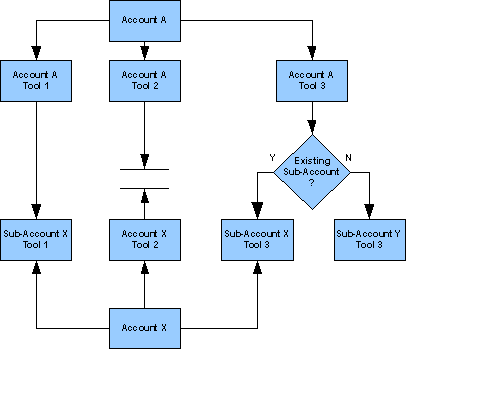 The diagram to the right presents the relationship between accounts and their sub-accounts. Account A has access to Tool 1, Tool 2, and Tool 3. Account A produces a Sub-Account X in their Tool 1. They can of course produce any number of other sub-accounts in Tool 1. Each such sub-account is produced from within the tool, posting data from the parent account to the sub-account as requested and paying its seperate monthly fee. Each such sub-account has its primary sysadmin and its billing contact, which may be the parent company's billing contact (if re-entered) or not. Once produced, a sysadmin at Sub-Account X may add access to Tool 2 directly from what appears to that sysadmin as his regular Account X. This step was done in the diagram without the action (or possibly even the knowledge) of Account A. Whereas this gives Account X access to Tool 2 in the usual way, Account A has no access to Account X's Tool 2. That means Account A cannot select Account X in its Task Meister tool account, if Tool 2 is Task Meister for example, and assign tasks to its users to be done in their Sub-Account X. This is because Account A did not set up Account X as its sub-account in its Task Meister tool; Account X set itself up as an independent account in Task Meister. After Account A opens Tool 3, it can set up sub-accounts in that tool, too. When it does so, Account A is given a choice as shown by the decision diamond in the diagram if it already has sub-accounts. If Account A decides to provide access to an existing sub-account, Sub-Account X in this case, then its Sub-Account X gains access to Tool 3, as well as its previous sub-account access to Tool 1. If Account A decides not to provide access to an existing sub-account, or decides to give it to a different sub-account instead of Sub-Account X, then Sub-Account X is not given access to that tool. Account A may decide to provide Sub-Account X access to Tool 3 on one occasion and later to give Sub-Account Y access to Tool 3 on another occasion. Account A thus gets access to both sub-accounts within Tool 3, but Sub-Account X gets no access to any tools of Sub-Account Y (nor does Sub-Account Y get access to Sub-Account X). We may add sub-sub-accounts in the future, and even deeper levels than that, but not at this time. The customer requests have not arrived, and the code logic would be complex. Note that we used to call accounts companies and their sub-accounts sub-companies. If encountered, those older terms refer to these same accounts and sub-accounts now.
|
Title:Signup Flowchart
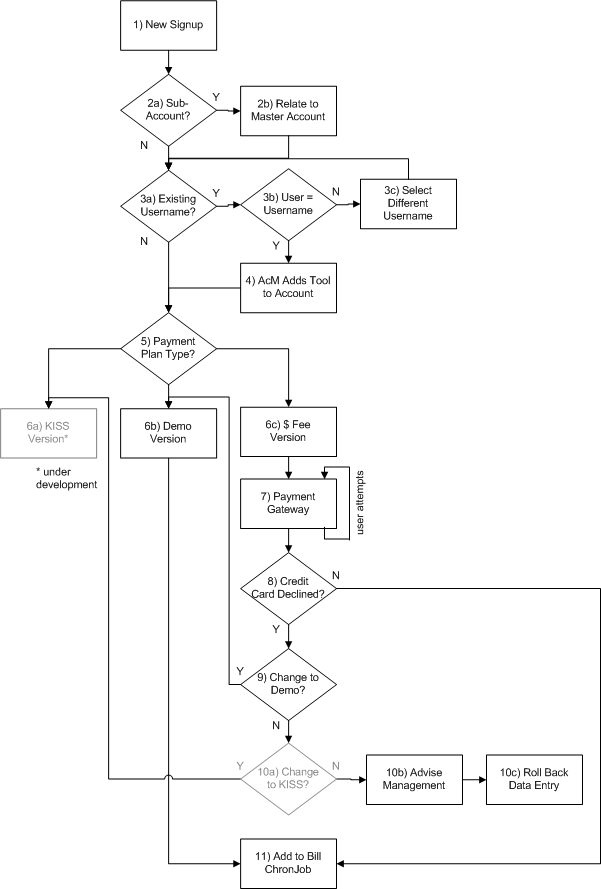 Per the flowchart to the right, the first level of user activity is the online signup form to enter a new account found on each Webteam tool's website. The second level of the flowchart determines if the new account is a sub-account. If so, this would have been explicitly declared by the user establishing a sub-account using features within the parent account. In that case, we establishe a permanent parent-child relationship. The parent account is also referred to as the master account. In the third level of the flowchart, we examine the username requested by the user. If the username already exists, step 3b allows the user to declare that the username is his, typically by entering the existing username's matching password. In that case, the user is adding another Webteam tool to the one(s) already accessed by the existing username. Step 4 allows the same username and password to access the new account being entered, as well as all the pre-existing accounts already connected to the username. If users cannot identify an existing username as theirs, step 3c loops them back to re-enter a different username until either they enter a unique username or can identify an existing one as theirs. In the fifth level, users press a radio button to indicate which payment plan type they select. This can be a demo version which gives them free use of the account for a time, typically one month. Or, it can be one of several fee-based versions matching a monthly fee to a maximum storage limit for all data and attached files stored on our server as part of the account. In the future, another option will be to select a KISS version which is permanently free, but has a limited feature set compared to either the demo or fee-based versions either of which has the same full feature set. For a fee-based version, level 7 takes the user to our secure ecommerce gateway where they enter their credit card information. The "user attempts" loop on the flowchart at right represents the user re-entering credit card information as often as necessary to overcome our gateway declined their charge. Level 8 is actually part of the "user attempts" loop since each time the user's credit card is declined, the user can either try again or decide to switch to the demo version which doesn't require a credit card as shown at level 9. Once the KISS version is implemented, users unable or unwilling to enter a valid credit card will be able to switch to that or the demo version. Once such a switch to the KISS version takes place, management will be automatically emailed of the switch (step 10b), and the any data will be rolled back to whatever the KISS version supports (step 10c). In the event that users finally enter a valid credit card, their account will be added to the ChronJob that checks their storage usage and bills their credit card their monthly fee. Demo versions are also added to the ChronJob, but in that case, to switch from a free version to a fee-based version after the demo period expires. Among its many jobs, the ChronJob will email demo users to go to our website to enter their credit card before the demo expires.
|
Title:ChronJob Flowchart
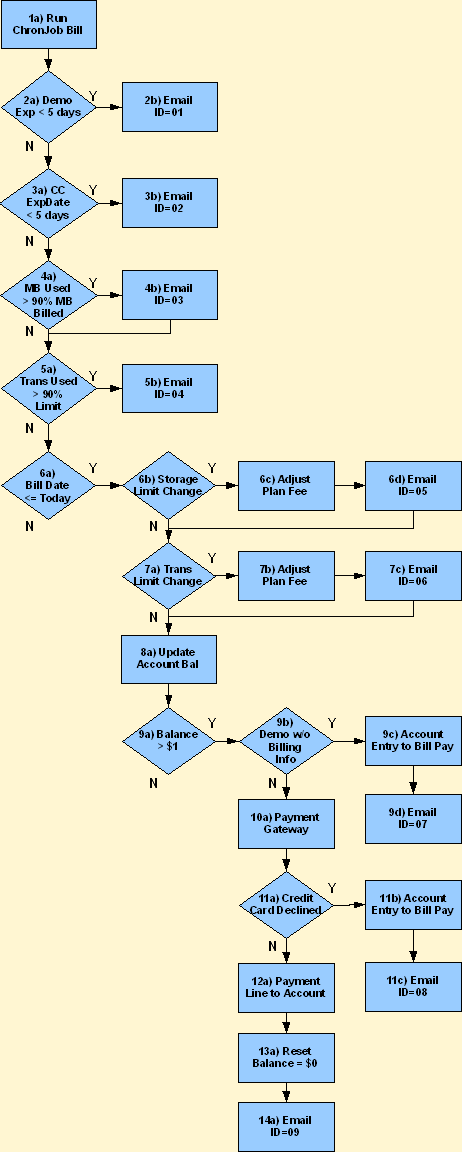 Once an account is established in a Webteam tool or application, a PHP procedure called ChronJob manages its regular, monthly billing. ChronJob also handles all the problems and exceptions encountered, such as expired credit cards and exceeding storage limits, including email notifications. ChronJob is scheduled to run every night at a time the server is least busy. ChronJob also may also call other housekeeping procedures unrelated to this flowchart. ChronJob is invoked as shown in the first level of the flowchart to the right. At the second level, we test for demo accounts within 5 days of the expiration of the account's free period. The billing contact (original sysadmin) of such accounts gets Email ID=01 as notification of the upcoming deactivation of their account, along with a URL where they can convert their account to a fee-based account. The content of Email ID=01 is editable and maintained among the emails listed under "Email" on Access Meister's main menu bar with the email Title "Demo Expiring in 5 Days". Likewise, level 3 of the flowchart shows how we check for credit cards within 5 days of expiring, sending those billing contacts Email ID=02 to advise them, with a URL where they can update their credit card info. Email ID=02 is managed the same as Email ID=1 above except its Title is "Credit Card About to Expire". Each fee-based account has a stated maximum amount of storage provided under their fee plan. Level 4 advises those billing contacts if they are approaching that storage limit, and their Email ID=03 includes a URL where they can authorize the additional monthly fee corresponding to a larger storage limit. Email ID=03 is managed the same as Email ID=01 above except its subject is "Storage Limit About to Be Reached". Address Meister is currently the only Webteam tool whose monthly fee is based on a maximum number of monthly transactions. Level 5 of the flowchart shows ChronJob advising those billing contacts with Email ID=4 about how they are within 90% of their current transaction/mo limit, with a URL where they can upgrade. Email ID=4 is managed the same as Email ID=01 above except its subject is "Transaction Limit About to Be Reached". Level 6 begins the process of billing an account because ChronJob found the date it is running to be the date its monthly fee is due. ChronJob also checks for accounts whose billing date has passed without a bill having been generated for that bill date. Step 6b recognizes a change to a fee plan that increases or decreases the account's storage limit. This may have been done in response to the email in Step 4b above, but it may have occurred at the customer's unrelated initiative. Once ChronJob makes the change, it notifies the billing contact via Email ID=05, which is managed the same as Email ID=01 above, but with the subject "Storage Limit Change Completed". Level 7 does the same for fee plan changes that affect the transaction/mo limit as with Address Meister, but its Email ID=06 has a subject, "Transaction Limit Change Completed". Level 8 increases the account's balance going forward. This will include any unpaid balance, including any charges or credits entered manually, plus new charges entered automatically, which will typically be the monthly subscription fee based on the plan selected by the user, and possibly adjusted in step 6c or 7b above. Level 9 begins by determining if the balance, as calculated in step 8a is greater than $1. It is not worth billing less than $1. Step 9b covers the case of a demo account reaching its maximum free period, what we sometimes refer to as the account's "skate", after which we attempt to bill the account based on the balance calculation of step 8a, which in turn depends on how much storage or transactions the account collected during its free demo period. If the demo account has no billing information entered (valid credit card), which the user could do only when signing up for a demo account, we have no way to collect the subscription fee. If a billable demo account has no billing info, step 9c causes the user's access to that account to be closed, but the account is not deleted. When such users go to their account, they are shown a message that their incomplete billing info has caused a closing of their account, but they are given a button to click to their billing info where they may complete their billing info and reinstate their account with all previous data again available if they successfully pay their complete balance at that point. The account's billing contact is advised of all this with Email ID=07, which is managed like Email #1 but with the subject, "Access Closed for Incomplete Billing Info". Assuming non-blank billing info exists, step 10a attempts to bill the balance as calculated in step 8a through our secure ecommerce gateway. If that returns an error that the user's credit card has been declined, step 11b closes access to the account, but as with step 9c, such users are still given access to their billing info so they can update their credit card. The account's billing contact is advised of all this with Email ID=08, which is managed like Email ID=01 but with the subject, "Access Closed for Declined Credit Card". If payment is made correctly, step 12a records the payment as a line item on the account's billing record, which reduces the account's balance to $0 as shown in step 13a. The billing contact is advised of a successful payment in step 14a with Email ID=09, which contains all invoicing info. This emailed invoice is also managed as Email ID=01 above but with the subject, "Monthly Payment Received". Note that when we refer to an account, we mean a particular Webteam tool or application of that account. An account may have more than one tool, only one of which is passing through the Chronjob to be billed. It's disposition after ChronJob processing will have no effect on another tool under the same account.
|
Title:Security Access Table
The tools and applications for which Access Meister (AcM) provides authentication have their group permissions or SecLevs, but Access Meister has its own according to the table below: | SecLev | Purpose | Rights | | User | Manage a user's own data | View and edit the user's own fields:
Password
Name
Email
Address
City
State
ZIP
Country
Phone Much of this will be through forms provided by the corresponding tool, forms that communicate data with AcM, but without the need or opportunity for the user to log into AcM directly. | | Sysadmin | Manage all users within a single account and its sub-accounts. | View and edit all the fields of the User Access form for all users of the account, including to delete users except the account's Primary Sysadmin. In AcM's Alias section, a Sysadmin may designate aliases only from among the users under his (sub)account, but any tool within his (sub)account. Note that this raises the possibility of a Sysadmin managing user access rights to tools to which the Sysadmin himself has no access. This is not a problem since the Sysadmin can edit his own User Access form anytime to add access to any account tools. | | Primary Sysadmin | Handle billing for an account's tool | Same as a regular Sysadmin except also has access to the Billing Record for a tool within the account. Each tool gets a Primary Sysadmin as its first user. Two tools available to users of one account may have two Primary Sysadmins, each responsible for the billing of each tool. A tool's Primary Sysadmin may not be deleted by anyone, not even a Sys Manager. A Sys Manager, however, may delete an account or the account's access to a particular tool, in which case the deleted tool no longer has a Primary Sysadmin. | | Sys Manager | Manage all users, all accounts, all AcM features | May view, edit, and delete any user and any account within AcM. Full access to all data and all commands within AcM. In AcM's Alias section, a Sys Manager may designate aliases from among any AcM user from any (sub)account.. The only way to become a Sys Manager is by manual programmer intervention. Once a user attains a SecLev of Sys Manager, that user can change his Access Meister SecLev picklist value to any other value, perhaps to see what a regular Sysadmin sees, and only that user may change his own Access Meister SecLev picklist value back to Sys Manager. |
|
| | 10. Additional Chapters
Title:Forgot Password Page
Title:Login Page
|
|
